
Your ticket for Brand Basics, Hannah
Send QR Code Tickets for Events and Workshops with Google Forms
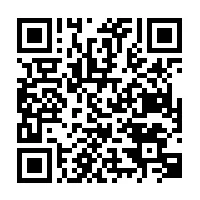
A Google Form is a quick way to take sign-ups for a workshop, a class or a meetup. Mail Merge reads the form’s response sheet and emails each guest a ticket with their own QR code. At the door, you scan the code with your phone and see the guest’s name and session.
Sending tickets automatically uses Run in the background, a premium feature. Without the feature, open the campaign and click Send Emails whenever new guests have signed up.
- A guest signs upHannah picks the January 17 session in the Google Form.
- Mail Merge sends the ticketWithin about an hour, Hannah gets an email with her own QR code.
- At the doorMaya scans the code and sees Hannah's name and session.
The Sign-Up Sheet
Section titled “The Sign-Up Sheet”Maya runs Brand Basics, a workshop at Willow Lane Studio. Her Google Form asks for a first name and a session, and collects the guest’s email address. Google Forms saves each sign-up as a row in the Form Responses 1 tab of a Google Sheet.
| Timestamp | Email Address | First Name | Session |
|---|---|---|---|
| 1/5/2027 9:14 | daniel.okafor@example.net | Daniel | Saturday, January 10 at 10 AM |
| 1/5/2027 11:40 | lucas.silva@example.com | Lucas | Saturday, January 10 at 10 AM |
| 1/6/2027 8:03 | hannah.weber@example.org | Hannah | Saturday, January 17 at 2 PM |
If your form has no sheet yet, connect the form to a Google Sheet first.
Send the Tickets
Section titled “Send the Tickets”-
In the response sheet, go to Extensions > Mail Merge with Attachments > Open Mail Merge and click Start mail merge. Name the campaign
Brand Basics tickets. -
Under Source Worksheet, choose Form Responses 1. Type
Willow Lane Studioin Sender name and choose Email Address under Send to. -
Write the email. Type the
Embed QR Codemarker on a line of its own, where you want the code to appear.Subject Your ticket for Brand Basics, {{First Name}}Message Body Hi {{First Name}},You're booked for Brand Basics on {{Session}}.Show this code at the door:{{Embed QR Code, "Brand Basics - {{First Name}} - {{Session}}", width=200}}See you there,MayaMail Merge fills in the merge fields inside the quotes for each row. Hannah’s code reads
Brand Basics - Hannah - Saturday, January 17 at 2 PM. Thewidth=200makes the code 200 pixels wide. -
Click Send Test Email. Open the test email and scan the code with your phone camera.
-
On the Save & Run step, click Send Emails.
Mail Merge emails a ticket to everyone who has signed up so far. It writes Email sent in each row’s Mail Merge Status cell.
Send a Ticket to Each New Sign-Up
Section titled “Send a Ticket to Each New Sign-Up”Mail Merge can check the sheet once an hour and email the guests who signed up since the last check. The background run sends only rows that have a date in a Scheduled Date column. Give every sign-up a scheduled date that is the same as its timestamp.
-
Click the first empty cell in row 1 of the response sheet. Paste this formula:
=ArrayFormula(IF(ROW(A:A)=1, "Scheduled Date", IF(ISBLANK(A:A), "", A:A)))The formula titles the column Scheduled Date and copies the timestamp from column A into every row that has a sign-up.
-
Select the whole Scheduled Date column, then go to Format > Number > Date time. Without this format, Mail Merge can’t read the column as dates.
-
Go to Extensions > Mail Merge with Attachments > Open Mail Merge and open the
Brand Basics ticketscampaign. -
On the Save & Run step, check Run in the background and click Send Emails.
You can close the sheet now. Every hour, Mail Merge emails the guests who signed up since the last run and writes Email sent in their rows.
Check Guests In at the Door
Section titled “Check Guests In at the Door”-
Point your phone camera at the guest’s QR code. The phone shows the text of the code, such as
Brand Basics - Hannah - Saturday, January 17 at 2 PM. -
Find the guest’s row in the response sheet and mark the guest as arrived. For example, add a Checked In column to the right of the last column and type
Yes.
Variations
Section titled “Variations”-
See every code in the sheet. Paste this formula in the next empty cell of row 1:
=ArrayFormula(IF(ROW(B:B)=1, "Ticket", IF(ISBLANK(B:B), "", QRCODE(B:B, 200))))The formula adds a Ticket column with a QR code made from each email address in column B. Type
{{Ticket}}in the email in place of the Embed marker. See how the QRCODE formula works. -
Record arrivals with one scan. Put a pre-filled Google Form link in the code. A scan then opens a check-in form with the guest’s address filled in. See the tip in What to Put in a QR Code.
-
Match your brand colors. Add a color to the marker, like
{{Embed QR Code, "Brand Basics - {{First Name}} - {{Session}}", width=200, textcolor=#1A3C6E}}. See Change the Size and Colors.
Things to Know
Section titled “Things to Know”- A guest who submits the form twice gets two tickets, because each response is its own row.
- Tickets count toward your daily email quota. If more guests sign up in a day than your quota allows, Mail Merge sends the rest after the quota resets.
- Anyone can read a QR code. Don’t put passwords or private details in the code.
- Some email apps, like Outlook, hide pictures until the reader clicks Download pictures. Gmail shows the code right away.
- The Embed marker works in the message only. It leaves no code in the subject or in a plain text email.
- Keep the Scheduled Date formula in row 1. Forms adds each response as a new row, and a formula typed in row 2 doesn’t carry over to the new rows.
- The background run stops for a campaign that hasn’t sent an email or been saved in 50 days. For a form that is quiet for months, open the campaign and click Send Emails once in a while.
- If new guests aren’t getting their tickets, see Troubleshooting for Google Forms.