
How to Attach Drive Files to Mail Merge with Smart Chips
Maya runs a small design studio. At the end of each month she has a PDF invoice for every client in a Drive folder, and a sheet with their names and email addresses. She wants Angus at Fernhill Bakery to get INV-1042 Fernhill Bakery.pdf, Daniel to get his own invoice, and nobody to get anyone else’s.
For a short list, use a file smart chip: a link to a Drive file that shows the file’s name right inside the cell. You can see which file goes to whom and hover over it to preview the contents.
Google Sheet
| First Name | File Attachments |
|---|---|
| Angus | INV-1042 Fernhill Bakery.pdf |
| Daniel | INV-1043 Okafor Architects.pdf |
| Sofia | INV-1044 Bright Path Tutoring.pdf |
Emails sent
- To: AnguspdfINV-1042 Fernhill Bakery.pdf
- To: DanielpdfINV-1043 Okafor Architects.pdf
- To: SofiapdfINV-1044 Bright Path Tutoring.pdf
Each person gets one email with their own invoice attached.
Add the Chips
Section titled “Add the Chips”-
Make sure your sheet has a column called File Attachments. Capital letters and spaces don’t matter, so
file attachmentsworks too, but the words do. -
Click the File Attachments cell for the first person and type
@followed by a few letters of the file name, like@INV-1042. -
Sheets shows matching files from your Drive. Pick the right one and press Enter. The cell now holds a chip with the file’s icon and name.
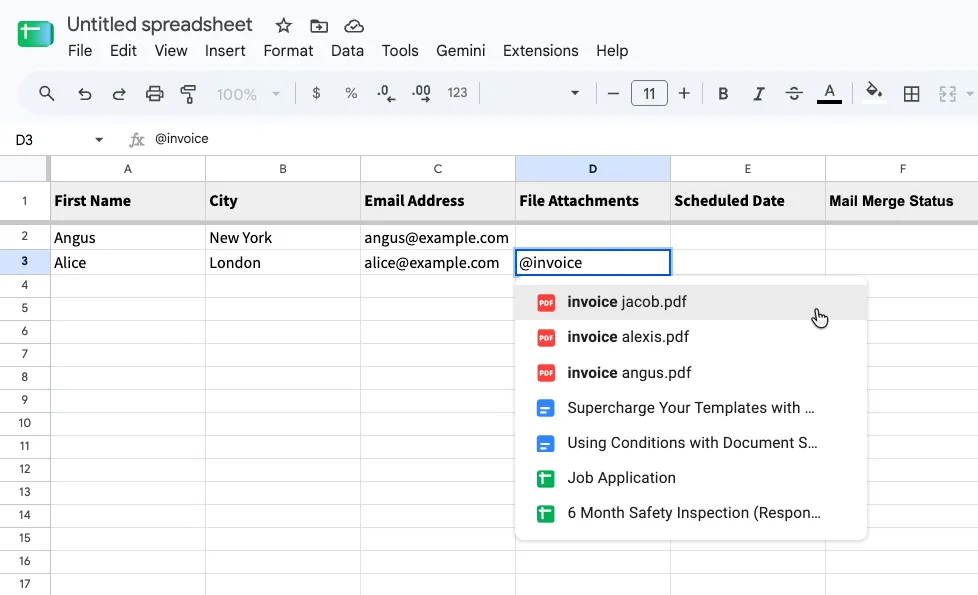
Type @ and a few letters of the file name. Sheets lists matching files from your Drive. -
Need more than one file in an email? Stay in the same cell, type a space and
@again, and pick the next file. Every chip in the cell is attached.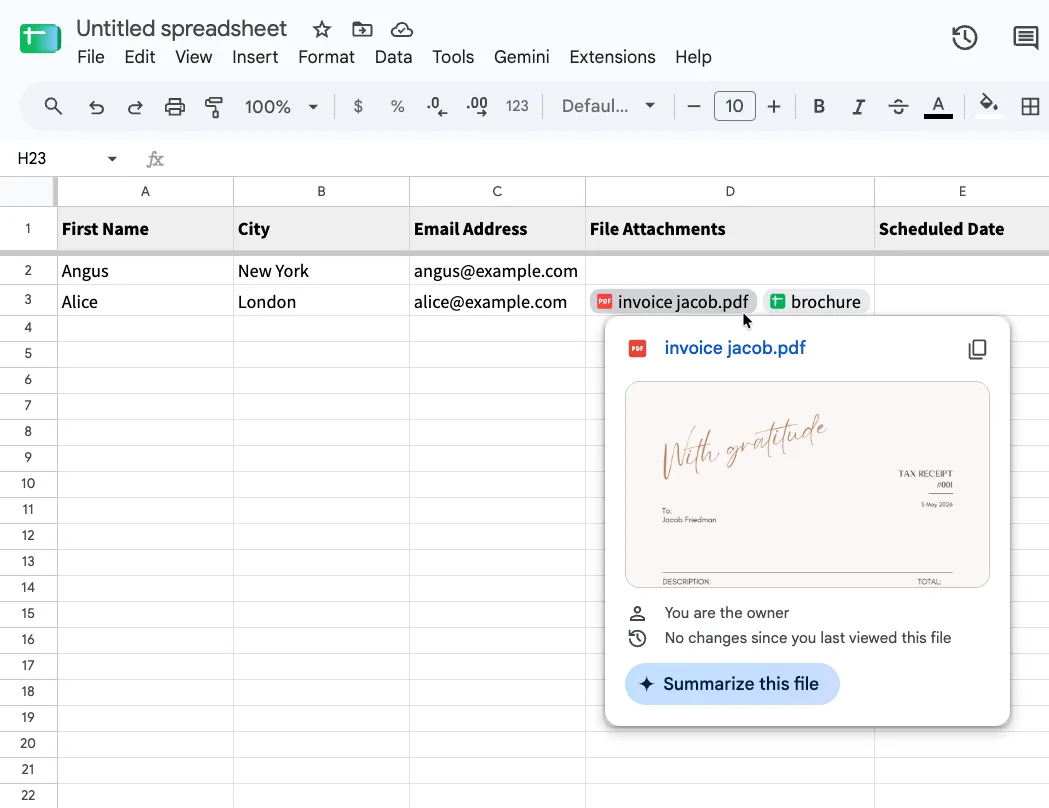
Two chips in one cell attach two files. Hover over a chip to preview the file. Hover over a chip to see a preview of the file and check it’s the right one. A chip for a Google Doc, Sheet or Slides deck, like the
brochuresheet here, is turned into a PDF before it’s attached: Alice getsbrochure.pdf. -
Repeat for each row. Leave the cell empty for anyone who shouldn’t get an attachment.
If the price list isn’t already attached to a Gmail draft, you can add it beside Daniel’s invoice as another file chip. Both PDFs are attached:
Google Sheet
| First Name | File Attachments |
|---|---|
| Daniel | INV-1043 Okafor Architects.pdfPrice List 2027.pdf |
Emails sent
- To: DanielpdfINV-1043 Okafor Architects.pdfpdfPrice List 2027.pdf
Check It with a Test Email
Section titled “Check It with a Test Email”Open Mail Merge, go to the Template step and click Send Test Email. Enter your own address in Email address. The form starts with the values from row 2 only, and each file chip appears as its file name. It doesn’t check the other rows.
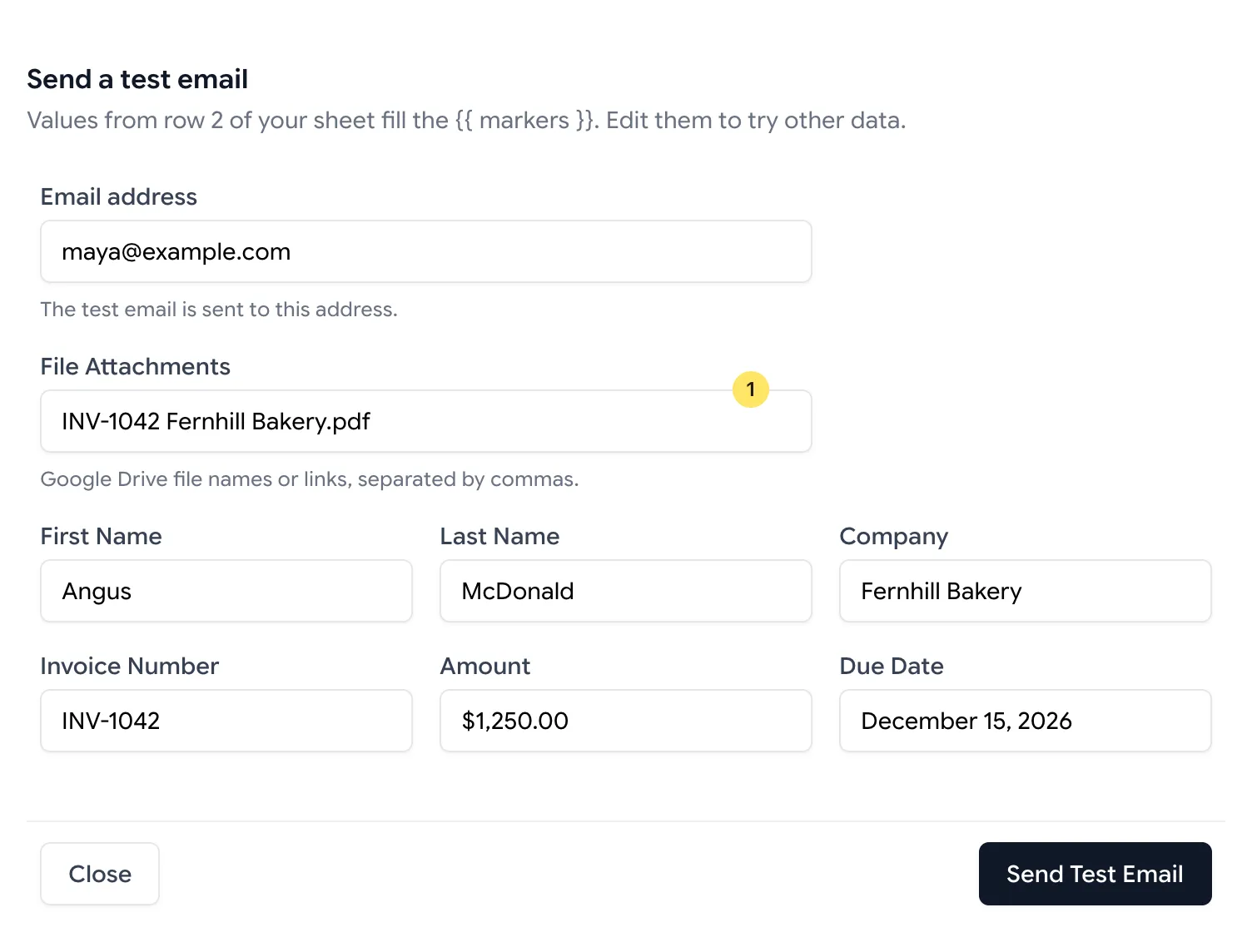
For the test, the add-on finds the file by the name in the form. If two files in your Drive have the same name, replace that name in the test form with the intended file’s Drive link. To get the link, right-click the file in Drive and choose Share > Copy link. Separate several links with commas.
Send the test and open the sent email. In this example it should show Angus’s company, Fernhill Bakery, and invoice number INV-1042. Once you’ve checked your rows, send the campaign.
What Gets Attached
Section titled “What Gets Attached”| Chip points to | What the recipient gets |
|---|---|
| PDFs, images, Word, Excel and other files | The file as it is. A .pdf stays a PDF, a .docx stays a Word file. |
| Google Docs, Sheets, Slides and Drawings | A PDF named after the file: Statement of Work.pdf. No Google account needed to open it. |
| A folder | Nothing. That person’s email isn’t sent, and everyone else’s goes out as usual. |
For a folder, the status cell says Invalid attachment - File is unavailable. Add a chip for each file in the folder, or use the file picker to select them all at once.
Use file chips only. Person and place chips don’t identify a Drive file to attach. A person chip can be ignored without an attachment error, so check that each chip opens the intended file.
Things to Know
Section titled “Things to Know”- The Google account running the merge must be able to open the files. Files you own, files shared with you and files in shared drives you belong to can be attached. Recipients get copies and don’t need access to the originals in Drive.
- If a file can’t be attached, that row is skipped. Check its Mail Merge Status and follow how to fix attachment errors.
- Plan for no more than 25 MB of attachments combined per email, including files on the Gmail draft. A single file over 25 MB is rejected by Mail Merge. For larger files, send a Drive link and give recipients access.
Other Ways to Attach Files
Section titled “Other Ways to Attach Files”For hundreds of files whose names match a column in your sheet, attach files by name or folder path. A formula can build the file name for every row at once.