Which Email Editor Should You Use for Mail Merge?
Mail Merge can send an email you write in the add-on, or one you write in a tool you already use, like Gmail or Google Docs. Merge fields like {{First Name}} work the same way in every editor, so pick the one that suits how you like to write.
Pick an Editor
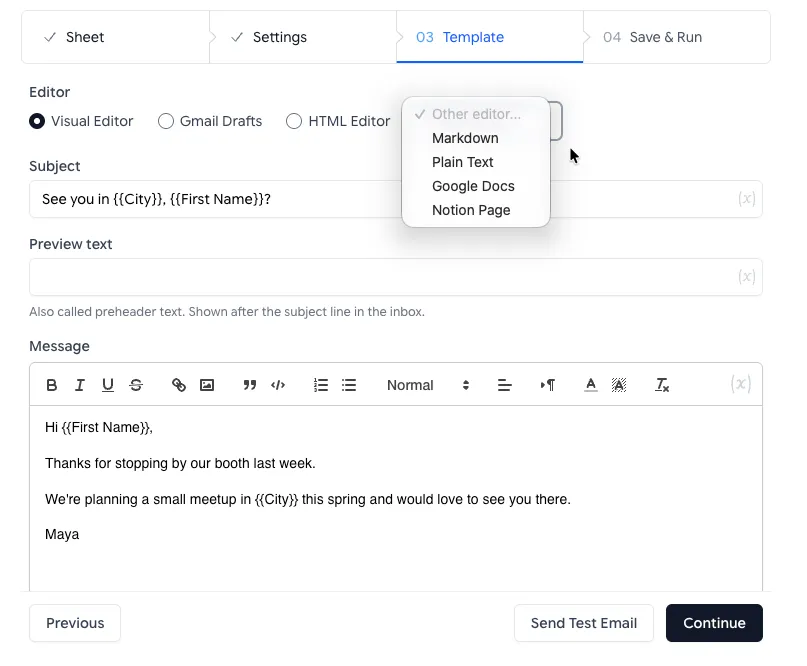
Section titled “Pick an Editor”Go to Extensions > Mail Merge with Attachments > Open Mail Merge and move to the Template step. Under Editor, choose Visual Editor, Gmail Drafts or HTML Editor. Markdown, Plain Text and Google Docs are in the Other editor… menu.
Compare the Editors
Section titled “Compare the Editors”| Editor | Why pick it |
|---|---|
| Visual Editor | Write and format the email right in the add-on, with headings, links and images you upload. Nothing else to set up. |
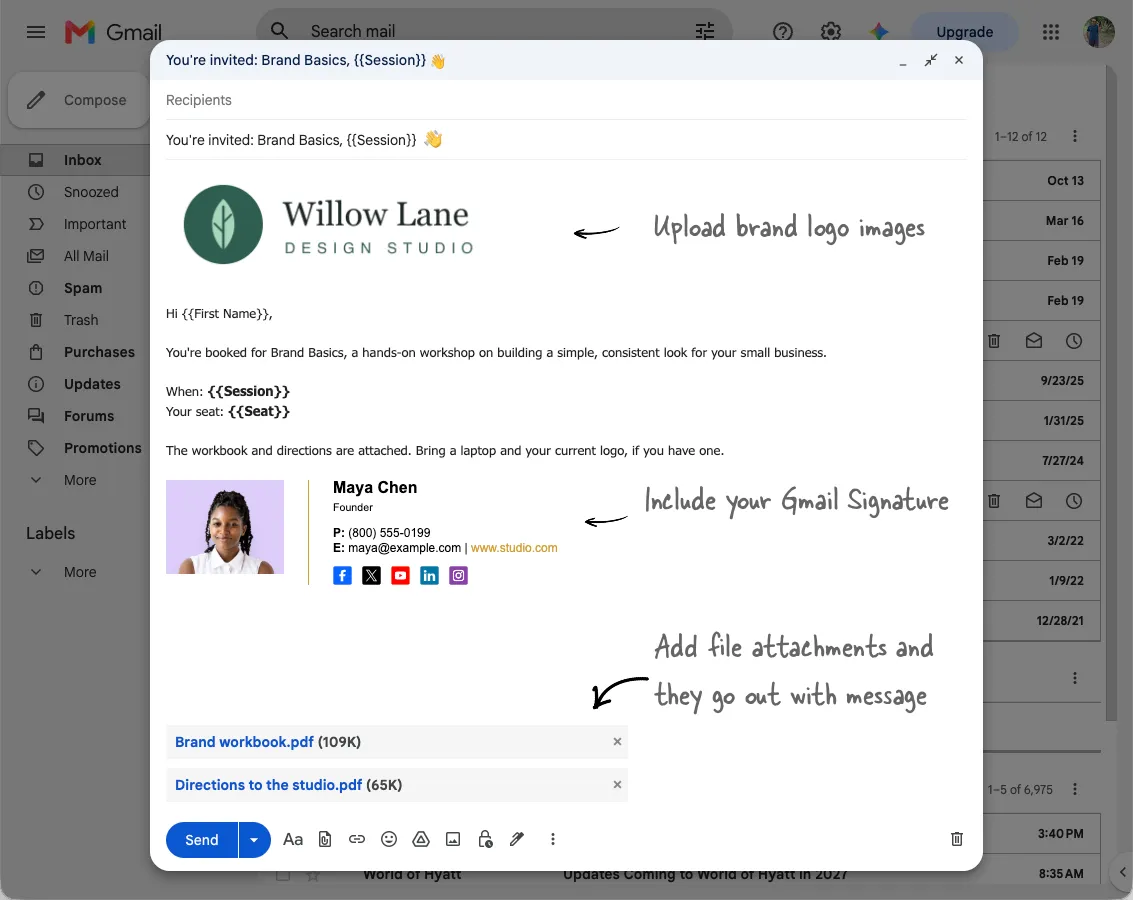
| Gmail Drafts | Write your email template in Gmail. Include your Gmail signature, upload brand logo and inline images. Attach files from Google Drive or upload from your computer and they go out with every email. |
| HTML Editor | Full control over the design. Paste a newsletter from Mailchimp or another builder, code your own in HTML and CSS, or have AI design it. |
| Markdown | Format by typing a few symbols, like **bold**, # headings and [link text](https://example.com), without clicking toolbar buttons. |
| Plain Text | The email reads like a personal note from you, not a newsletter. Just type the text, no formatting. |
| Google Docs | Write a document in Google Docs and it will be converted to an HTML email while preserving most of the formatting. The advantage is your team can preview and edit the document before you send. |
A Gmail draft is the only editor that keeps your Gmail signature, so pick it when every email should carry your logo and signature. Files attached to the draft go out with every email.