
What the Mail Merge Status column means
The Mail Merge Status column is how the add-on keeps track of your list. After every send it writes what happened to each row, and before every send it reads the column to decide which rows to skip. That’s why you can run the same campaign again later without anyone getting the same email twice.
If your sheet doesn’t have this column, the add-on adds it automatically at the end after the first send.
Here’s an example of the status column for a campaign that was sent on December 1st 2026:
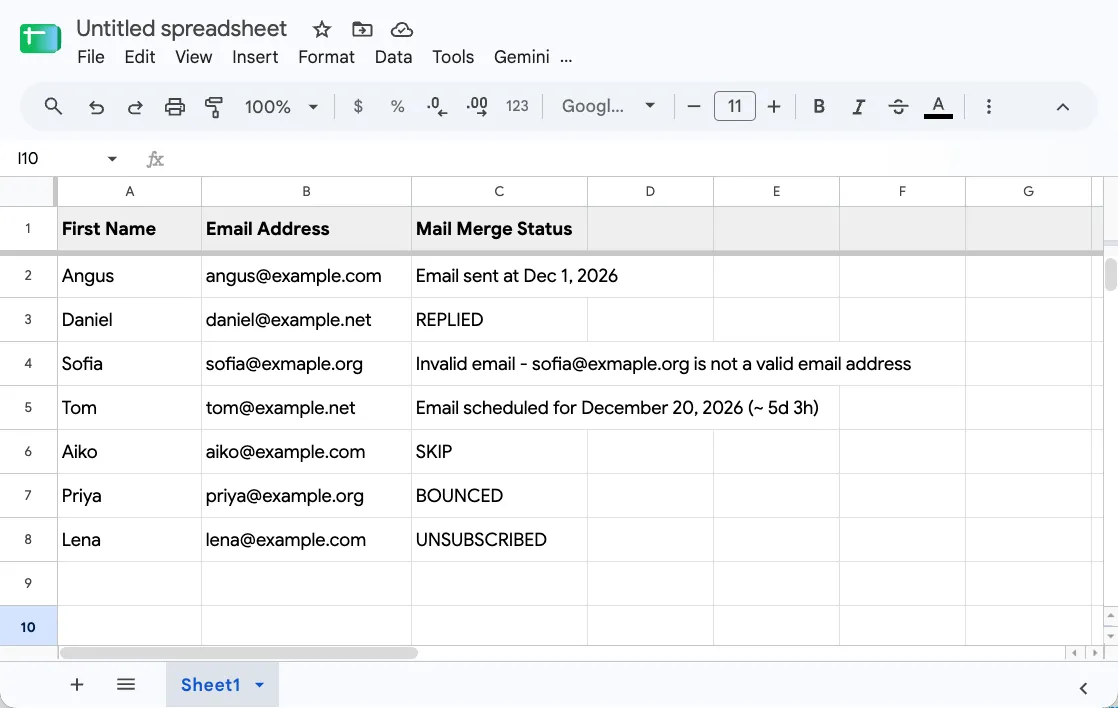
| First Name | Mail Merge Status |
|---|---|
| Angus | Email sent at Dec 1, 2026 |
| Daniel | REPLIED |
| Sofia | Invalid email - sofia@exmaple.org is not a valid email address |
| Tom | Email scheduled for December 20, 2026 (~ 5d 3h) |
| Aiko | SKIP |
| Priya | BOUNCED |
| Lena | UNSUBSCRIBED |
Angus and Daniel are done. Sofia’s address has a typo, so she was skipped until it’s fixed. Tom’s email was scheduled for December 20th 2026, 5 days and 3 hours from now and Aiko won’t get this one because the cell in the status column was typed SKIP. Priya’s email bounced and Lena unsubscribed, so neither gets this campaign or any later one.
After a send
Section titled “After a send”| Status | What happened | What to do |
|---|---|---|
| Email sent at Dec 1, 2026 | The email went out. The cell is a link: click it to open the email in Gmail. | Nothing. The row is skipped from now on. |
| Draft created | A drafts campaign made a Gmail draft for this row. Click to open it. | Review and send it from Gmail. |
| Email scheduled for December 20, 2026 (~ 5d 3h) | The row has a future date in Scheduled Date. | Turn on Run in the background so it goes out at that time. To change the time, edit the date. |
| Date is in the past - November 1, 2026 | The scheduled date is more than five days ago, so the add-on didn’t send it in case it’s out of date. | Change the date, or clear it to send right away. |
| Format the Scheduled Date as a valid date, e.g. … | The add-on couldn’t read the date. | Select the column, choose Format > Number > Date time, then retype the date. |
| Invalid email - … is not a valid email address | An address in To, CC or BCC isn’t a real email address. Often a typo like exmaple.org. |
Fix the address, then clear the status cell. |
| Invalid email - No valid email recipients were specified | The row’s email column is empty. | Add an address, or leave the row as it is. |
| Invalid attachment - … | A file in File Attachments is missing, isn’t shared with you, or is a folder. | Fix the file or its sharing, then clear the status cell. |
| Delivery unknown - Check Sent mail before clearing this status to retry. | Gmail didn’t confirm the send. The email may or may not have gone out. | Look for it in your Sent folder. Clear the status only if it isn’t there. |
| Email quota unavailable for sending email to … | You reached your daily Gmail sending limit, so the campaign stopped here. | Nothing. Run the campaign again after your quota resets. These rows are sent then. |
Rows with Invalid or Delivery unknown are skipped on every later run until you clear the status. That way one bad address doesn’t hold up the whole list, and a row that may already have gone out is never sent twice by accident.
After Sync Email Status
Section titled “After Sync Email Status”Go to Extensions > Mail Merge with Attachments > Campaign Reports > Sync Email Status to bring what happened after the send back into the sheet:
| Status | Meaning |
|---|---|
| OPENED | The recipient opened the email. Needs Track email opens. |
| CLICKED | The recipient clicked a link in the email. Needs Track clicks on links. |
| REPLIED | The recipient replied to the email. |
| BOUNCED | The email couldn’t be delivered. |
| UNSUBSCRIBED | The recipient clicked the unsubscribe link. They won’t get future campaigns. |
Sync looks at emails sent in the last 30 days, and a row it checked in the last two hours waits for the next sync.
Before you send a follow-up, sync first. Then filter the sheet to hide the REPLIED rows, and nobody who already answered gets nudged.
Which rows get skipped
Section titled “Which rows get skipped”When you run a campaign, a row is left out if:
- it’s hidden, or filtered out by a filter (Create a filter in the Data menu)
- its status says it’s done: anything containing sent, draft, open, click or replied
- its status says to leave it alone: anything containing skip, unsub or bounce
- its status starts with Invalid or Delivery unknown
- it has a Scheduled Date that hasn’t arrived yet
- it’s empty
The match is on the words, ignoring case. So a note you typed yourself, like “not sent yet”, also counts as done. Keep your own notes in a different column.
Resend, skip, and start over
Section titled “Resend, skip, and start over”- Resend to one person: click their status cell and press Delete. They’re included next time you click Send Emails.
- Leave someone out: type
SKIPin their status cell. - Send the whole list again: select the status column below the header and press Delete.
Things to know
Section titled “Things to know”- Each status cell also has a note with the IDs the add-on needs to find the email later. Hover over the cell to see it. If you delete the note, Sync Email Status can’t update that row.
- Copying a status cell to another row copies its note too, and the add-on will treat the new row as sent. Clear the cell instead of pasting over it.
- The add-on writes statuses in the language shown here, whatever language your spreadsheet uses.