
How to Design HTML Emails with AI for Mail Merge
ChatGPT, Claude, Gemini, Grok or any other AI chatbot can design an HTML email for you in about a minute. The trick is a detailed prompt: tell the AI what the email says and how email code must be written, then paste its HTML into Mail Merge’s HTML editor.
You can give your brand color palette to the AI and it will use it in the email design. The generated email will work in Gmail, Outlook and Apple Mail on phones, tablets and desktops.
Write the Prompt
Section titled “Write the Prompt”Say you’re running a Black Friday sale and each customer has their own coupon code. Your sheet has First Name, Email Address and Coupon Code columns.
Copy the prompt below and change the ABOUT THE EMAIL and LAYOUT parts to your own content. Keep the MERGE FIELDS and EMAIL-SAFE RULES parts as they are, because they make the HTML work in Gmail, Outlook and on phones.
Create an HTML email for a mail merge campaign. Reply with only the complete HTML file, from <!DOCTYPE html> to </html>.
ABOUT THE EMAIL- Brand: Willow Lane Studio, a small design studio- Goal: announce our Black Friday sale, Nov 27 to Nov 30- Offer: 30% off all brand kits and templates- Button: "SHOP THE SALE", linking to https://example.com/black-friday- Fine print: "Code valid Nov 27, 12:00 AM to Nov 30, 11:59 PM ET. Excludes gift cards."- Footer: "You're getting this email because you bought from Willow Lane Studio." and our address, 14 Willow Lane, Springfield- Colors: page #EDE9E3, dark sections and button #1C1A19, panels #F8F6F2, accent #E8442E, light text #F4F1EC, muted text #5E5853, muted text on dark #CFC8C0- Fonts: Georgia for headlines, Arial for body text, Courier New for the coupon code
LAYOUT1. Header: "WILLOW LANE STUDIO" in bold, letter-spaced Georgia.2. Dark hero: a small red letter-spaced label "NOV 27 – NOV 30", the headline "Black<br>Friday" in 68px Georgia, then "Hi {{First Name}}, our biggest sale of the year starts now. Use your code at checkout."3. Coupon box with a 2px dashed dark border: "30% off" in 56px red Georgia, "brand kits and templates", a small "YOUR CODE" label, then {{Coupon Code}} in 30px bold, letter-spaced Courier New.4. The button, centered, with the fine print below it.5. Footer with the reason and the address, centered in small muted text.
MERGE FIELDS- Keep {{First Name}} and {{Coupon Code}} exactly as written, with the double curly braces. My mail merge tool replaces them with values from my Google Sheet.- Don't add other placeholders like [Name], *|FNAME|* or %FIRSTNAME%.
EMAIL-SAFE RULES- Lay out the email with nested <table role="presentation" cellpadding="0" cellspacing="0" border="0"> only. No flexbox, grid, floats or positioning.- One centered wrapper table, 600px wide, single column.- Put every style inline on the tags. The only <style> block allowed is a mobile media query: below 620px, make the wrapper full width, use 24px side padding and a smaller headline.- No JavaScript, forms, external CSS or web fonts. No images unless I give you their https:// address.- Make the button bulletproof: a <td> with bgcolor, and an <a> inside it with display:block and the padding.- For Outlook, use explicit widths, mso-line-height-rule:exactly, and a 600px <!--[if mso]> wrapper table.- Add <meta name="color-scheme" content="light dark">. Don't use pure #000000 or #FFFFFF.- Don't add a preheader, an unsubscribe link or a "View in browser" link. My mail merge tool adds the preview text and the unsubscribe link itself.- No HTML comments other than the Outlook ones. Keep the file under 50 KB.Preview and Change the Email
Section titled “Preview and Change the Email”-
Paste the prompt into ChatGPT, Claude or Gemini.
-
Look at the result. Claude and ChatGPT can often show the HTML as a page next to the chat. If yours doesn’t, copy the HTML into a text file, save it as
email.htmland open it in your browser.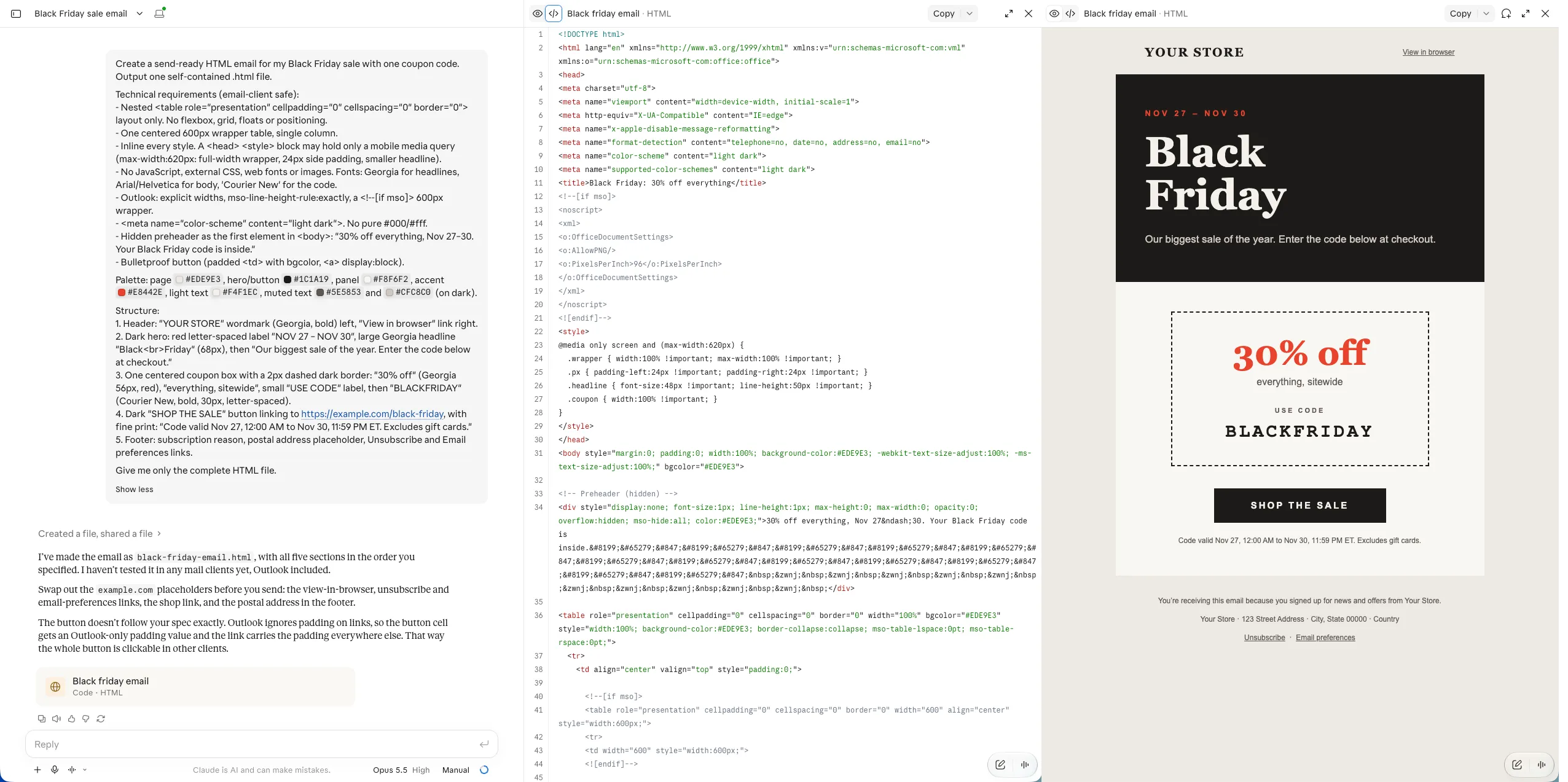
Claude shows the HTML code and a live preview of the email next to the chat. -
Ask for changes in plain words, in the same chat. For instance:
You want Ask A different button color Make the button #2F5D50 and keep everything else the same. Your logo at the top Replace the wordmark with my logo from https://example.com/logo.png, 160px wide.A second product Add a section below the coupon with a heading, two sentences and a “See templates” link. A shorter email Remove the fine print and make the hero half as tall. A check before you send Check this HTML against the email-safe rules and fix anything that breaks them.
Send It with Mail Merge
Section titled “Send It with Mail Merge”-
Copy the whole HTML, from
<!DOCTYPE html>to</html>. -
Go to Extensions > Mail Merge with Attachments > Open Mail Merge, move to the Template step and choose HTML Editor.
-
Type a Subject, like
{{First Name}}, your Black Friday code is inside, and the Preview text, like30% off brand kits and templates, Nov 27–30. -
Paste the HTML into the Message box.
-
Click Send Test Email and open the test on your computer and your phone, in light and dark mode.
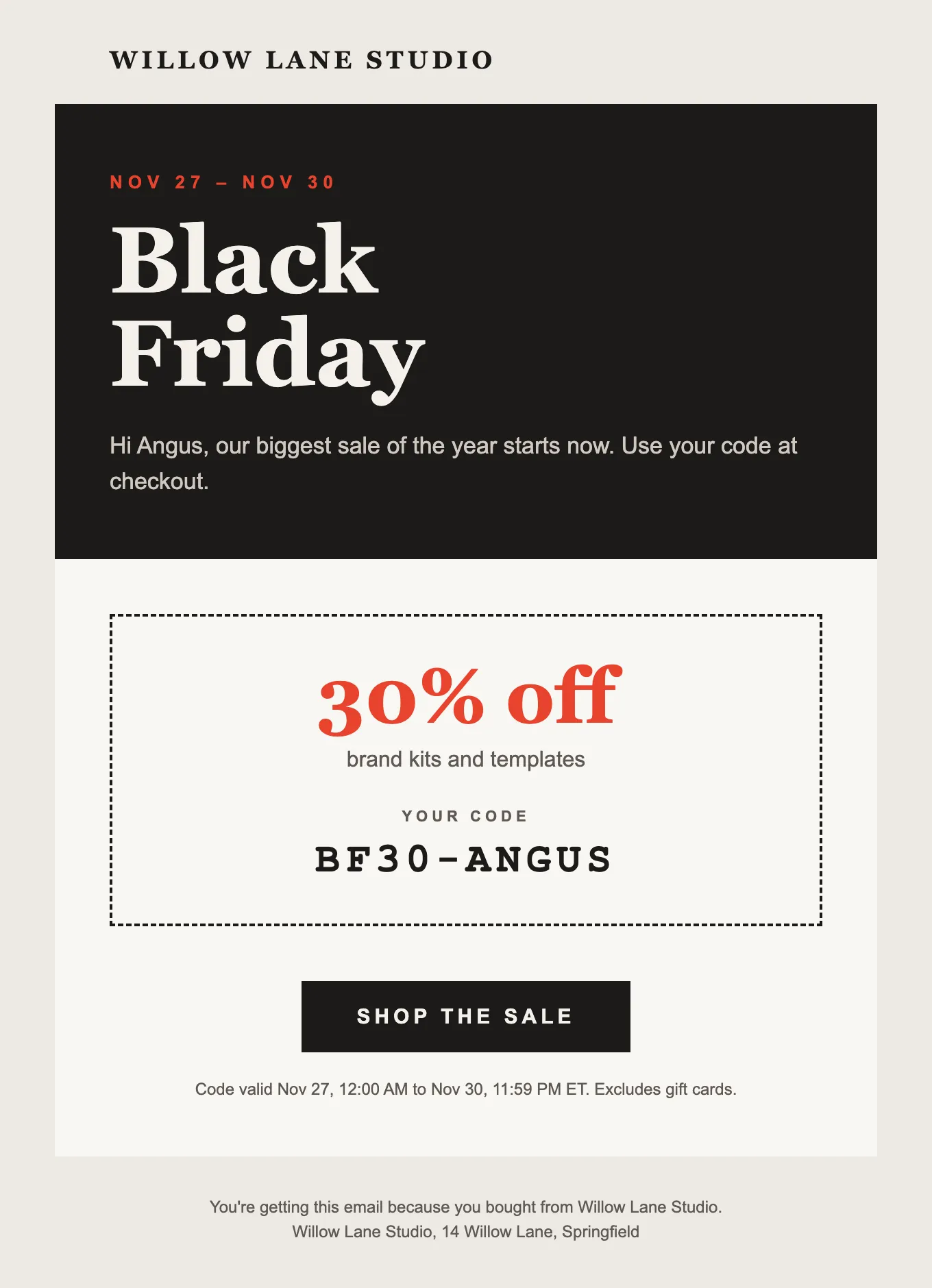
The email Angus gets, with his first name and coupon code filled in.
Things to Know
Section titled “Things to Know”- AI gets things wrong. Check every date, price, link and the address in the test email before you send.
- Don’t paste your contact list into the AI chat. The AI only needs your column titles, like
{{First Name}}. - AI sometimes rewrites merge fields as
[First Name]or drops a brace. Search the HTML for{{and check that each field matches a column title. - If the AI adds a long
<style>block anyway, run the HTML through Juice, as the HTML guide shows, so Gmail doesn’t drop the styles. - Email apps don’t all show HTML the same way. Outlook on Windows is the strictest, so send a test to an Outlook address if many of your contacts use it.
- To let people opt out of sale emails, turn on the unsubscribe link. Mail Merge adds it below your design.