
How to import and export mail merge campaigns
Mail Merge saves each campaign with the spreadsheet you created it in. Open a different sheet, and the campaign list is empty. To use a campaign somewhere else, export it to a file, then import that file in the other sheet.
Maya keeps a separate spreadsheet for each client project. After creating a welcome email for one project, she exports the campaign and imports it into the spreadsheet for the next project. Her colleague Tom can also import the same file into his own spreadsheet and send the campaign from his account without having to recreate it.
Export a campaign
Section titled “Export a campaign”-
In the spreadsheet that has the campaign, go to Extensions > Mail Merge with Attachments > Open Mail Merge.
-
Click the ⋮ menu next to the campaign and choose Export.
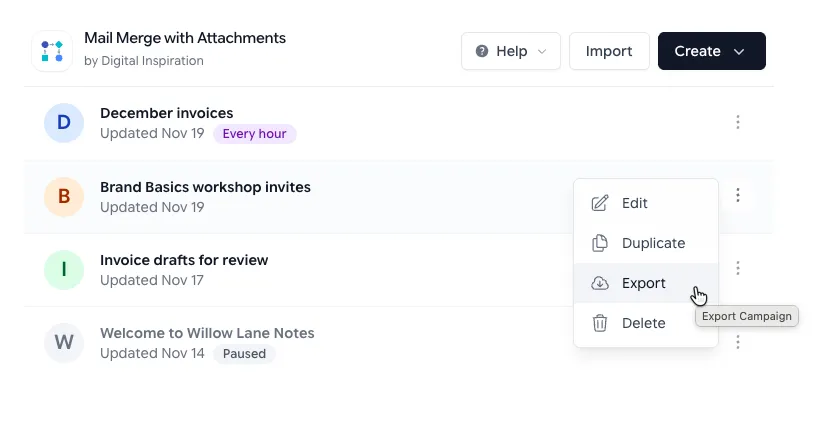
Export downloads the campaign as a text file. -
Your browser downloads a text file named like
campaign.1a2b3c.txt.
The file has the campaign’s settings and template: sender, recipients columns, CC, BCC, reply-to, subject, message, and the tracking and unsubscribe settings. It doesn’t contain your sheet’s data or anyone’s email status.
Import a campaign
Section titled “Import a campaign”-
Open the spreadsheet you want to send from, and go to Extensions > Mail Merge with Attachments > Open Mail Merge.
-
Click Import at the top of the campaign list, and choose the
.txtfile you exported.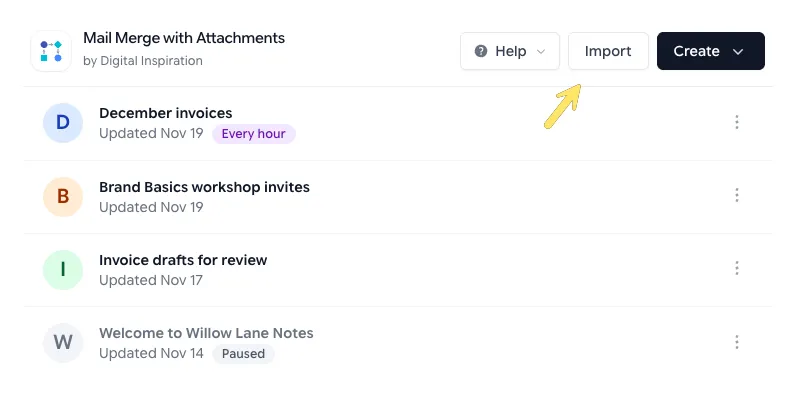
Import is at the top of the campaign list, next to Create. -
The campaign opens with (copy) added to its name. Go through each step and check:
- Source Worksheet is a tab in this spreadsheet.
- The columns in Send to and the merge fields in the template match this sheet’s column titles.
- Sender email is your address or one of your Gmail aliases, if someone else exported the file.
-
On Save & Run, click Send Emails, or click Save Campaign to send later.
The imported campaign is saved only when you click Send Emails or Save Campaign. Close the window before that, and nothing is added.
Anyone can export a campaign. Importing needs the Pro plan.
Things to know
Section titled “Things to know”- An imported campaign is a new campaign with its own open and click reports. The reports from the original stay with the original.
- If the template is a Gmail draft, the file only records which draft to use, not the draft itself. When you import it into a different Gmail account, pick one of that account’s drafts on the Template step. A Google Docs template works the same way: the person importing needs access to the doc.
- Import accepts only the
.txtfile that Export creates. If you edit the file, keep it as plain text.