How to Upload JSON Files in Google Sheets
JSON files are a popular format for storing and exchanging data. They are easy to read and write, and can be used to store complex data structures. Here’s an example of a JSON file:
[ { "name": "Michael Anderson", "email": "manderson@example.com", "phone": "+1-555-101-2020", "address": "123 Oak St, Chicago, IL, USA" }, { "name": "Sarah Thompson", "email": "sthompson@example.com", "phone": "+1-555-202-3030", "address": "456 Maple Ave, Dallas, TX, USA" }, { "name": "Emily Johnson", "email": "ejohnson@example.com", "phone": "+1-555-404-5050", "address": "321 Birch Ln, Boston, MA, USA" }]Import JSON in Google Sheet
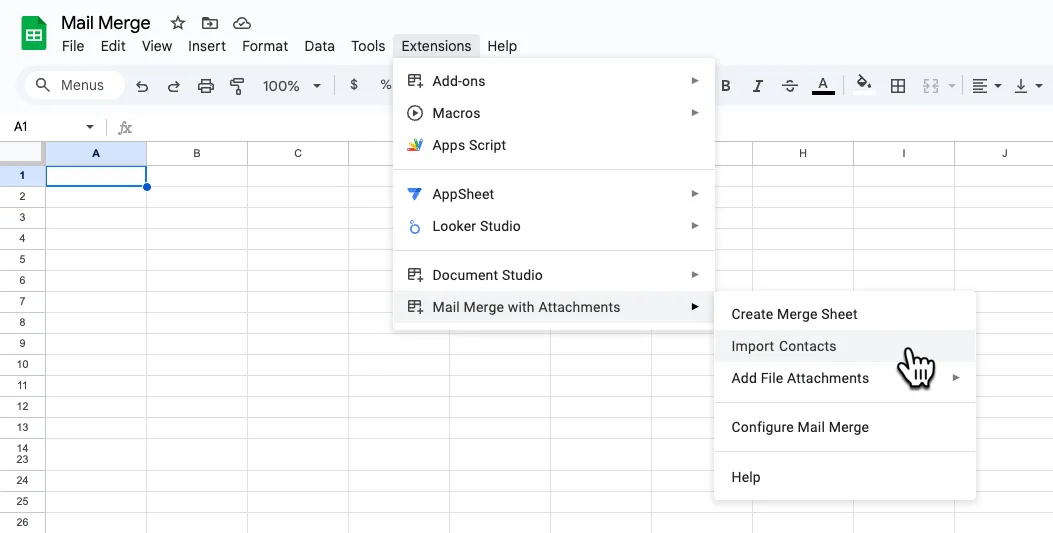
Section titled “Import JSON in Google Sheet”Open Google sheet and choose Import Contacts from the Extensions -> Mail Merge with Attachments menu as shown in the screenshot.
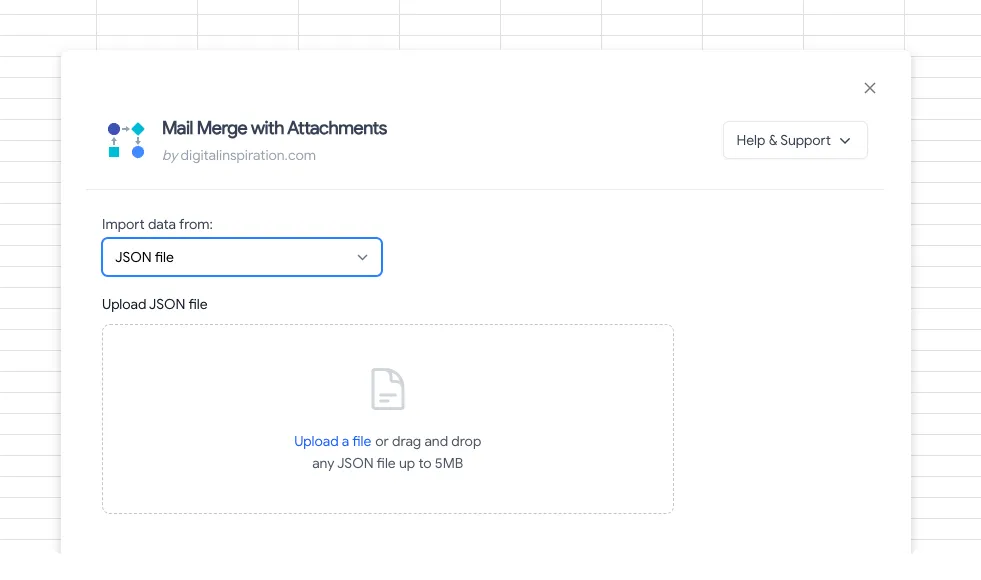
Choose JSON file from the list of services. Now click the Upload button to upload a valid JSON file to Google Sheets.
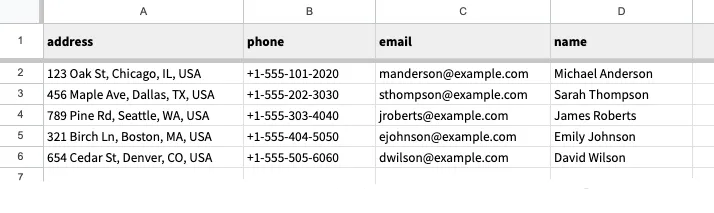
Here’s how the above JSON file will look in Google Sheets. The keys of the object are the column headers and the values of the object are the column values.