
How to Send Plain Text Emails with Mail Merge
The Plain Text editor sends your email as text only, with no fonts, colors, images or hidden GIF images that track email opens and clicks. It reads like an email you typed to one person, which is often what you want for follow-ups, reminders and outreach.
When to Use Plain Text
Section titled “When to Use Plain Text”Pick plain text when the email should feel personal rather than designed:
- Follow-ups and check-ins. A short note to a client reads more naturally without a logo and colors.
- Cold outreach. A first email to someone who doesn’t know you looks less like marketing when it’s plain.
- Reminders and updates. Meeting times, deadlines and short announcements don’t need a design.
- Readers who prefer text. Some people set their email app to show text only, and plain text looks the same everywhere, from a phone to a smartwatch.
Plain text emails also carry no tracking code, so nothing reports back when someone opens them. For a newsletter or a sale with images and buttons, use the visual editor or the HTML editor instead.
Write a Plain Text Email
Section titled “Write a Plain Text Email”Say you finished websites for a few clients last month and want to check in with each of them. Your sheet has First Name, Company and Email Address columns.
-
Go to Extensions > Mail Merge with Attachments > Open Mail Merge and move to the Template step.
-
Under Editor, open the Other editor… menu and choose Plain Text.
-
Type the Subject, like
Quick check-in on the {{Company}} website. -
Type the message in the Message box. Click the (x) icon to pick a merge field, or type it in curly braces.
Hi {{First Name}},It's been a month since we launched the new {{Company}} website.How is it working for you so far?If anything needs a tweak, just reply to this email. Happy to help.MayaWillow Lane Studiohttps://example.com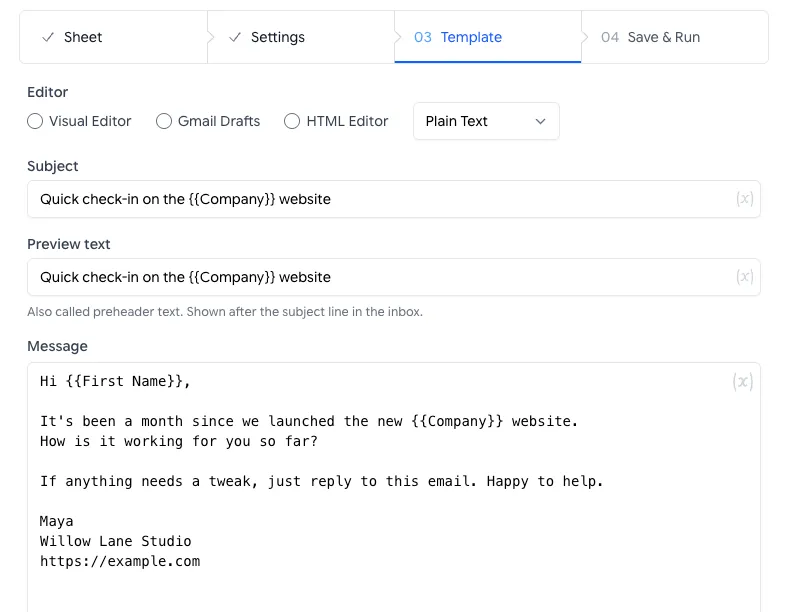
Choose Plain Text under Other editor and type the message as you want it to arrive. -
Click Send Test Email and check the email in your inbox.
What Plain Text Can’t Do
Section titled “What Plain Text Can’t Do”Merge fields, file attachments, CC, BCC and the reply-to address all work the same as in the other editors.
However, plain text keeps the email simple, and that rules out a few Mail Merge features:
| Feature | With plain text |
|---|---|
| Bold, colors, headings, images | Not available. Anything you type, like **bold** or <b>, shows up as those exact characters |
| Links with their own text | Not available. Type the full address, like https://example.com. Most email apps make it clickable |
| Preview text | Ignored. The inbox shows the first line of your message instead, so make it a good one |
| Open tracking and click tracking | Off. Mail Merge can’t add tracking to an email without HTML |
| Unsubscribe link | Not added, even when it’s turned on in the campaign settings |
| Gmail signature | Not added. Type your name and details at the end of the message |
Things to Know
Section titled “Things to Know”- Line breaks are sent exactly as you type them. Press Enter between paragraphs, not in the middle of a sentence, so the text wraps nicely on phones.
- Without an unsubscribe link, plain text isn’t a good fit for newsletters and sales emails. If you send those as plain text anyway, add a line like “Reply STOP and I won’t email you again”, and remove those people from your sheet.
- A merge field that doesn’t match a column title is replaced with a blank, without a warning. A test email catches it.