
How to Use a Google Doc as an Email Template in Mail Merge
The Google Docs editor sends a Google Doc as your email. You write and format the message in Docs, and Mail Merge turns the document into an email when the campaign runs.
Why Use Google Docs
Section titled “Why Use Google Docs”- Your team can review it. Share the Doc so others can comment, suggest changes and fix typos before anything goes out.
- You already know the editor. Headings, bold, lists, links, tables and images all work the way they do in any other Doc.
- Fixes don’t need the add-on. Mail Merge reads the Doc each time the campaign runs, so a correction you make in the Doc goes into every email sent after it.
Write the Google Doc
Section titled “Write the Google Doc”Say you want to send a year-end thank you letter to your clients and show them what the studio made. Your sheet has First Name and Company columns, and your business partner wants to read the merge letter before it goes out. That’s a good fit for a Google Doc.
Write the letter in a new Google Doc and format it like any other document:
- Your logo at the top. Go to Insert > Image and upload your logo.
- A heading with a merge field. Type
Thanks for a great year, {{First Name}}and set it as Heading 1. - A personal opening. For instance,
Working on the {{Company}} brand was one of our highlights this year.Bold the merge field to make the company name stand out. - Your best projects, with links. Add a Heading 2 called
What we made in 2026, then a bulleted list of projects. Select each project name and press Ctrl+K (Cmd+K on a Mac) to link it to its case study. - An offer that stands out. Go to Insert > Table and add a small table with the offer, like
10% off any project booked before January 31, and abook a calllink to your calendar. - Your sign-off. End with your name and studio. An image of your handwritten signature adds a personal touch.
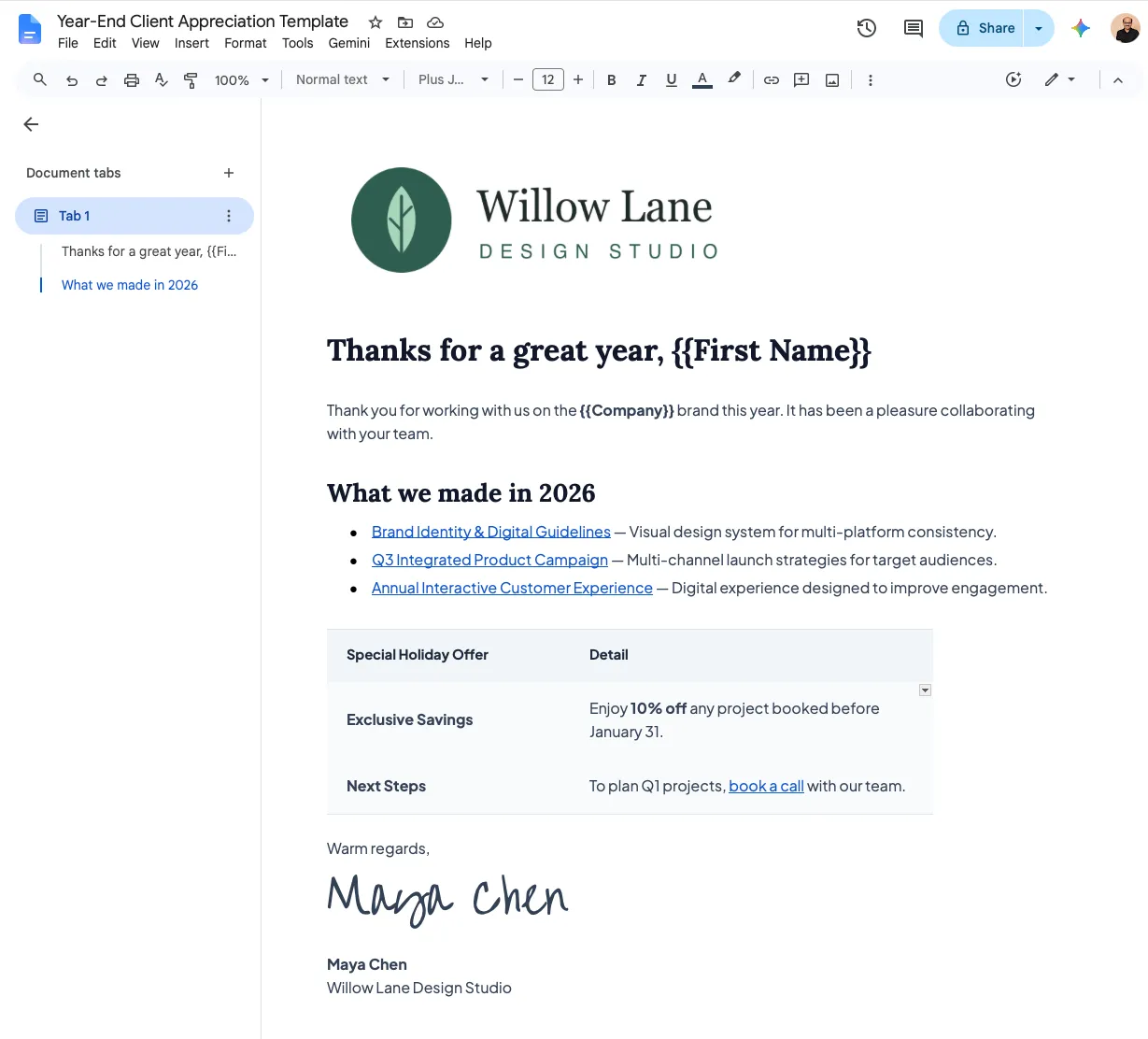
Share the Doc with your partner so they can comment or suggest changes. When the letter is final, resolve the comments and move on to Mail Merge.
Choose the Doc in Mail Merge
Section titled “Choose the Doc in Mail Merge”-
Go to Extensions > Mail Merge with Attachments > Open Mail Merge and move to the Template step.
-
Under Editor, open the Other editor… menu and choose Google Docs.
-
Type the Subject, and optionally the Preview text. Mail Merge doesn’t use the Doc’s title as the subject.
-
Click Choose next to Google Doc and pick your document from Google Drive.
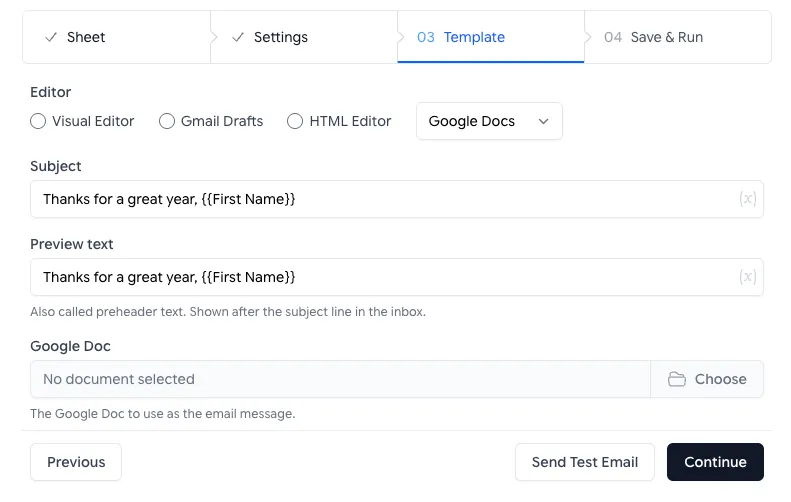
Choose Google Docs under Other editor, then click Choose to pick the Doc. -
Click Send Test Email and compare the email with the Doc.
The picker only lists Google Docs. To use a Word file, open it in Google Docs and go to File > Save as Google Docs first.
Things to Know
Section titled “Things to Know”- If you delete the Doc or stop sharing it with your Mail Merge account, the campaign stops with an error.
- If you edit the Doc while a campaign is still sending, people on later runs get the new version. Finish your edits before you click Send Emails.
- Resolve or delete comments before you send, so they don’t show up in the email.
- Fonts other than common ones like Arial, Georgia and Times New Roman may show as the reader’s default font.
- Check the test email for extra white space around the text. It comes from the Doc’s page margins, and smaller margins in File > Page setup reduce it.
- Gmail cuts off emails larger than 102 KB and hides the rest behind a “View entire message” link. A long Doc with many images can go over that.