
How to Send the Same File to Everyone in a Mail Merge
Say you’re sending invitations to a workshop, and everyone should get the same two files: a PDF with directions and a workbook for participants. You attach the files once, and Mail Merge adds them to every email in the campaign.
How you attach these files depends on where you write your email. If you use a Gmail draft as your template, attach the files to the draft. If you use any other editor, like the visual editor, add the files to your sheet in the File Attachments column.
Attach the Files to a Gmail Draft
Section titled “Attach the Files to a Gmail Draft”-
In Gmail, open the draft you use for your mail merge. You’ll find it in the Drafts folder.
-
Click the paperclip icon at the bottom of the draft and choose the files on your computer. You can also drag the files from your computer into the draft.
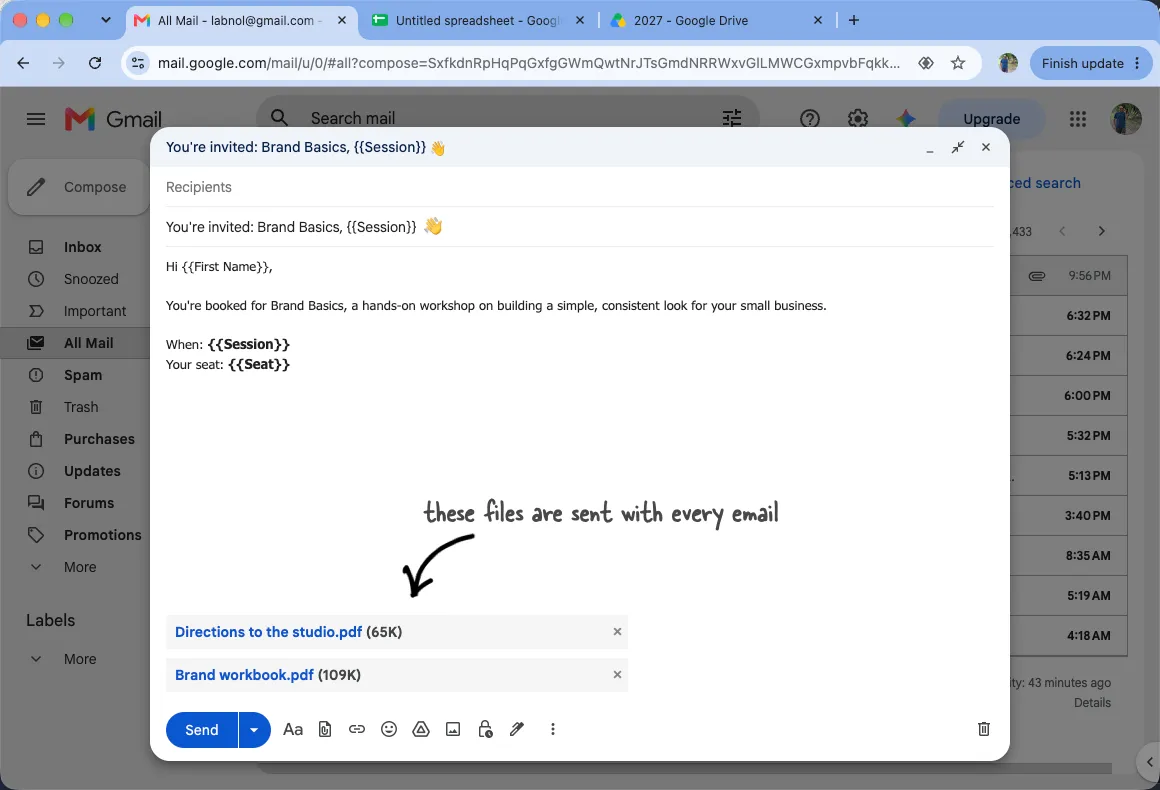
Files attached to the Gmail draft are sent with every email. -
Go to Extensions > Mail Merge with Attachments > Open Mail Merge and move to the Template step. Under Editor, choose Gmail Drafts and pick this draft.
Everyone on your list gets the files on the draft. If a person has additional files mentioned in their row of the File Attachments column, those are attached to their email as well.
Add the Common Files to Your Sheet
Section titled “Add the Common Files to Your Sheet”The other editors don’t have a place to attach common files, so you put them in the File Attachments column of your sheet. Because everyone should get the same files, you put the same link in every row.
-
In Google Drive, right-click the file, choose Share and then Copy link. You don’t need to change who the file is shared with.
-
In your sheet, paste the link in the File Attachments cell of row 2, which is the first person on your list. For a second common file, type a comma after the first link and paste the second link in the same cell.
-
Click that cell. A small blue dot appears at its bottom-right corner. Drag the dot down to the last person on your list, and the link is copied into every row.
Once you have added common files, edit each row separately to preserve its attachments.
Send Each Person Their Own File Too
Section titled “Send Each Person Their Own File Too”Say your workshop has a fee, and each person should also get their own invoice. How you combine the files depends on what’s already in the sheet:
| Your setup | Add the common and individual files |
|---|---|
| Gmail draft template | Keep common files on the draft. Add each person’s invoice to their File Attachments cell using a chip, link or file name. |
| Visual editor, with typed links or names in the sheet | Edit each recipient’s cell. Add a comma after the existing attachments and paste the common file’s Drive link. Keep each person’s existing attachments in place. |
| Visual editor, with file chips in the sheet | Edit each recipient’s cell and add a file chip for each common file beside their invoice chip. Use chips for every attachment in that cell. |
Check the Common and Individual Files
Section titled “Check the Common and Individual Files”Open the Template step and click Send Test Email. Enter your own address in Email address. The form starts with row 2 only. If a file name is duplicated in Drive, replace it in the test form with the intended file’s Drive link.
Open the test email and check both the common files and the individual attachment. For another row, replace the File Attachments field with that row’s Drive links and send another test to yourself. This checks the files in the form, not every row in the sheet.
When you’re ready, send your campaign.
Things to Know
Section titled “Things to Know”- Plan for no more than 25 MB of attachments combined per email, counting both common and individual files. A single file over 25 MB is rejected by Mail Merge. See size and access limits.
- Gmail may replace oversized attachments on a draft with a Drive link. That link stays in the message body; it isn’t a regular attachment, and recipients need permission to open the linked file.
- A Google Doc, Sheet or Slides file in the File Attachments column is sent as a PDF. To send one from a Gmail draft, download it as a PDF from Google Drive first, then attach the PDF.