
How to Add File Attachments to Your Mail Merge Sheet
Each person’s individual attachments come from the File Attachments column of your sheet. Leave the cell empty if they need no individual attachment. Files attached to your Gmail draft still go to them.
The starter sheet that Mail Merge creates already has this column. If yours doesn’t, add a column called File Attachments anywhere in the header row. Capital letters and spaces don’t matter, so file attachments works too.
Not sure which way fits your files? See how to send file attachments with Gmail for a real example of each.
Use Smart Chips to Attach Files by Name
Section titled “Use Smart Chips to Attach Files by Name”For a short list, smart chips let you select and preview each recipient’s files right in the sheet. Type @ in a File Attachments cell, followed by a few letters of the file name, and pick the file from the list. Sheets shows it as a chip with the file’s name. Hover over it to preview the file and check who it belongs to.
See how to attach files with smart chips for several files in one cell, checking files before you send, and what happens to Google Docs and Sheets.
Use File Picker with Google Drive
Section titled “Use File Picker with Google Drive”The file picker adds Drive links to the sheet for you, so you don’t copy any URLs. Use it in an empty cell or one containing typed links, names or paths. If the cell already has chips, add more file chips instead, or replace all its chips with Drive links before using the picker.
-
Click the File Attachments cell for the person who should get the file.
-
Go to Extensions > Mail Merge with Attachments > Add File Attachments > Insert Files from Google Drive.
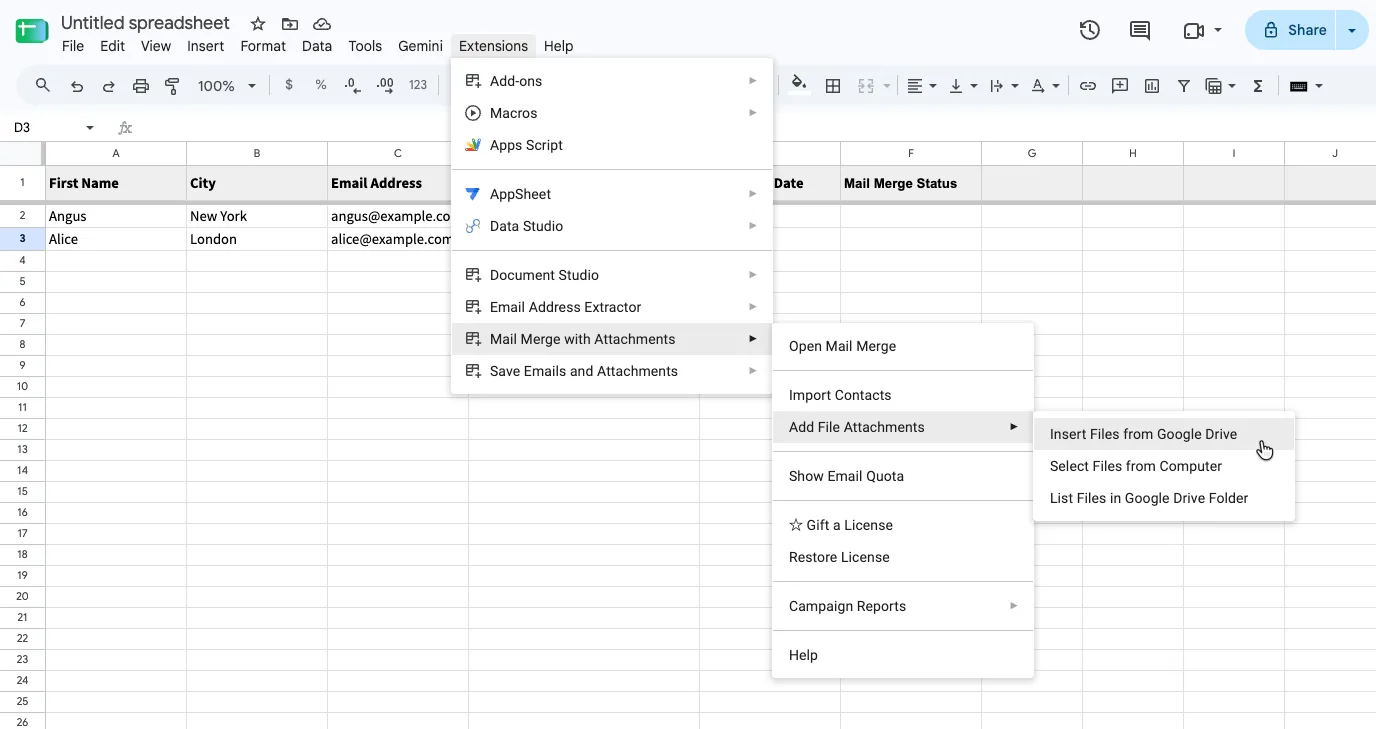
Add File Attachments has three ways to add files to the sheet. -
Pick one or more files. Hold Ctrl (or ⌘ on a Mac) to select several. Click Select.
-
The links appear in that row’s File Attachments cell, one per line. Existing text stays in the cell. Check that all the links belong to this person.
Use File Links from Google Drive
Section titled “Use File Links from Google Drive”Paste the link to a Drive file in the File Attachments cell, and the add-on reads the file from Drive and attaches it to the email. A cell can hold links to several files, separated by commas or on separate lines. While editing a cell, press Ctrl+Enter (⌘+Enter on a Mac) to start a new line.
Links to Google Docs, Sheets and Slides work too. They’re converted to PDFs before being attached to the email.
-
In Google Drive, right-click the file, choose Share and then Copy link.
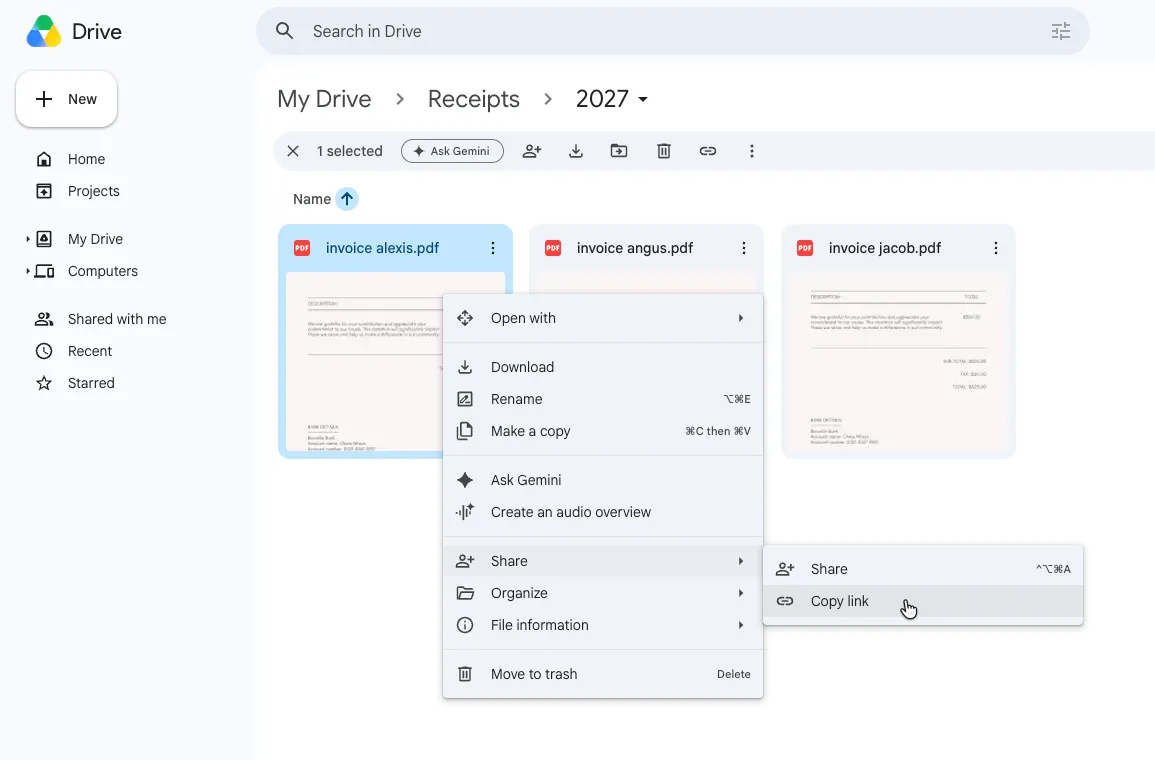
Right-click the file, then choose Share and Copy link. -
Paste the link in the person’s File Attachments cell.
You don’t need to change the file’s sharing settings. The add-on reads the file with your Google account and attaches a copy, so recipients get the file itself, not a link they’d need permission to open.
Links to folders, Google Forms, Sites and shortcuts can’t be attached.
Type File Names or Folder Paths
Section titled “Type File Names or Folder Paths”Mail Merge also lets you attach files by name or folder path. Type an uploaded file’s name exactly as it appears in Google Drive, including the extension: INV-1042 Fernhill Bakery.pdf. If several files share a name, put an unambiguous folder path in front of it: Willow Lane/Invoices/INV-1042 Fernhill Bakery.pdf.
This is useful when many files are named after a column in your sheet, like report cards named after student IDs. If C2 contains S-2041, the formula ="Report Cards/Class 8B/"&C2&".pdf" produces Report Cards/Class 8B/S-2041.pdf. See how to attach files by name or folder path for the full example.
Pick Files from a Folder List
Section titled “Pick Files from a Folder List”When all the files are in one Drive folder, the add-on can list them in your spreadsheet and turn the File Attachments column into a dropdown.
-
Go to Extensions > Mail Merge with Attachments > Add File Attachments > List Files in Google Drive Folder.
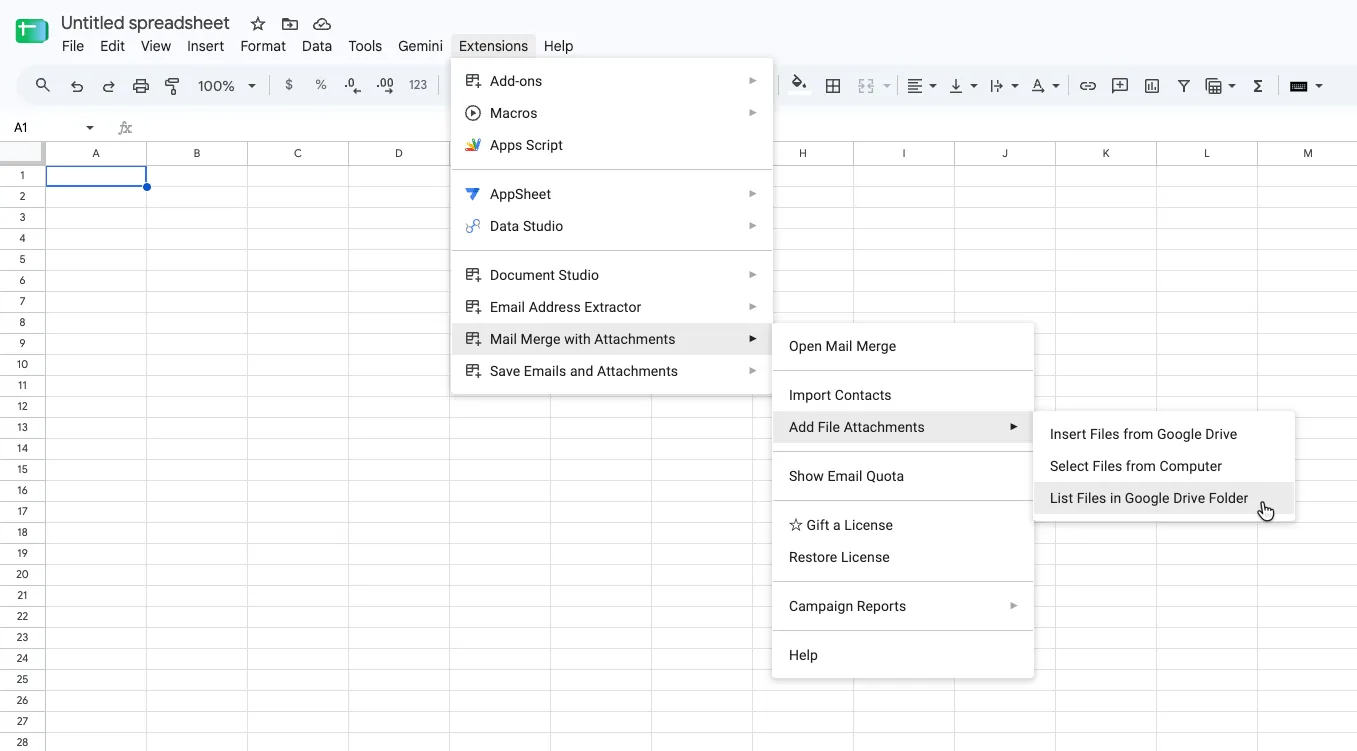
List Files in Google Drive Folder lists a folder's files in your spreadsheet. -
Pick the folder. The add-on adds a tab called
File Attachmentswith every file in the folder and its sub-folders, with each file’s type, size and date. -
Go back to your mail merge sheet. Each cell in the File Attachments column now has a dropdown. Pick the file for each row.
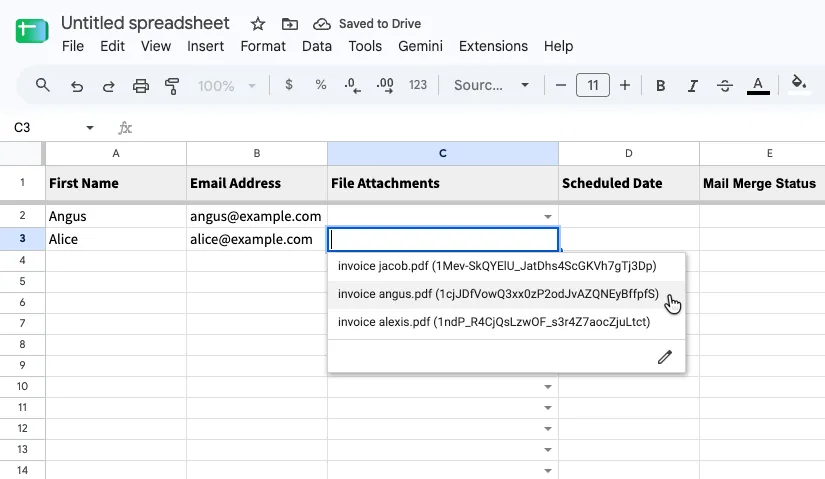
Pick each person's file from the dropdown. The ID in brackets tells the add-on exactly which file to attach.
For example, pick INV-1042 Fernhill Bakery.pdf for Angus and INV-1043 Okafor Architects.pdf for Daniel. Each file in the list ends with its Drive ID in parentheses, like INV-1042 Fernhill Bakery.pdf (1aB3…). The ID identifies the selected file exactly.
If two entries have the same name, check the Folder and File Url columns in the File Attachments tab to identify the one you want. The ID distinguishes the files, but you still need to choose the right entry. See files with the same name.
Upload Files from Your Computer
Section titled “Upload Files from Your Computer”Click the person’s File Attachments cell first. Use an empty cell or one containing typed links, names or paths. If it has chips, replace them with Drive links or add file chips after uploading the files to Drive yourself.
Go to Extensions > Mail Merge with Attachments > Add File Attachments > Select Files from Computer, and pick the files. They’re uploaded from your computer to your Google Drive, and their links are added to the row you selected.
It’s the same as uploading the files to Drive yourself and pasting their links in the File Attachments column, just quicker.
Once you’ve added the files, send a test email, then send your campaign.