
Angus, here's $50 to spend at Becker Bikes
How to Add a Barcode to Each Email
Mail Merge can put a different barcode in every email. Use a barcode for anything a barcode scanner reads at a counter: gift cards, membership numbers, vouchers, parcel returns or library cards. The number comes from your Google Sheet. A formula in the sheet or an Embed marker in your email turns the number into a barcode.
Send a Barcode Gift Card to Each Customer
Section titled “Send a Barcode Gift Card to Each Customer”Tom runs Becker Bikes. Every December he emails store credit to the customers who bought a bike that year. The till has a barcode scanner, so he wants each gift card number to arrive as a barcode that staff can scan from the customer’s phone.
| First Name | Email Address | Gift Card | Value |
|---|---|---|---|
| Angus | angus@example.com |
BB-2048-1175 | $50 |
| Daniel | daniel.okafor@example.net |
BB-2048-1176 | $50 |
| Sofia | sofia.marquez@example.org |
BB-2048-1177 | $75 |
Angus gets an email with the barcode for his card. The email also shows the number below the bars in case the scanner is busy.
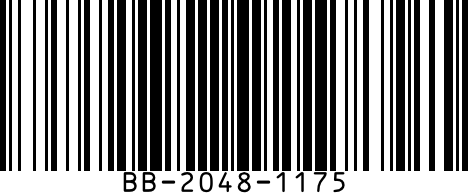
Add the barcode formula to your sheet
Section titled “Add the barcode formula to your sheet”The BARCODE formula comes with Mail Merge. Install the add-on first, then open the sheet that holds your list.
-
Add a column titled Barcode to your sheet.
-
Click the first cell under the title and paste this formula. C2 is the cell with the gift card number.
Code 128is the barcode format.=BARCODE(C2, "Code 128")Outputhttps://charts.digitalinspiration.com/barcode/3TnLwPmD0RF0aPWf1LJCyfp1kgG1me2UoPWL4.pngThe cell shows a long link that ends in
.png. That link is the picture of the barcode. -
Copy the formula to the other rows. Click the cell, then drag the small blue square at its bottom-right corner down to the last row.
-
To see the barcodes in the sheet, add another column titled Barcode Preview. Enter
=IMAGE(E2), where E2 is the cell with the link. Copy the formula down too.
Add the barcode to your email
Section titled “Add the barcode to your email”-
Go to Extensions > Mail Merge with Attachments > Open Mail Merge and open your campaign, or click Create and choose Send emails to start one.
-
On the Template step, write your email. Type
{{Barcode}}on a line of its own, where you want the barcode to appear.Hi {{First Name}},Here's a {{Value}} gift card for anything in the shop.Show this barcode at the till:{{Barcode}} -
Click Send Test Email and send the email to yourself. Open the test email on your phone and scan the barcode with the scanner you’ll use in the shop.
-
Go to the Save & Run step and click Send Emails.
Mail Merge replaces {{Barcode}} with each row’s link and shows the link as a picture. The barcode works in the visual editor, a Gmail draft, HTML, Markdown and Google Docs templates, but not in a plain text email.
Add a Barcode Without a Formula
Section titled “Add a Barcode Without a Formula”Tom’s gift card number is in one column, so he can skip the formula. Type an Embed Barcode marker in the message of your email, on a line of its own, where you want the barcode to appear.
Hi {{First Name}},
Here's a {{Value}} gift card for anything in the shop.
Show this barcode at the till:
{{Embed Barcode, {{Gift Card}}, format=Code 128}}
Mail Merge makes each customer’s barcode from the Gift Card column of their row. The format names are the same as in the formula, written without quotes. If you leave out format=, the barcode is Code 128.
You can write the text after Embed Barcode, in four ways:
| You write | The barcode holds |
|---|---|
{{Embed Barcode, {{Gift Card}}}} |
The Gift Card column. No barcode if that column is missing. |
{{Embed Barcode, Gift Card}} |
The Gift Card column if it exists, otherwise the words Gift Card |
{{Embed Barcode, "BB-2048-1175"}} |
The text in quotes, exactly as typed |
{{Embed Barcode, "BB-{{Order Number}}"}} |
The text, with Order Number filled in for that row |
Use {{Gift Card}}, with its own braces, for data from your sheet. Use quotes for text you type. The form without braces also works. But if you misspell the column title, Mail Merge makes a barcode of the misspelled title. Put text with a comma in quotes.
If a row’s cell is empty, Mail Merge still sends the email without a barcode.
Examples to copy
Section titled “Examples to copy”| Use | Marker |
|---|---|
| A gift card or voucher number | {{Embed Barcode, {{Gift Card}}, format=Code 128}} |
| A membership number with a prefix | {{Embed Barcode, "M-{{Member ID}}"}} |
| A product code for a shop scanner | {{Embed Barcode, {{EAN}}, format=EAN-13}} |
| A returns label, short and without the number below | {{Embed Barcode, {{Order Number}}, height=10, includetext=false}} |
| A small square code for a badge | {{Embed Barcode, {{Badge ID}}, format=Data Matrix, scale=6}} |
| A format that is different for each row | {{Embed Barcode, {{Code}}, format={{Barcode Type}}}} |
| A barcode that stays readable in dark mode | {{Embed Barcode, {{Gift Card}}, backgroundcolor=#FFFFFF}} |
See how Embed markers work for the rules that every Embed marker shares.
Choose a Barcode Format
Section titled “Choose a Barcode Format”The second value in the formula is the format. Pick the format your scanner or system expects. If you only need your own staff to scan a number, use Code 128. Code 128 takes letters, digits and symbols, and almost every scanner reads it.
| Format | Type it as | What it holds | Common use |
|---|---|---|---|
| Code 128 | "Code 128" |
Letters, digits and symbols | Gift cards, order numbers, tickets |
| Code 39 | "Code 39" |
Capital letters and digits | Name badges, inventory tags |
| EAN-13 | "EAN-13" |
12 or 13 digits | Products sold in shops |
| UPC-A | "UPC-A" |
11 or 12 digits | Products sold in the US and Canada |
| ISBN | "ISBN" |
A book number with hyphens, 978-1-78633-089-5 | Books |
| ITF-14 | "ITF-14" |
14 digits | Shipping cartons |
| GS1-128 | "GS1-128" |
GS1 data, like (01)10012345678902 | Pallets and logistics labels |
| Codabar | "Codabar" |
Digits between two letters, like A1234567A | Libraries, blood banks |
| PDF417 | "PDF417" |
Longer text, in a stacked block | Boarding passes, ID cards |
| Data Matrix | "Data Matrix" |
Letters, digits and symbols, in a small square | Parts, lab samples, small labels |
| Aztec Code | "Aztec Code" |
Letters, digits and symbols, in a square | Train and airline tickets |
Capital letters, spaces and hyphens in the format name don’t matter, so "code128" and "Code 128" are the same.
The formula knows more than 100 formats, including postal and pharmacy codes. If your format isn’t in the table, type its full name, like "USPS Intelligent Mail" or "Royal Mail 4 State Customer Code". See the full list of formats.
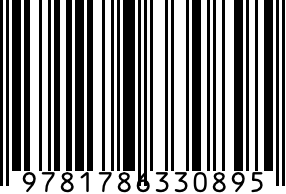
Square codes
Section titled “Square codes”Data Matrix and Aztec codes pack the same text into a small square. A square helps when space is tight, like on a badge or a label. Square codes come out small, so add scale=6 to make them twice as big:
=BARCODE(C2, "Data Matrix", "scale=6")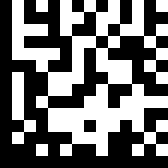
A square code needs a scanner that reads 2D codes. Most phone cameras and newer scanners read 2D codes. An older till scanner may read bars only. For a code that every phone camera opens, use the QRCODE formula.
Change the Size and Color
Section titled “Change the Size and Color”Add options as a third value, in quotes, with a space between them.
=BARCODE(C2, "Code 128", "height=10 barcolor=#1A3C6E")| Option | What it does |
|---|---|
height=10 |
Sets the height of the bars in millimeters. The normal height is 20, so 10 makes them half as tall. |
scale=2 |
Makes the whole picture smaller. The normal scale is 3, and 6 is twice as big. |
includetext=false |
Hides the number printed below the bars. |
barcolor=#1A3C6E |
Colors the bars. Use a dark hex color. |
backgroundcolor=#FFFFFF |
Puts a white box behind the bars. Without this option, the background is see-through. Add it if your readers use dark mode. |
rotate=R |
Turns the barcode on its side. Use L for the other side and I for upside down. |
Scanners need strong contrast, so keep the bars dark and the background white.
In an Embed marker, write the same options after the text, with a comma before each one:
{{Embed Barcode, {{Gift Card}}, height=10, barcolor=#1A3C6E}}Things to know
Section titled “Things to know”- The link holds the number itself, not a reference to your sheet. If you change or delete the sheet later, emails you’ve already sent keep working.
- Some email apps, like Outlook, hide pictures until the reader clicks Download pictures. Gmail shows them right away.
- A barcode on a phone screen scans best at full brightness. Tell customers to turn the brightness up, or to print the email.
- Give every row a different number. If a formula like
RANDBETWEENmakes your numbers, the numbers change each time the sheet recalculates. Copy them and paste as values before you send.
Troubleshooting
Section titled “Troubleshooting”The cell shows #NAME?
Section titled “The cell shows #NAME?”Google Sheets doesn’t know the formula yet. Go to Extensions > Mail Merge with Attachments > Open Mail Merge once in this spreadsheet, then close the window. The formula starts working after that.
The cell is empty
Section titled “The cell is empty”The formula needs both the text and the format. Check that the cell the formula points to has a value. Check that the format name is in the format table.
The barcode is Code 128, not the format you asked for
Section titled “The barcode is Code 128, not the format you asked for”If an Embed marker has a format name that Mail Merge doesn’t know, Mail Merge draws Code 128. The result is the same as when you leave format= out. Check the spelling against the list of formats.
The preview is blank, or the email shows no barcode
Section titled “The preview is blank, or the email shows no barcode”The value doesn’t fit the format. EAN-13 and UPC-A take digits only, and the last digit must be the right check digit. Code 39 doesn’t take small letters, and Codabar needs a letter from A to D at each end. Fix the value, or switch to Code 128.
Next: add a QR code to each emailTickets, check-in links and discount codes that any phone camera can scan.