
See you in New York, Angus?
How to Add a Google Map and Directions to Each Email
When the place is different for each person, Mail Merge can put the right map in each email. Put the address in a column of your Google Sheet, and every recipient gets a link that opens Google Maps with directions to their own address. You can also show a small map picture in the email itself.
Use a map for event venues, the nearest store, a delivery address, a property viewing or an interview location.
Send Each Person a Map of Their Venue
Section titled “Send Each Person a Map of Their Venue”Maya is planning spring meetups in three cities. Everyone gets the same invitation, but the venue depends on where they live.
| First Name | City | Email Address | Venue |
|---|---|---|---|
| Angus | New York | angus@example.com |
Bryant Park, New York |
| Daniel | London | daniel.okafor@example.net |
Somerset House, London |
| Sofia | Madrid | sofia.marquez@example.org |
Plaza Mayor, Madrid |
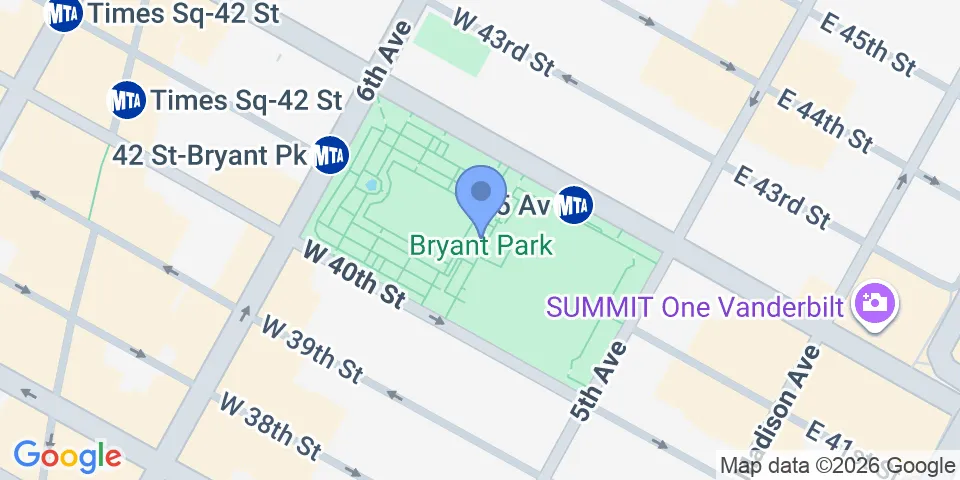
Angus sees a map of Bryant Park and a link that opens directions from wherever he is. Daniel’s email shows Somerset House.
Add a Get Directions Link
Section titled “Add a Get Directions Link”This part needs no add-on formula. Google Maps opens directions to any address that you put at the end of a link.
-
Add a column titled Directions to your sheet.
-
Click the first cell under the title and paste this formula. D2 is the cell with the address.
=HYPERLINK("https://www.google.com/maps/dir/?api=1&destination=" & ENCODEURL(D2), "Get directions")OutputGet directionsENCODEURLmakes an address with spaces and commas safe to put in a link. -
Copy the formula to the other rows. Click the cell, then drag the small blue square at its bottom-right corner down to the last row.
-
Click the link in the first row. Google Maps should open with the venue as the destination.
-
In your email template, type
{{Directions}}where you want the link.
The email shows the text Get directions. On a phone, the link opens the Google Maps app and starts from the reader’s current location.
To open the place on the map without directions, use this link in the formula: https://www.google.com/maps/search/?api=1&query=
Add a Map Picture
Section titled “Add a Map Picture”The GOOGLEMAPS formula comes with Mail Merge. The formula makes a link to a picture of the map around an address. Install the add-on first.
-
Add a column titled Map and paste this formula in its first cell. D2 is the cell with the address.
=GOOGLEMAPS(D2, 16, "roadmap", "480x240", TRUE)16is the zoom level. It shows a few streets around the address."roadmap"is the kind of map."480x240"is the size of the picture in pixels, width first.TRUEputs a marker on the address.
The cell shows a long link to the map picture.
-
Add a column titled Map Preview and enter
=IMAGE(E2), where E2 is the cell with the link. If the marker is in the wrong place, make the address more exact. Add the street, the city or the postal code. -
Copy both formulas down to the last row.
-
In your email template, type an
Embed Imagemarker on a line of its own, where you want the map. The marker shows the picture that the Map link points to. Add{{Directions}}on the line below the marker.Hi {{First Name}},Our spring meetup in {{City}} is on Saturday, April 18 at 11 AM. We're meeting at {{Venue}}.{{Embed Image, {{Map}}, width=480, alt=Map of the venue}}{{Directions}}Maya -
Click Send Test Email and send the email to yourself. Check the map, then click the directions link.
Change how the map looks
Section titled “Change how the map looks”The formula takes the address and up to five optional values:
=GOOGLEMAPS(address, zoom, maptype, size, marker, scale)| Value | What to enter | If you leave it out |
|---|---|---|
address |
A full address, a place name, or a latitude and longitude like 40.7536,-73.9832 |
Required |
zoom |
A number from 0 to 21. Try 12 for a city, 15 for a neighborhood, 18 for a building. | 18 |
maptype |
"roadmap", "satellite", "hybrid" or "terrain" |
roadmap |
size |
Width and height in pixels, up to "640x640" |
400x400 |
marker |
TRUE to put a marker on the address |
No marker |
scale |
2 for a sharper picture on phones and high-resolution screens |
1 |
With a scale of 2, the picture has twice as many pixels. Keep width=480 in the Embed Image marker so the map stays the same size in the email.
Things to know
Section titled “Things to know”- The map is a picture, so readers can’t drag or zoom it. The directions link opens the real map.
- Google draws the picture when the reader opens the email. Some email apps, like Outlook, hide pictures until the reader clicks Download pictures. The directions link always shows.
- A plain text email can’t show pictures. Use the directions link only.
- Write addresses the way you would search for them in Google Maps.
14 Willow Lanecould be anywhere, but14 Willow Lane, Springfield, IL 62701is one place. - A row with an empty address gets no map. The
Embed Imagemarker adds nothing when the Map cell is empty. - To center the map, add
align=centerto the marker. See the Embed Image options.
Troubleshooting
Section titled “Troubleshooting”The cell shows #NAME?
Section titled “The cell shows #NAME?”Google Sheets doesn’t know the GOOGLEMAPS formula yet. Go to Extensions > Mail Merge with Attachments > Open Mail Merge once in this spreadsheet, then close the window. The formula starts working after that.
The email shows a long link, not a map
Section titled “The email shows a long link, not a map”The template uses {{Map}} as a plain merge field, which fills in the link as text. Put the field inside an Embed Image marker, like {{Embed Image, {{Map}}, width=480}}.
The map shows the wrong place
Section titled “The map shows the wrong place”The address matches more than one place. Add the city, state or postal code, and check the result in the Map Preview column.
Next: add a QR code to each emailSend tickets, check-in links and discount codes that any phone camera can scan.