
Your ticket for Brand Basics, Daniel
How to Use Embed Markers in Mail Merge
A merge field like {{First Name}} puts the text of a cell in your email. An Embed marker puts something else there: a QR code, a barcode, a picture, a link, a table or chart from Google Sheets, or a file attachment.
You type the marker in the message of your email. You don’t need a formula or an extra column in your sheet.
See Embed Markers in an Email
Section titled “See Embed Markers in an Email”Maya runs Brand Basics, a workshop at Willow Lane Studio. Her guest list is in a Google Sheet:
| First Name | Email Address | Session | Seat | Calendar Link |
|---|---|---|---|---|
| Daniel | daniel.okafor@example.net |
Saturday, January 10 at 10 AM | B4 | https://example.com/cal/jan10 |
| Hannah | hannah.weber@example.org |
Saturday, January 17 at 2 PM | A1 | https://example.com/cal/jan17 |
She writes one email with three Embed markers:
Hi {{First Name}},
You're booked for Brand Basics on {{Session}}. Your seat is {{Seat}}.
Show this code at the door:
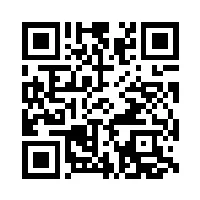
{{Embed QR Code, "Brand Basics - {{First Name}} - Seat {{Seat}}", width=200}}
{{Embed Link, Add the session to your calendar, {{Calendar Link}}}}
{{Embed File, Directions to the studio.pdf}}
See you there,Maya
Daniel gets his own QR code and his own calendar link. Mail Merge also attaches the directions PDF to his email.
Choose a Marker
Section titled “Choose a Marker”| Marker | What it adds to the email | Example |
|---|---|---|
| Embed QR Code | A QR code that a phone camera can scan | {{Embed QR Code, {{Seat}}, width=200}} |
| Embed Barcode | A barcode for a store or warehouse scanner | {{Embed Barcode, {{Gift Card}}, format=Code 128}} |
| Embed Image | A picture from the web or from Google Drive | {{Embed Image, {{Home Photo}}, width=500}} |
| Embed Link | A link with the text you choose | {{Embed Link, View your order, {{Order Link}}}} |
| Embed File | A file attachment from Google Drive | {{Embed File, Price List 2027.pdf}} |
| Embed Range | A table copied from a Google Sheet, with its formatting | {{Embed Range, 1AbC…789, address=Prices!A1:C10}} |
| Embed Chart | A chart from a Google Sheet, as a picture | {{Embed Chart, 1AbC…789, sheet=Dashboard}} |
Write an Embed Marker
Section titled “Write an Embed Marker”Every Embed marker has the same three parts, with a comma between them:
{{Embed QR Code, {{Seat}}, width=200}}- The name, like
Embed QR Code. The name says what to add. - What it holds, like the Seat column. For a link it is the link text, for a file it is the file, and for a table or chart it is the spreadsheet.
- Options, like
width=200. Each marker has its own options, and you can leave them out.
-
Go to Extensions > Mail Merge with Attachments > Open Mail Merge, open your campaign and move to the Template step.
-
In the Message box, click where the code, picture, link or table should go. Type the marker on a line of its own.
-
Click Send Test Email and send the email to yourself. The test uses row 2 of your sheet.
Embed markers work in the visual editor, a Gmail draft, HTML, Markdown and a Google Doc.
Say What the Marker Holds
Section titled “Say What the Marker Holds”You can write the value after the first comma in four ways. The rule is the same for every Embed marker.
| You write | The marker holds | If the column is missing |
|---|---|---|
{{Embed QR Code, {{Seat}}}} |
The Seat cell of that row | Nothing is added |
{{Embed QR Code, Seat}} |
The Seat cell of that row | The word Seat |
{{Embed QR Code, "Seat B4, Studio 2"}} |
The text in quotes, exactly as typed | |
{{Embed QR Code, "Brand Basics - {{First Name}} - Seat {{Seat}}"}} |
The text, with First Name and Seat filled in for that row |
Which one should you use?
- Use
{{Seat}}, with its own braces, for a value from your sheet. If you misspell the column title, the email gets no code, which is easy to spot in a test. - Use quotes for text you type. Quotes keep commas in the text, and they stop Mail Merge from reading the text as a column title.
- Put merge fields inside the text to join columns.
"{{First Name}} {{Last Name}}, seat {{Seat}}"givesDaniel Okafor, seat B4. - The form without braces or quotes also works. But if you misspell the column title, Mail Merge makes a code of the misspelled title.
Column titles match the same way as in a merge field: {{seat}}, {{SEAT}} and {{Seat}} are the same column.
When the cell is empty, Mail Merge adds nothing. There is no broken picture, no empty link and no attachment.
Add Options
Section titled “Add Options”Put options after the value, with a comma before each one.
{{Embed QR Code, {{Seat}}, width=200, textcolor=#1A3C6E, backgroundcolor=#FFF8E1}}{{Embed Barcode, {{Gift Card}}, format=Code 128, height=10, includetext=false}}{{Embed Image, {{Home Photo}}, width=500, align=center}}- Write an option as
name=value. Capital letters in the name don’t matter, and spaces around=are fine. - An option can take its value from your sheet, like
format={{Barcode Type}}. - A single word, like
includetext, meansincludetext=true. - If you write an option twice, Mail Merge uses the last one.
Commas, Quotes and Braces
Section titled “Commas, Quotes and Braces”Commas separate the parts of a marker, so text with a comma needs quotes.
| You write | What happens |
|---|---|
{{Embed QR Code, Hello, World}} |
The code holds Hello only. Put the text in quotes. |
{{Embed QR Code, "Hello, World"}} |
The code holds Hello, World |
{{Embed QR Code, “Hello, World”}} |
The same. Curly quotes from Google Docs or Word work too. |
{{Embed QR Code, 'Hello, World'}} |
The code holds 'Hello only. Single quotes aren’t read as quotes. |
{{Embed QR Code, {{Last, First}}}} |
The Last, First column. A comma inside the inner braces is fine. |
{{Embed QR Code, {Seat}}} |
The marker stays in the email as typed. A single { or } isn’t allowed inside a marker. |
{{Embed QR Code; Seat}} |
Nothing. The comma after the name is needed. |
{{Embed a QR Code, Seat}} |
Nothing. The name must be exact. |
Text in quotes can’t contain a double quote of its own.
Where Embed Markers Work
Section titled “Where Embed Markers Work”Embed markers work in the message of an email. Mail Merge removes the markers and adds nothing in these places:
- The Subject and the sender’s name
- A plain text email, which can’t show pictures or tables.
Embed Filestill attaches its files there, andEmbed Linkwrites its text followed by the address in parentheses.
Type each marker as normal text. Bold, a color or a line break inside the marker does no harm.
When Something Goes Wrong
Section titled “When Something Goes Wrong”| What happened | Result |
|---|---|
| The cell is empty | Mail Merge adds nothing and sends the email |
A file in Embed File, or a Drive picture in Embed Image, can’t be found |
Mail Merge doesn’t send that row’s email. The Mail Merge Status cell says Invalid attachment - … |
The spreadsheet or range in Embed Range or Embed Chart is wrong |
The campaign stops and the log shows the reason, because every email would have the same problem |
See how to fix attachment errors for each status.
Embed Marker Recipes
Section titled “Embed Marker Recipes”Copy a marker and change the column titles to match your sheet.
| Goal | Marker |
|---|---|
| Event ticket with a code to scan | {{Embed QR Code, {{Ticket ID}}, width=220}} |
| A code that opens each person’s page | {{Embed QR Code, https://example.com/t/{{Ticket ID}}}} |
| Wi-Fi card for guests | {{Embed QR Code, "WIFI:T:WPA;S:Willow Lane Guest;P:brandbasics;;"}} |
| Gift card for a store scanner | {{Embed Barcode, {{Gift Card}}, format=Code 128}} |
| Your logo, the same in every email | {{Embed Image, https://example.com/logo.png, width=160}} |
| Staff photo from Google Drive | {{Embed Image, {{Photo}}, width=120, align=center}} |
| A link to each person’s order | {{Embed Link, View your order, https://example.com/orders/{{Order Number}}}} |
| A link that starts an email to you | {{Embed Link, Email us, mailto:hello@example.com}} |
| Each client’s own invoice PDF | {{Embed File, Invoices/{{Invoice Number}}.pdf}} |
| The same brochure for everyone | {{Embed File, Brochure.pdf}} |
| This week’s price list as a table | {{Embed Range, 1AbC…789, address=Prices!A1:C12}} |
| The monthly sales chart | {{Embed Chart, 1AbC…789, sheet=Dashboard, position=1, width=560}} |
Things to Know
Section titled “Things to Know”- The marker names can be written with or without spaces and in any case:
{{Embed QR Code, …}},{{Embed QRCode, …}}and{{embed qr code, …}}are the same.Embed Pictureis the same asEmbed Image, andEmbed URLis the same asEmbed Link. {{Embed Link}}, with no comma, is an ordinary merge field for a column titled Embed Link.- You can’t put one Embed marker inside another.
- Mail Merge never processes what a marker adds. If a cell in an embedded table holds the text
{{First Name}}, the email shows that text. - QR codes, barcodes and web pictures load when the reader opens the email. Some email apps, like Outlook, hide pictures until the reader clicks Download pictures. Mail Merge attaches pictures from Google Drive and charts inside the email, so they always show.
Troubleshooting
Section titled “Troubleshooting”The marker left nothing in the email
Section titled “The marker left nothing in the email”Check these in order:
- Is the template plain text, or is the marker in the subject? Embed markers work in the message only, and only
Embed FileandEmbed Linkwork in plain text. - Is the name exact?
Embed QR,Embed a QR CodeandEmbed Mapsaren’t Embed markers. - Is there a comma after the name?
- Is the cell empty for that row, or is the column title in the inner braces misspelled?
The QR code or barcode holds a column title
Section titled “The QR code or barcode holds a column title”The marker has no braces around the column title, like {{Embed QR Code, Seat}}, and no column has that title. Write {{Embed QR Code, {{Seat}}}} and check the spelling.
The marker holds only part of the text
Section titled “The marker holds only part of the text”The text has a comma, so Mail Merge read the rest as options. Put the text in quotes, like {{Embed QR Code, "Seat B4, Studio 2"}}.
The email shows the marker as typed
Section titled “The email shows the marker as typed”A brace is missing, or the marker has a single { or } inside it. Type the marker again with two braces at each end.
Next: add a QR code to each emailTickets, check-in links and discount codes that any phone camera can scan.