
How to Sync Email Status to Your Mail Merge Sheet
Sync Email Status writes what happened after you sent a campaign into the Mail Merge Status column of your sheet. Instead of Email sent, the Mail Merge Status column now shows whether that person opened the email, clicked a link, replied or unsubscribed. Use it when you want to work with the results in the sheet itself, like sorting or filtering your list.
Sync Your Sheet
Section titled “Sync Your Sheet”Say Maya sent her December newsletter, Willow Lane Notes, from the Customers tab a few days ago, with open and click tracking turned on.
-
Open the spreadsheet you sent the campaign from.
-
Go to Extensions > Mail Merge with Attachments > Campaign Reports > Sync Email Status.
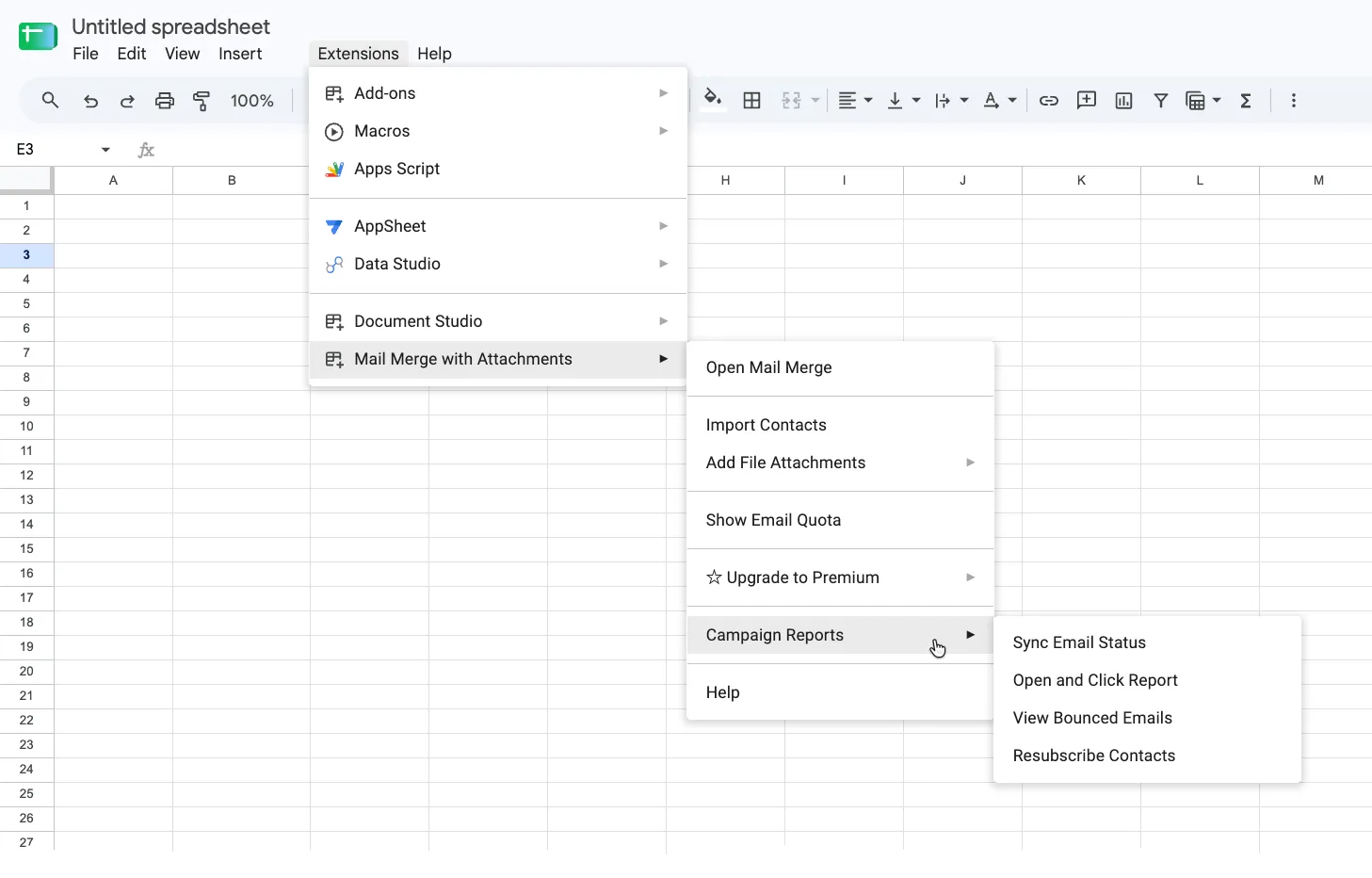
Sync Email Status is in the Campaign Reports menu. -
Wait for the message at the bottom-right of the sheet. It says how many rows were updated, like
Status updated for 37 messages, orNo messages to update.
Rows that changed now show their new status:
| First Name | Mail Merge Status |
|---|---|
| Angus | OPENED |
| Daniel | CLICKED |
| Sofia | Email sent at Dec 1, 2026 |
| Lena | UNSUBSCRIBED |
Angus opened the newsletter, Daniel clicked a link in it and Lena unsubscribed. Sofia’s row hasn’t changed, so there’s no recorded open, click or reply from her yet.
What Each Status Means
Section titled “What Each Status Means”| Status | What happened | What it needs |
|---|---|---|
OPENED |
The person opened the email. | Track email opens |
CLICKED |
The person clicked a link in the email. | Track clicks on links |
UNSUBSCRIBED |
The person clicked the unsubscribe link. | Add unsubscribe link |
REPLIED |
The person replied to the email. | Any one of the three tracking options turned on |
Mail Merge finds replies in your Gmail, in the same conversation as the email you sent. Automatic replies, like out-of-office messages, and bounce notices don’t count. Sync only works for campaigns sent with at least one tracking option turned on, and not with the Plain Text editor.
All these statuses mean the row is done, so the next run of the campaign skips it, the same as Email sent. See which rows get skipped.
Find People Who Haven’t Responded
Section titled “Find People Who Haven’t Responded”After a sync, use a filter to see who hasn’t opened or replied yet.
-
Click any cell in your sheet, then open the Data menu and choose Create a filter.
-
Click the filter icon in the Mail Merge Status header.
-
Choose Filter by condition, then Text starts with, and type
Email sent. -
Click OK. Only rows with no recorded open, click, reply or unsubscribe are shown.
Before you write to these people again, keep in mind that some of them may have read your email with images turned off. See how accurate opens are.
Which Rows Are Synced
Section titled “Which Rows Are Synced”- Only campaigns in this spreadsheet. Sync updates the campaigns saved in the spreadsheet you have open. A campaign saved with Enable this campaign unchecked isn’t synced.
- Only the last 30 days. Rows whose email went out more than 30 days ago aren’t checked again. Use the Open and Click Report for older campaigns.
- Once every two hours per row. A row that was checked less than two hours ago is skipped, so syncing twice in a row doesn’t change anything. Try again later.
Things to Know
Section titled “Things to Know”- Each row shows one status, and it only changes from
Email sent. Once a row saysOPENED, a later click or unsubscribe isn’t shown there. The Clicks and Unsubs reports in the Open and Click Report have the full picture. - Sync also scans your Gmail for bounce notices. Bounced addresses aren’t marked in the rows you already sent, but every later campaign skips them and writes
BOUNCEDin their status cell. See how to track bounced emails. - Sync reads a hidden note in each status cell to find the email it belongs to. If you delete that note, or type over the status, that row can’t be synced. See things to know about the status column.