
How to Add Preview Text to Your Emails
Preview text is the gray line that an inbox shows after the subject, before the reader opens the email. Preview text is also called the preheader. If you don’t set preview text, the inbox fills that space with the first words of your message, which is usually “Hi Angus,” and the start of a sentence.
With Mail Merge you choose what goes there, and you can personalize it with merge fields like any other part of the email.
See the Preheader Difference in the Inbox
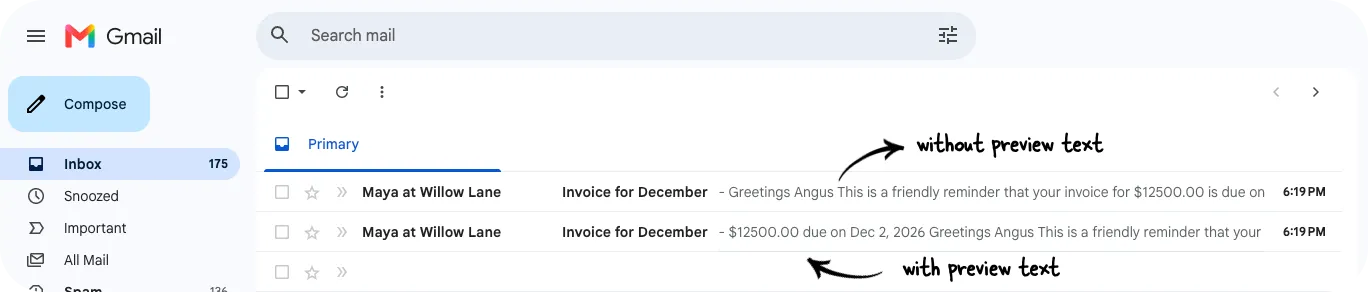
Section titled “See the Preheader Difference in the Inbox”Maya emails an invoice to each client. Here is the same email in Angus’s inbox, first without preview text and then with it.
Without preview text
Maya at Willow LaneInvoice for December - Greetings Angus, This is a friendly reminder that your invoice9:00 AM
With preview text
Maya at Willow LaneInvoice for December - $12,500.00 due on Dec 2, 20269:00 AM
The subject says what the email is. The preview text adds what the reader wants to know next: how much, by when, and that the invoice is attached.
Add Preview Text to a Campaign
Section titled “Add Preview Text to a Campaign”-
Go to Extensions > Mail Merge with Attachments > Open Mail Merge and open your campaign.
-
Move to the Template step. The Preview text box is below Subject.
-
Type the preview text. To add something from your sheet, type the column title in double curly braces, like
{{Amount}}, or click the (x) icon at the right end of the box and pick a column.{{Amount}} due {{Due Date}}. The PDF is attached.Output$1,250.00 due December 15, 2026. The PDF is attached.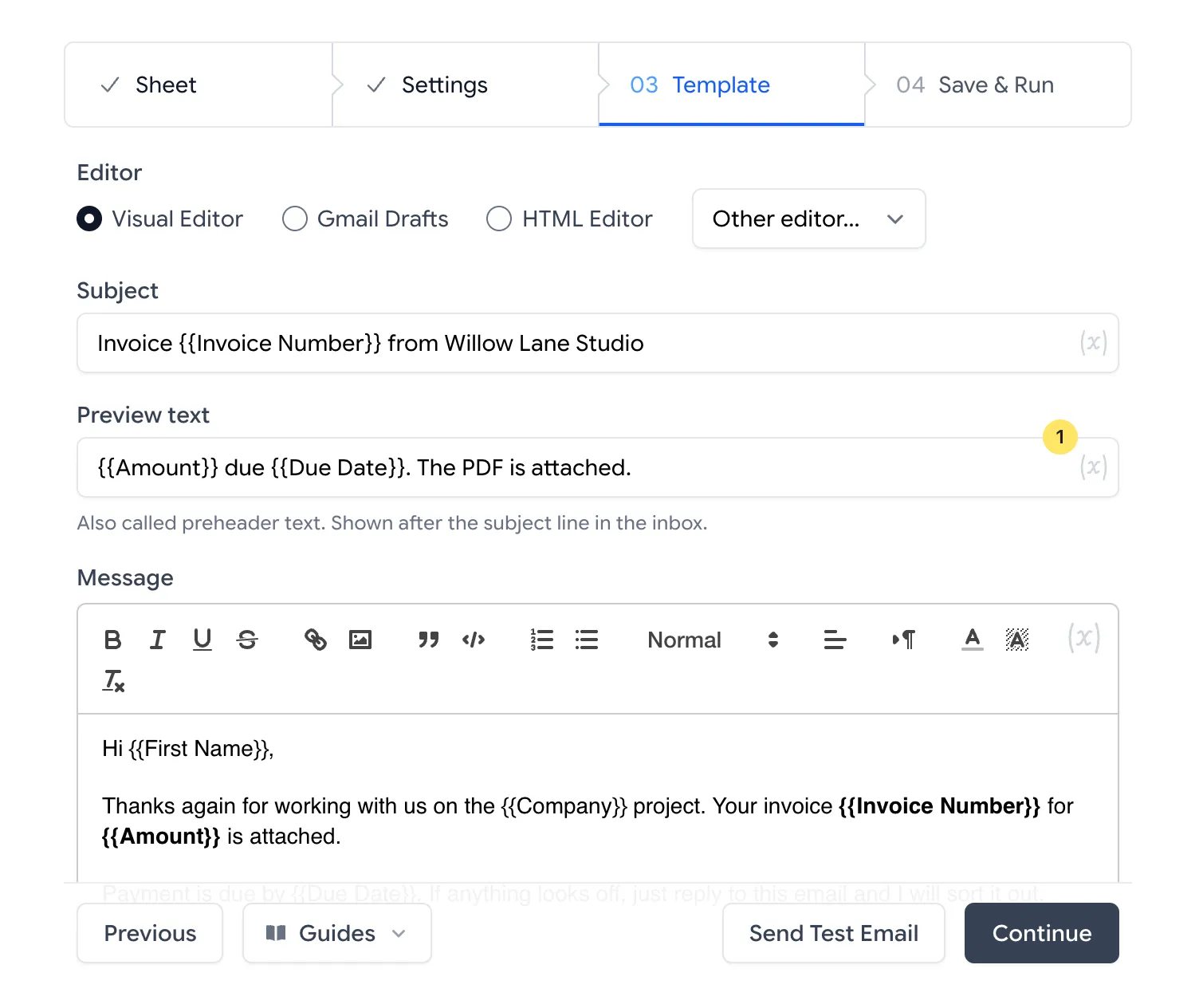
The Preview text box is below Subject on the Template step. -
Click Send Test Email and send the email to yourself. Look at the test email in your inbox list before you open it. The preview text should follow the subject.
The reader doesn’t see the preview text again when they open the email. Preview text shows in the inbox list only.
Write Preview Text That Gets the Email Opened
Section titled “Write Preview Text That Gets the Email Opened”Treat the subject and the preview text as one sentence in two parts. The subject gets attention, and the preview text gives the reason to open.
| Subject | Preview text |
|---|---|
| Invoice {{Invoice Number}} from Willow Lane Studio | {{Amount}} due {{Due Date}}. The PDF is attached. |
| You’re invited: Brand Basics, {{Session}} | Your seat is {{Seat}}. Bring this email, the QR code is your ticket. |
| Welcome aboard, {{First Name}} | One short letter a month about design for small businesses. |
| Black Friday: 30% off everything | Ends Monday at midnight. Your code is inside, {{First Name}}. |
| Quick question about {{Company}} | 15 minutes next week? I have two ideas for your spring launch. |
A few things that work:
- Don’t repeat the subject. The reader has just read it.
- Put the important words first. Inboxes show roughly 40 to 100 characters of preview text, and less on a phone or when the subject is long.
- Say something specific. “The PDF is attached” tells the reader more than “Please see below”.
- If the preview text is very short, the inbox adds the first words of your message after it. Write a full sentence to fill the line.
Things to know
Section titled “Things to know”- Preview text is plain text. It can’t have bold, links or line breaks, and any HTML you type shows up as text.
- Preview text works with the visual editor, Gmail drafts, HTML, Markdown and Google Docs templates. A plain text email can’t carry preview text, so the inbox shows the first line of the message.
- If your HTML template already has a hidden preheader, Mail Merge replaces the hidden preheader with what you type in the Preview text box. Leave the box empty to keep the one in your HTML.
- A merge field that points to an empty cell leaves a gap, like “ due .“. Check that every row has a value, or keep the preview text free of merge fields.
- Each inbox decides how much preview text to show, and a few email apps don’t show any.
Troubleshooting
Section titled “Troubleshooting”There is no Preview text box
Section titled “There is no Preview text box”Your first campaign on the practice sheet that Mail Merge created has only a subject and a message. Finish the quickstart and send the practice emails. After that, every campaign you open or create has the Preview text box.
The inbox still shows the start of the message
Section titled “The inbox still shows the start of the message”Check that the template isn’t plain text, then send a new test email. Emails you sent before you added the preview text don’t change.