
How to Use Gmail Layouts in Mail Merge
Gmail has ready-made email designs called layouts: newsletters, announcements and invitations with a logo at the top, pictures, buttons and a footer with your address. You pick a layout, change the text and colors, and Gmail builds the email for you. You don’t need any HTML.
Mail Merge can use that email as its template. You design the layout once in Gmail, add merge fields like {{First Name}}, and every person in your Google Sheet gets their own copy.
Before you start
Section titled “Before you start”Layouts are part of Google Workspace plans, they aren’t available in free Gmail accounts or Workspace Business Starter.
To check, open Gmail on your computer and click Compose. Look for the layouts icon in the toolbar at the bottom of the window. The icon is a small square split into panels, near the right end of the toolbar.
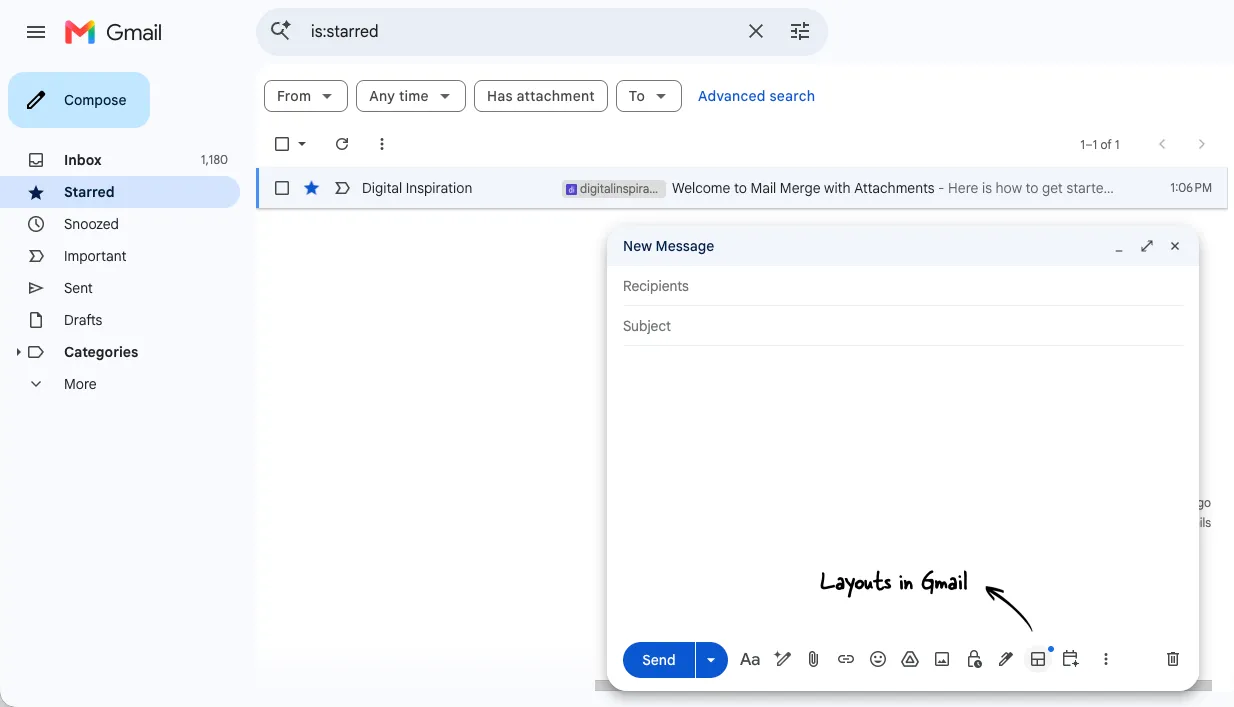
If the icon isn’t there, click More options (the three dots) and look in that menu. If your account has no layouts, write the email as a normal Gmail draft or paste an HTML design.
Create the Layout in Gmail
Section titled “Create the Layout in Gmail”Maya is opening sign-ups for her spring workshops. She wants an announcement with the Willow Lane logo, a photo of the studio and a Book your seat button, sent to her clients by first name.
-
In Gmail, click Compose. Leave To empty, because Mail Merge takes each recipient from your sheet.
-
Type the subject. Merge fields work here, like
{{First Name}}, spring workshops are open. -
Click the layouts icon in the toolbar at the bottom of the window. The Select a layout window opens.
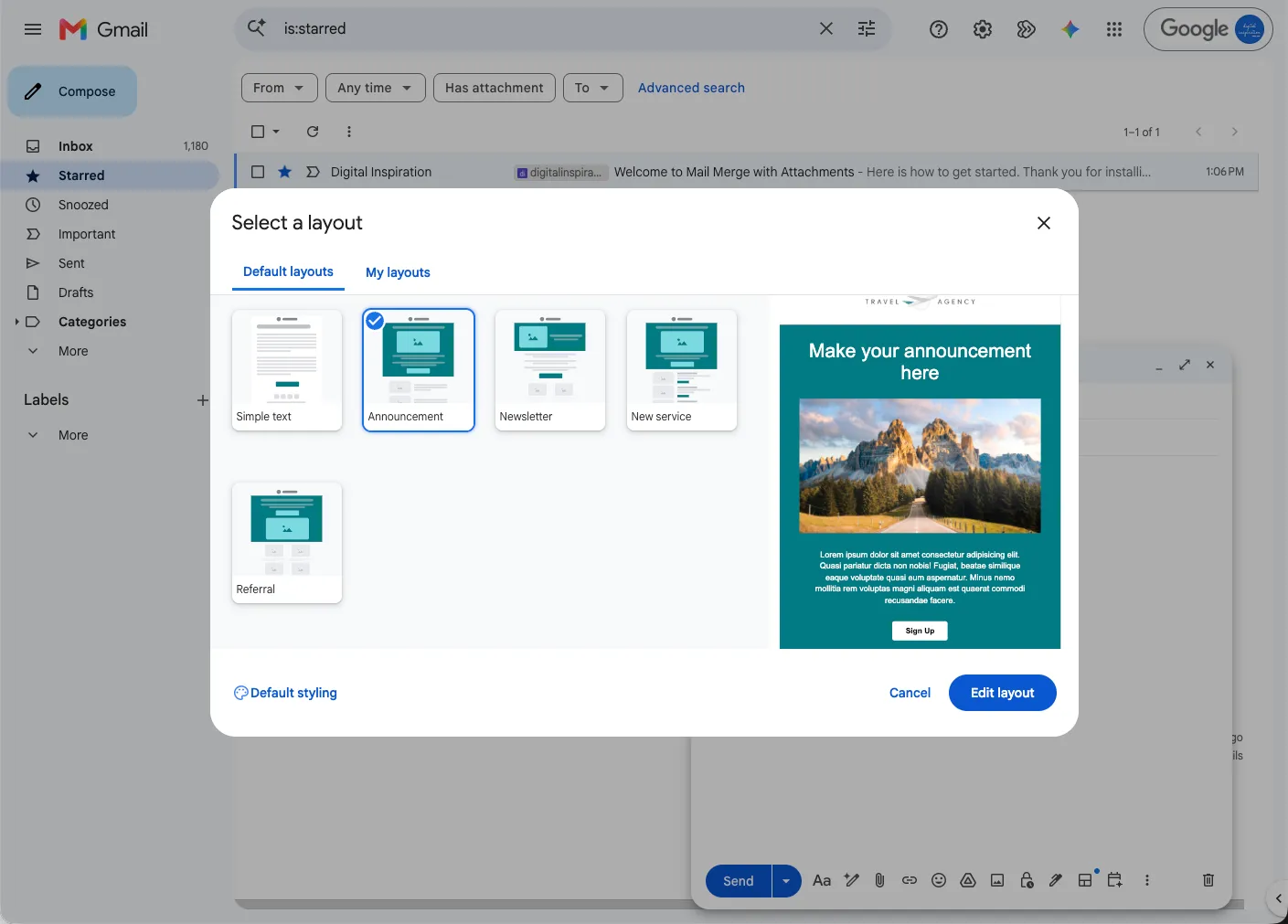
Pick a layout on the left and see its preview on the right. -
The first time, click Default styling at the bottom left and add your logo, colors, fonts, footer details and links. Click Save Changes. Gmail uses these settings in every layout.
-
Choose a layout, like Announcement, and click Edit layout. The layout editor opens with sample text and pictures.
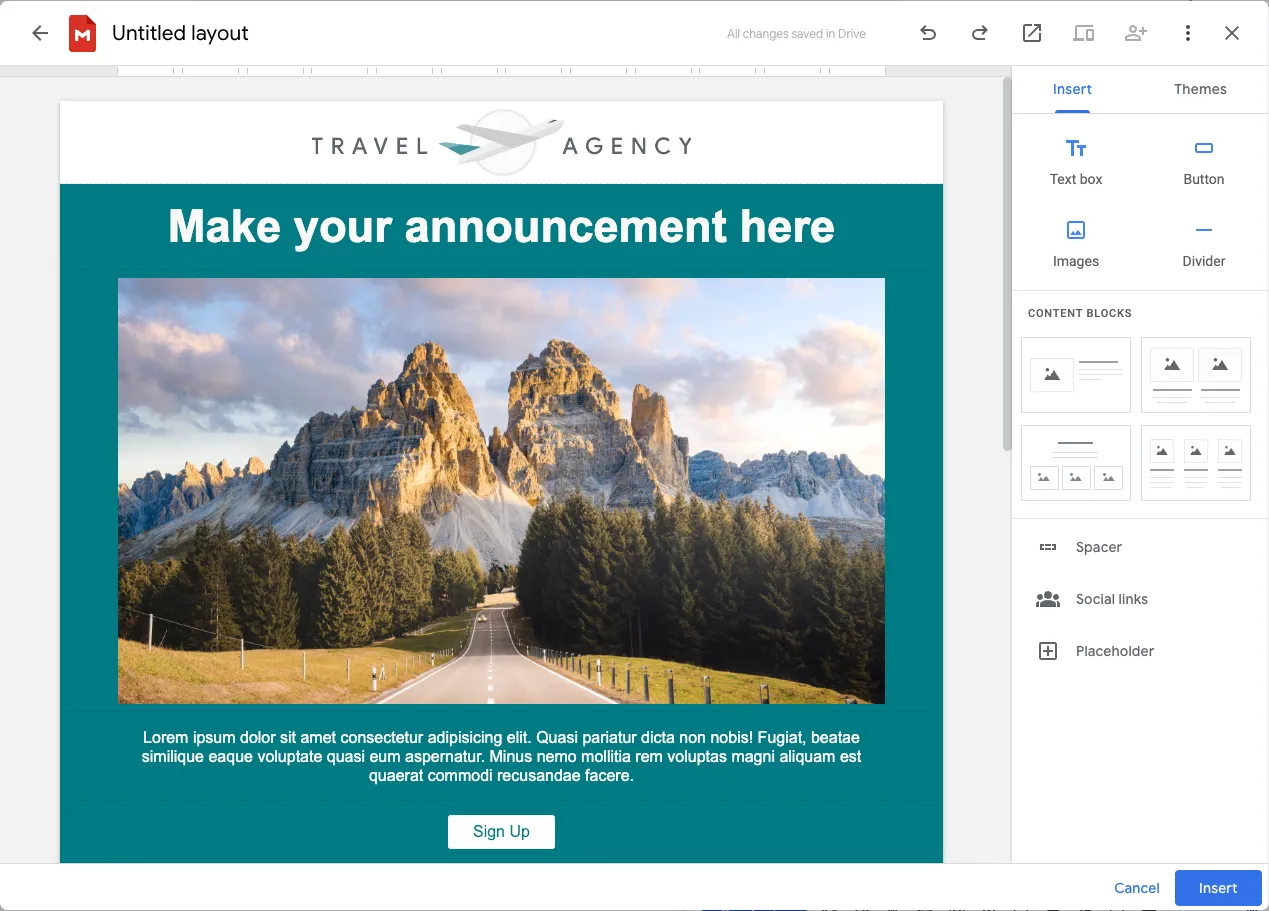
The layout editor, with the tools to add text, buttons and pictures on the right. -
Change the text in the layout editor. Type merge fields where you want something from your sheet, with the column title in double curly braces:
Hi {{First Name}}Spring workshops are open, and as a {{Plan}} client you get first pick.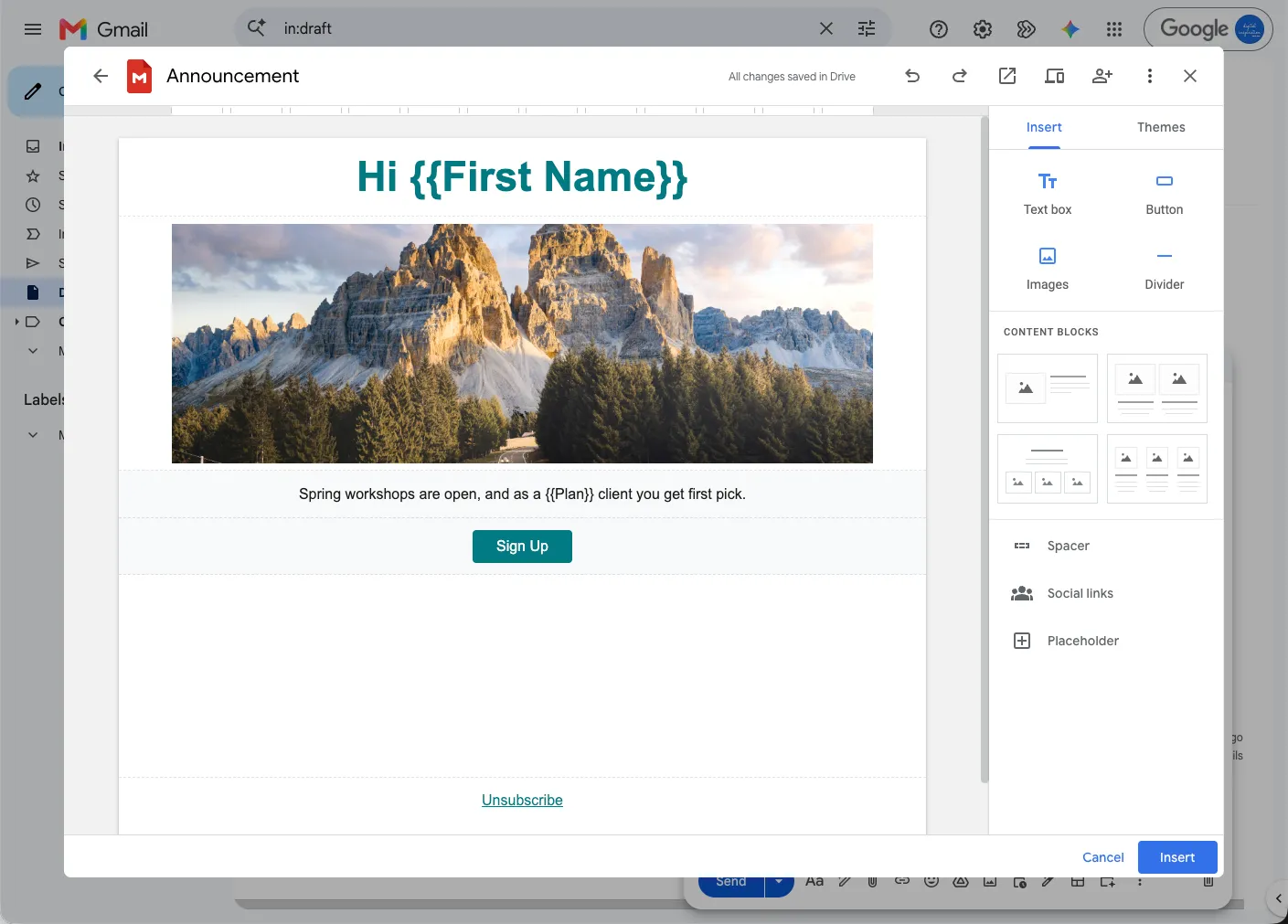
Merge fields in the heading and the text of the layout. -
Click the button in the layout and set its text and link. Replace the pictures with your own.
-
Click Insert at the bottom right. The layout appears in the compose window.
-
Close the compose window. Gmail saves the email in your Drafts folder.
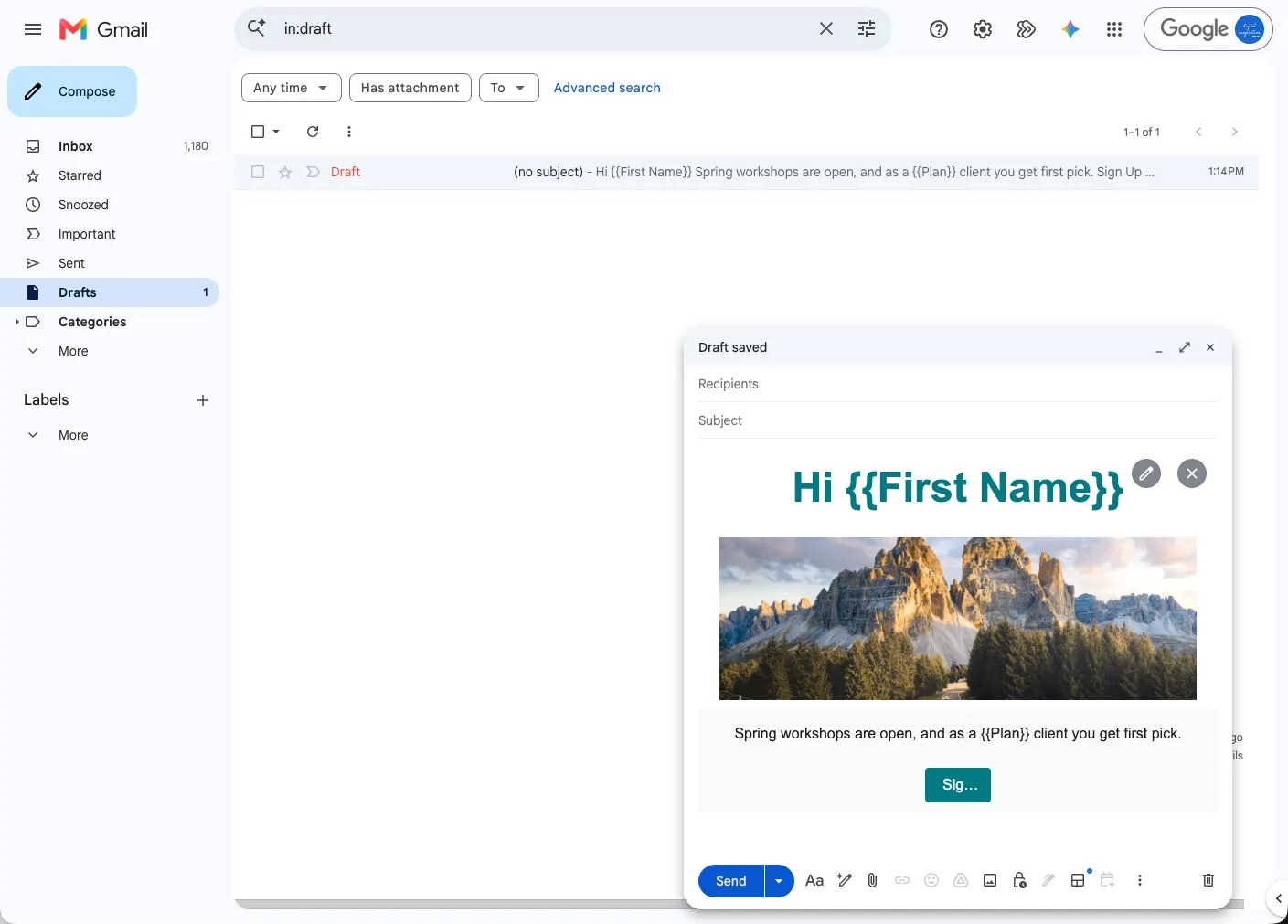
The layout in the compose window. Gmail saves it as a draft with the merge fields in place.
Pick the Layout in Mail Merge
Section titled “Pick the Layout in Mail Merge”-
In your Google Sheet, go to Extensions > Mail Merge with Attachments > Open Mail Merge and open your campaign, or click Create and choose Send emails.
-
Move to the Template step. Under Editor, choose Gmail Drafts, then pick your draft from the list. The list shows drafts by subject.
-
Click Send Test Email and send the email to yourself. Check that the layout looks the same as in Gmail and that each merge field shows a value from your sheet.
-
Go to the Save & Run step and click Send Emails.
Each person gets the layout with their own details filled in. To change the design later, edit the draft in Gmail. The campaign uses the latest version of the draft every time it runs.
Things to know
Section titled “Things to know”- Send a test to a phone as well as a computer. Layouts adjust to small screens, so check both.
- Some versions of Outlook draw layouts a little differently from Gmail. If many of your readers use Outlook, send a test to an Outlook address too.
- A layout can hold up to 10,000 characters and 40 pictures.
- A button in a layout has one link for everyone. To give each person their own link, type an Embed marker in the text of the layout, like
{{Embed Link, Book your seat, {{Booking Link}}}}. See how to add a different link to each email. - Open tracking, click tracking and the unsubscribe link work with layouts, the same as with any Gmail draft.
Troubleshooting
Section titled “Troubleshooting”The draft isn’t in the list
Section titled “The draft isn’t in the list”The list shows your most recent drafts. Open the draft in Gmail, make a small change so Gmail saves the draft again, then go back to the Template step and choose Gmail Drafts again.
A merge field is blank in the email
Section titled “A merge field is blank in the email”The title in the braces doesn’t match a column in your sheet. Check the column title in row 1, then open the draft in Gmail, click the pencil icon on the layout and correct the field.