
How to Import Airtable Records to Google Sheets
If you keep customers, members or leads in an Airtable base, Mail Merge can copy a table into a Google Sheet, one record per row, with each field you pick as a column. You can then send each of them a personal email from Gmail.
Import the table
Section titled “Import the table”-
In your Google Sheet, go to Extensions > Mail Merge with Attachments > Import Contacts.
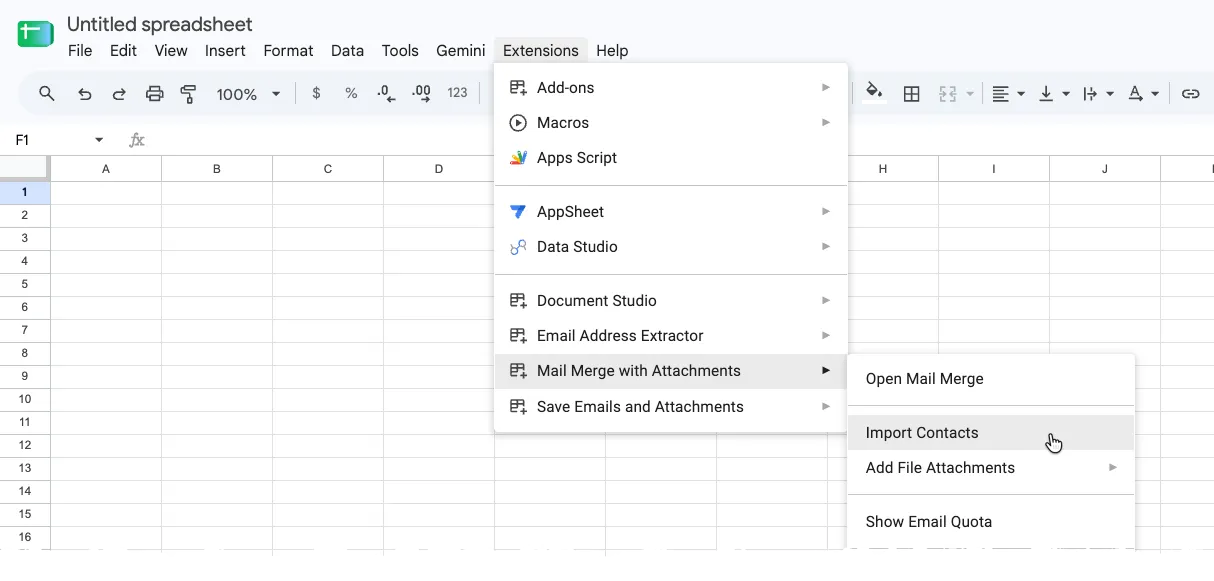
Open Import Contacts from the Extensions menu in Google Sheets. -
Under Import data from, choose Airtable and click Connect.

Choose Airtable, then click Connect. -
Airtable opens in a new window and asks which bases the add-on may read. Click Add a base, pick the base that holds your contacts, and click Grant access. The add-on asks to read records and table names only. It can’t change anything in Airtable.
-
Back in the import window, choose your base under Select Airtable Base, then the table under Select Airtable Table.
-
Under Contact Fields, pick the fields you want as columns. Include the one with the email address.
-
Under Import Location, choose Append to current sheet or Create a new sheet, then click Import data.
Use the imported columns
Section titled “Use the imported columns”Row 1 gets your Airtable field names, like Customer Name, and those become your merge fields: {{Customer Name}}. When you set up the merge, choose the email column in the Send to field under Recipients.
Things to know
Section titled “Things to know”- The whole table is imported. Views and filters in Airtable don’t apply, so filter or hide rows in the sheet to email only some of the records.
- The list under Contact Fields is built from the first 100 records. A field that is empty in all of them doesn’t appear in the list. Fill it in for at least one of those records, then choose the table again.
- A field with several choices comes in as one cell, with commas between the choices.
- Linked records come in as Airtable record IDs, like
recA1b2C3d4, not as names. Add a lookup field in Airtable that shows the name, and import that field. - An attachment field comes in as several columns, one for each detail of the file. Airtable’s file links stop working after a few hours, so don’t use them in the File Attachments column. Attach files from Google Drive.
- The import is a copy. Records you add in Airtable later aren’t added to the sheet until you import again.
- To remove the add-on’s access, open your Airtable account settings, go to Integrations, and revoke the connection.