
How to Create Gmail Drafts with Mail Merge
Mail Merge can save your emails as Gmail drafts instead of sending them. A drafts campaign creates one personalized draft for each row of your sheet, with the recipient, subject, message and attachments filled in. The drafts go to the Drafts folder in Gmail. An email goes out only when you open its draft and click Send.
Use a drafts campaign when you want to read each email before it goes out, add a personal line to some of them, or have a colleague check them.
Review Every Email Before It Goes Out
Section titled “Review Every Email Before It Goes Out”Maya sends five invoices each month. An invoice sent to the wrong client is embarrassing, so she wants to see each email and its PDF before it leaves. She also likes to add a line to some emails, like “Good luck with the opening on Friday!” for the bakery.
| First Name | Company | Email Address | Invoice Number | File Attachments |
|---|---|---|---|---|
| Angus | Fernhill Bakery | angus@example.com |
INV-1042 | INV-1042 Fernhill Bakery.pdf |
| Daniel | Okafor Architects | daniel.okafor@example.net |
INV-1043 | INV-1043 Okafor Architects.pdf |
| Sofia | Bright Path Tutoring | sofia.marquez@example.org |
INV-1044 | INV-1044 Bright Path Tutoring.pdf |
After the campaign runs, her Gmail Drafts folder has one email for each client, ready to check.
DraftInvoice INV-1042 from Willow Lane Studio - Hi Angus, Thanks again for working with us on the Fernhill Bakery project.9:02 AM
DraftInvoice INV-1043 from Willow Lane Studio - Hi Daniel, Thanks again for working with us on the Okafor Architects project.9:02 AM
DraftInvoice INV-1044 from Willow Lane Studio - Hi Sofia, Thanks again for working with us on the Bright Path Tutoring project.9:02 AM
Create the Drafts
Section titled “Create the Drafts”-
In your Google Sheet, go to Extensions > Mail Merge with Attachments > Open Mail Merge.
-
Click Create and choose Create email drafts. Create email drafts is a premium feature.
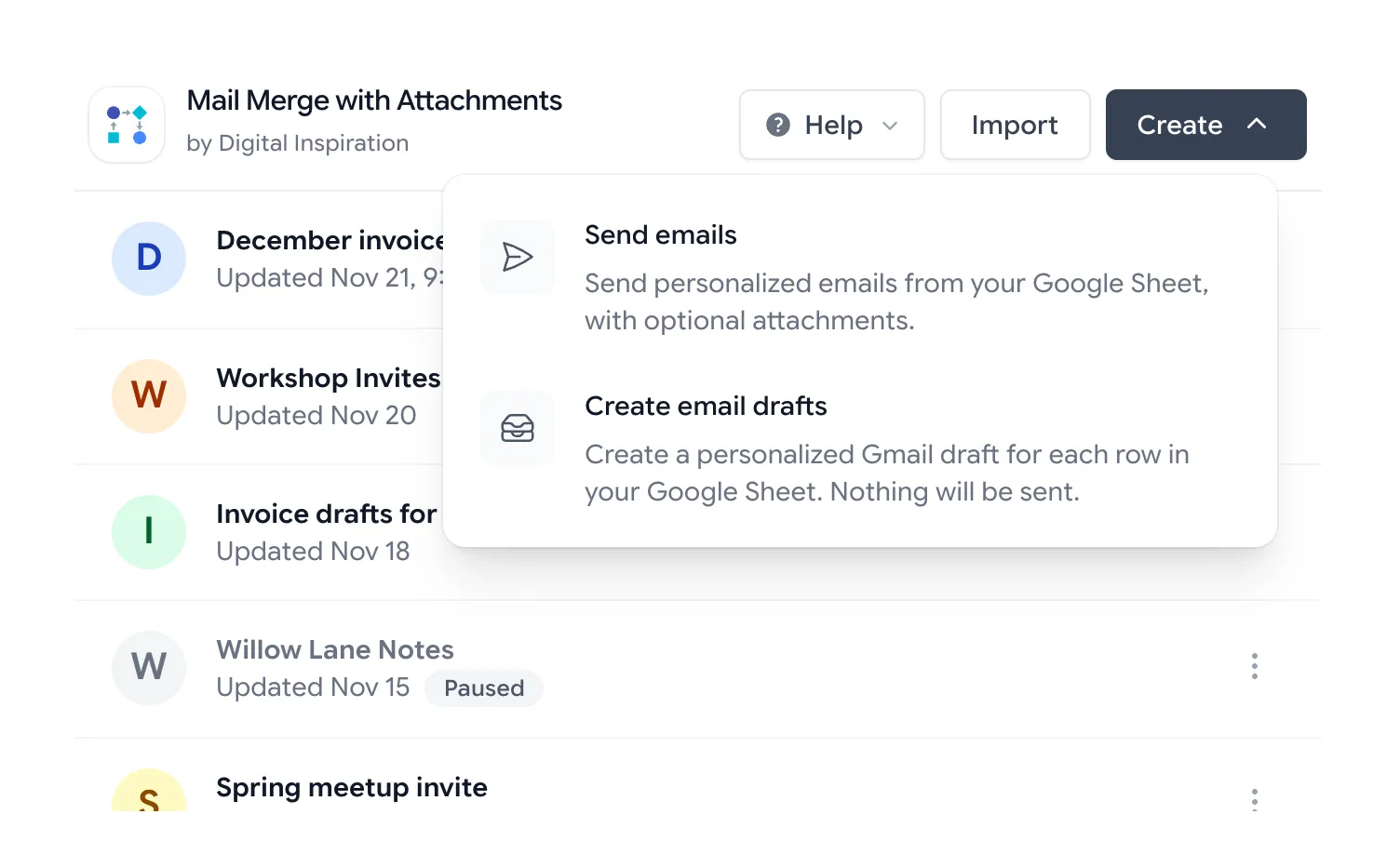
Choose Create email drafts from the Create menu. -
Set up the campaign the same way as one that sends. On the Sheet step, name the campaign and pick the worksheet. On the Settings step, choose the sender and the Send to column. On the Template step, write the email. The quickstart walks through each step.
-
To see one email in your inbox first, click Send Test Email on the Template step.
-
On the Save & Run step, click Create Drafts.
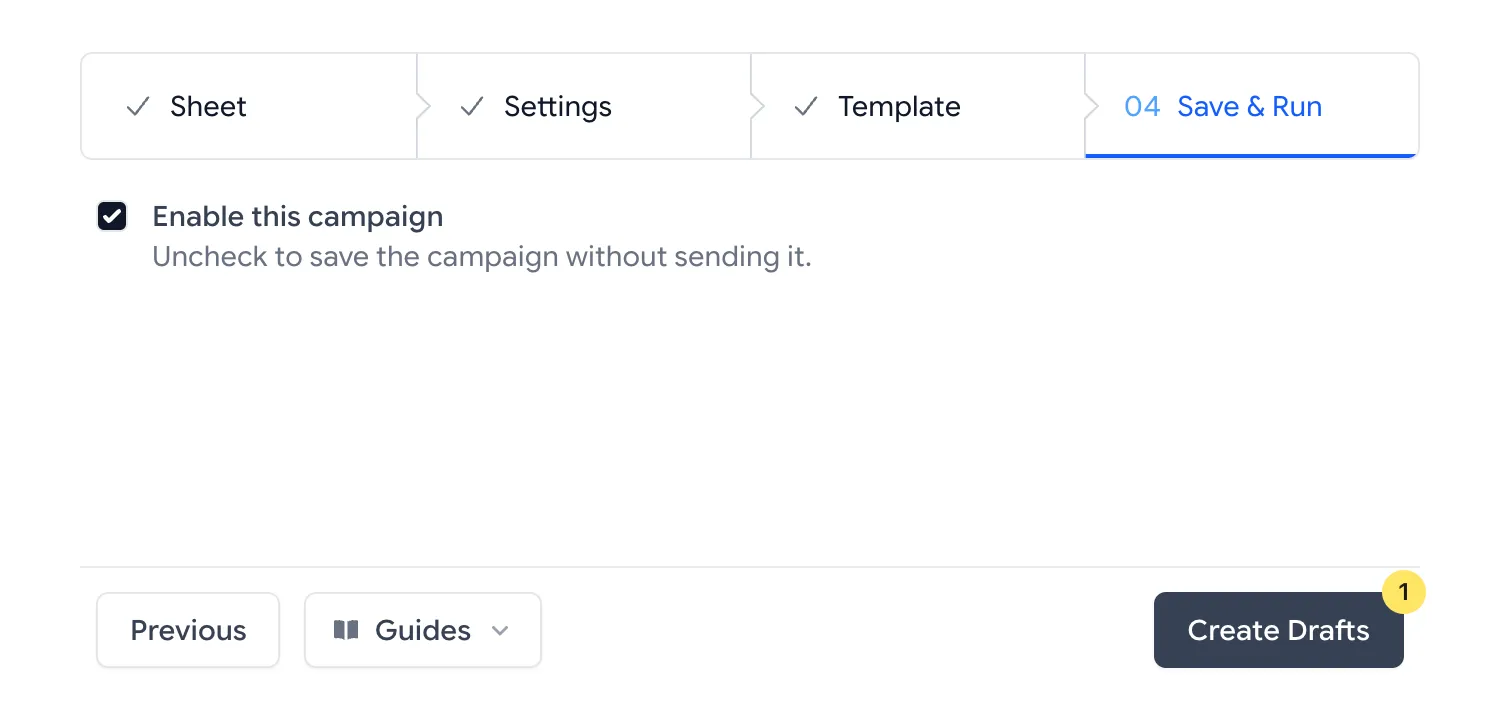
A drafts campaign has a Create Drafts button where Send Emails would be.
The log lists each row as Mail Merge creates its draft. In the sheet, the Mail Merge Status column says Draft created for those rows.
Review and Send the Drafts in Gmail
Section titled “Review and Send the Drafts in Gmail”-
Open Gmail and click Drafts in the left sidebar. You can also click a Draft created cell in the sheet to jump to Gmail.
-
Open a draft. Check the recipient, the subject, the names and amounts in the message, and the attached file.
-
Change anything you like. Each draft is a normal Gmail draft, so you can edit the text, add a line, attach another file or add someone in CC.
-
Click Send. To send the draft later, click the arrow next to Send and choose Schedule send.
Create the Drafts Again
Section titled “Create the Drafts Again”Mail Merge skips every row that already says Draft created, so running the campaign twice doesn’t make a second set of drafts.
To make a draft again, for example after you fix a typo in the template, delete the old draft in Gmail and clear that row’s Mail Merge Status cell. Then open the campaign and click Create Drafts.
Things to know
Section titled “Things to know”- Mail Merge creates a draft for every row with data, even when the email address is missing. You can type the address in Gmail before you send.
- Scheduled Date doesn’t apply to drafts. Mail Merge creates all the drafts right away.
- A drafts campaign has no open tracking, click tracking or unsubscribe link, because you send the emails yourself from Gmail.
- The status stays Draft created after you send a draft. Mail Merge doesn’t know when you click Send in Gmail.
- A campaign that sends emails also skips rows marked Draft created. If you use the same sheet for both, the people who got a draft won’t get a second email.
- In one run, you can create as many drafts as you have emails left in your daily quota.
- Mail Merge attaches the files in the File Attachments column to each draft. If Mail Merge can’t find a file, the status column says so. You can fix the file before you send anything. See attachment errors.