
Your ticket for Brand Basics, Daniel
How to Add a Unique QR Code to Each Email
Mail Merge can put a different QR code in every email. Each person gets a code made from their own row: a ticket with their seat, a link to their account, or a discount code that is theirs alone.
You can add the code in two ways. A formula in your sheet lets you see and scan every code before you send. An Embed marker in your email needs no extra column.
Send a QR Code Ticket to Each Guest
Section titled “Send a QR Code Ticket to Each Guest”Maya runs Brand Basics, a workshop at Willow Lane Studio. She wants each guest to get a ticket by email with a QR code that she can scan at the door. Her guest list is in a sheet:
| First Name | Email Address | Session | Seat |
|---|---|---|---|
| Daniel | daniel.okafor@example.net |
Saturday, January 10 at 10 AM | B4 |
| Lucas | lucas.silva@example.com |
Saturday, January 10 at 10 AM | B5 |
| Hannah | hannah.weber@example.org |
Saturday, January 17 at 2 PM | A1 |
Daniel’s email arrives with his own code. When Maya points her phone camera at the code, the phone shows Brand Basics - Daniel - Seat B4.
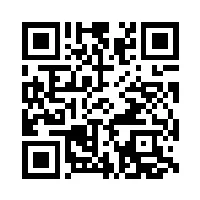
Add the QR code formula to your sheet
Section titled “Add the QR code formula to your sheet”The QRCODE formula comes with Mail Merge. Install the add-on first, then open the sheet that holds your list.
-
Add a column titled Ticket to your sheet.
-
Click the first cell under the title and paste this formula. The formula joins the workshop name, the guest’s first name in column A and their seat in column D.
=QRCODE("Brand Basics - "&A2&" - Seat "&D2, 200)Outputhttps://charts.digitalinspiration.com/qrcode/3TqMkepTjTpIcdZQcLF0…bPGD.pngThe cell shows a long link that ends in
.png. That link is the picture of the QR code. The200makes the code 200 pixels wide, a good size for an email. -
Copy the formula to the other rows. Click the cell, then drag the small blue square at its bottom-right corner down to the last guest.
-
To see the codes in the sheet, add another column titled Ticket Preview. Enter
=IMAGE(E2), where E2 is the cell with the link. Copy the formula down too. Scan one or two codes with your phone to check what they say.
Add the QR code to your email
Section titled “Add the QR code to your email”-
Go to Extensions > Mail Merge with Attachments > Open Mail Merge and open your campaign, or click Create and choose Send emails to start one.
-
On the Template step, write your email. Type
{{Ticket}}on a line of its own, where you want the QR code to appear.Hi {{First Name}},You're booked for Brand Basics on {{Session}}. Your seat is {{Seat}}.Show this code at the door:{{Ticket}}See you there,Maya -
Click Send Test Email and send the email to yourself. Open the test email and scan the code with your phone.
-
Go to the Save & Run step and click Send Emails.
When the campaign runs, Mail Merge replaces {{Ticket}} with each row’s link and shows the link as a picture. The QR code works in the visual editor, a Gmail draft, HTML, Markdown and Google Docs templates. A plain text email can’t show pictures, so the recipient sees the link.
Add a QR Code Without a Formula
Section titled “Add a QR Code Without a Formula”You can skip the formula and the extra column. Type an Embed QR Code marker in the message of your email, on a line of its own, where you want the code to appear. Maya’s ticket becomes:
Hi {{First Name}},
You're booked for Brand Basics on {{Session}}. Your seat is {{Seat}}.
Show this code at the door:
{{Embed QR Code, "Brand Basics - {{First Name}} - Seat {{Seat}}", width=200}}
See you there,Maya
Mail Merge fills in the merge fields inside the quotes for each row, so Daniel’s code reads Brand Basics - Daniel - Seat B4, the same as the formula. The width=200 makes the code 200 pixels wide.
You can write the text after Embed QR Code, in four ways:
| You write | The code holds |
|---|---|
{{Embed QR Code, {{Seat}}}} |
The Seat column. No code if that column is missing. |
{{Embed QR Code, Seat}} |
The Seat column if it exists, otherwise the word Seat |
{{Embed QR Code, "Seat B4, Studio 2"}} |
The text in quotes, exactly as typed |
{{Embed QR Code, "Brand Basics - {{First Name}} - Seat {{Seat}}"}} |
The text, with each merge field filled in for that row |
Use {{Seat}}, with its own braces, for data from your sheet. Use quotes for text you type. The form without braces also works. But if you misspell the column title, Mail Merge makes a code of the misspelled title. Put text with a comma in quotes.
If a row’s cell is empty, Mail Merge still sends the email without a code.
Examples to copy
Section titled “Examples to copy”{{Embed QR Code, {{Ticket ID}}, width=220}}{{Embed QR Code, https://example.com/orders/{{Order Number}}}}{{Embed QR Code, "https://willowlane.com/check-in"}}{{Embed QR Code, {{Coupon}}, width=150}}{{Embed QR Code, "WIFI:T:WPA;S:Willow Lane Guest;P:brandbasics;;"}}{{Embed QR Code, "MECARD:N:Chen,Maya;TEL:+15551234567;EMAIL:maya@example.com;;"}}{{Embed QR Code, "mailto:maya@example.com?subject=Seat {{Seat}}"}}{{Embed QR Code, tel:+15551234567}}{{Embed QR Code, {{Ticket ID}}, textcolor={{Brand Color}}}}Formula or Embed marker?
Section titled “Formula or Embed marker?”Use the QRCODE formula when |
Use the Embed QR Code marker when |
|---|---|
| You want to see and scan every code in the sheet first | You don’t want extra columns in the sheet |
The text needs a sheet function, like ENCODEURL or TEXT |
The text is a column, or columns joined with typed text |
| The same code goes into other documents too | The code belongs to one email template |
See how Embed markers work for the rules that every Embed marker shares.
What to Put in a QR Code
Section titled “What to Put in a QR Code”A QR code can hold any short text. When the text is a link, scanning the code opens the link. Build the text from your columns with &, the same way as the ticket formula.
| The code holds | Formula |
|---|---|
| A ticket. The phone shows the guest and seat. | =QRCODE("Brand Basics - "&A2&" - Seat "&D2) |
| A web page for that row, like an order. The page opens. | =QRCODE("https://example.com/orders/"&F2) |
| A discount code. The phone shows the code. | =QRCODE(G2) |
| A chat with you. WhatsApp opens with a message filled in. | =QRCODE("https://wa.me/15551234567?text="&ENCODEURL("Hi, I'm "&A2)) |
| A payment request. The payment app opens with the amount. | See UPI payments |
Change the Size and Colors
Section titled “Change the Size and Colors”The formula takes two optional values after the text: the width in pixels, and the colors.
=QRCODE(text, width, options)| Formula | Result |
|---|---|
=QRCODE(A2) |
Black code, 300 pixels wide |
=QRCODE(A2, 150) |
Black code, 150 pixels wide |
=QRCODE(A2, 200, "textcolor=#1A3C6E backgroundcolor=#FFF8E1") |
Navy code on a cream background, as below |
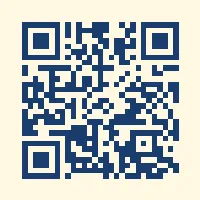
Colors are hex codes. Keep the code much darker than its background, or some phones won’t be able to scan it.
In an Embed marker, write the same options after the text, with a comma before each one:
{{Embed QR Code, {{Seat}}, width=150, textcolor=#1A3C6E, backgroundcolor=#FFF8E1}}| Option | What it does | If you leave it out |
|---|---|---|
width |
Width of the code in pixels, up to 2000 | 300 |
textcolor |
Color of the squares, as a hex code | Black, #000000 |
backgroundcolor |
Color behind the squares, as a hex code | White, #FFFFFF |
Mail Merge ignores a color name like red, and the code stays black.
Things to know
Section titled “Things to know”- Keep the text short. The more text a code holds, the smaller its squares get and the harder it is to scan. If a code is slow to scan, make it wider or shorten the text.
- The link holds the text of the code, not a reference to your sheet. If you change or delete the sheet later, emails you’ve already sent keep working.
- Some email apps, like Outlook, hide pictures until the reader clicks Download pictures. Gmail shows them right away.
- Anyone can read a QR code. Don’t put passwords or private details in a QR code.
- For a barcode that a store scanner can read, use the BARCODE formula.
Troubleshooting
Section titled “Troubleshooting”The cell shows #NAME?
Section titled “The cell shows #NAME?”Google Sheets doesn’t know the formula yet. Go to Extensions > Mail Merge with Attachments > Open Mail Merge once in this spreadsheet, then close the window. The formula starts working after that. If the add-on isn’t in the Extensions menu, install the add-on first.
The email shows a link, not a QR code
Section titled “The email shows a link, not a QR code”Check that the template isn’t plain text. In the other editors, type {{Ticket}} as normal text on a line of its own. If you set the field as the address of a link, the email keeps the link.
The email has a blank where the code should be
Section titled “The email has a blank where the code should be”The merge field points to a column that shows pictures, like Ticket Preview. Use the column that holds the link.
The QR code shows a column title
Section titled “The QR code shows a column title”The Embed marker has no braces around the column title, like {{Embed QR Code, Seat}}, and no column in your sheet has that title. Write {{Embed QR Code, {{Seat}}}} and check the spelling.
The Embed marker left no code in the email
Section titled “The Embed marker left no code in the email”The cell is empty for that row, the column title in the inner braces is misspelled, or the marker is in the subject or in a plain text email. Embed markers work in the message only. Check that the name is exactly Embed QR Code and that a comma follows it.
The code holds only part of the text
Section titled “The code holds only part of the text”The text in the Embed marker has a comma, so the marker reads the rest as options. Put the text in quotes, like {{Embed QR Code, "Seat B4, Studio 2"}}.
Next: add barcodes to your emailsGift cards, membership numbers and vouchers that a barcode scanner can read.