
Workflow Dashboard - Manage your Workflows and App Integrations
After you create a workflow inside Google Sheets (or Forms or Slides or Google Docs), the workflow will appear in the dashboard, with the most recently modified workflow listed on top of the list.
You can click the Sort button to sort the list by workflow names or by the date they were created.
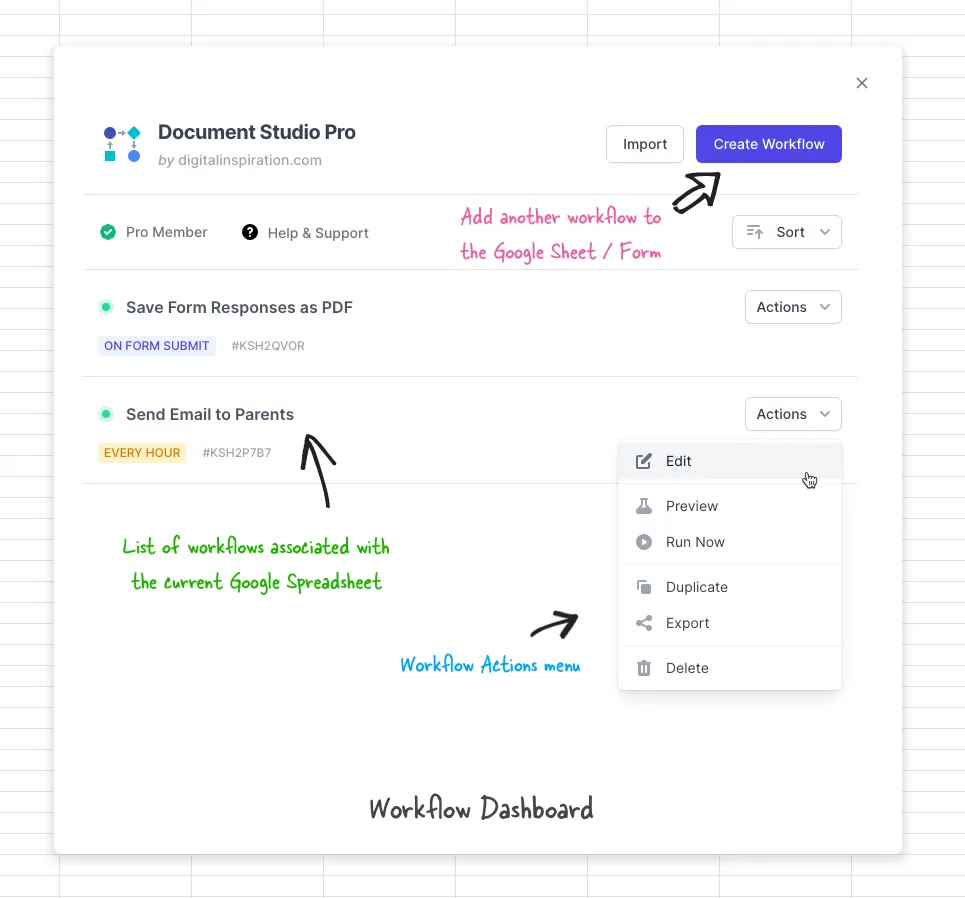
Workflow Options
Section titled “Workflow Options”Alongside the workflow name, there is an Actions menu button that offers a host of options:
This option enables you to edit the workflow name, the associated conditions and the tasks contained with a workflow. You can make changes to existing tasks or even add new ones. Whenever you edit any component of a workflow, remember to click on Save Workflow button to apply your changes and permanently save the changes you made.
Run Now
Section titled “Run Now”The Run option triggers the workflow and all tasks that are part of the workflow are executed one after another for selected row in the associated Google Sheet.
You can easily stop a manually running workflow anytime by clicking on the Stop button. This will instantly pause the workflow even when there are rows to be processed in the Google Sheet. After all rows are processed in the associated Google Sheet, the workflow will terminate automatically.
Duplicate
Section titled “Duplicate”You can use this option to create a copy of the selected workflow. It will copy all the workflow options, including tasks, conditions and triggers.
Export
Section titled “Export”This option allows you to save your workflow as a plain text file for back-up purposes. In case the workflow configuration is lost due to any reason, and you wish to retrieve the original setting, you can import it back in your list of workflows by clicking on the Import button.
Delete
Section titled “Delete”Use this with caution as it will permanently delete the workflow and you cannot restore it later. It is a good practice to backup your workflows before deleting them.