
No-code Workflow Automation with Document Studio
Document Studio is a no-code workflow automation add-on that makes it easy for Google Workspace users to improve and quickly automate their business processes.
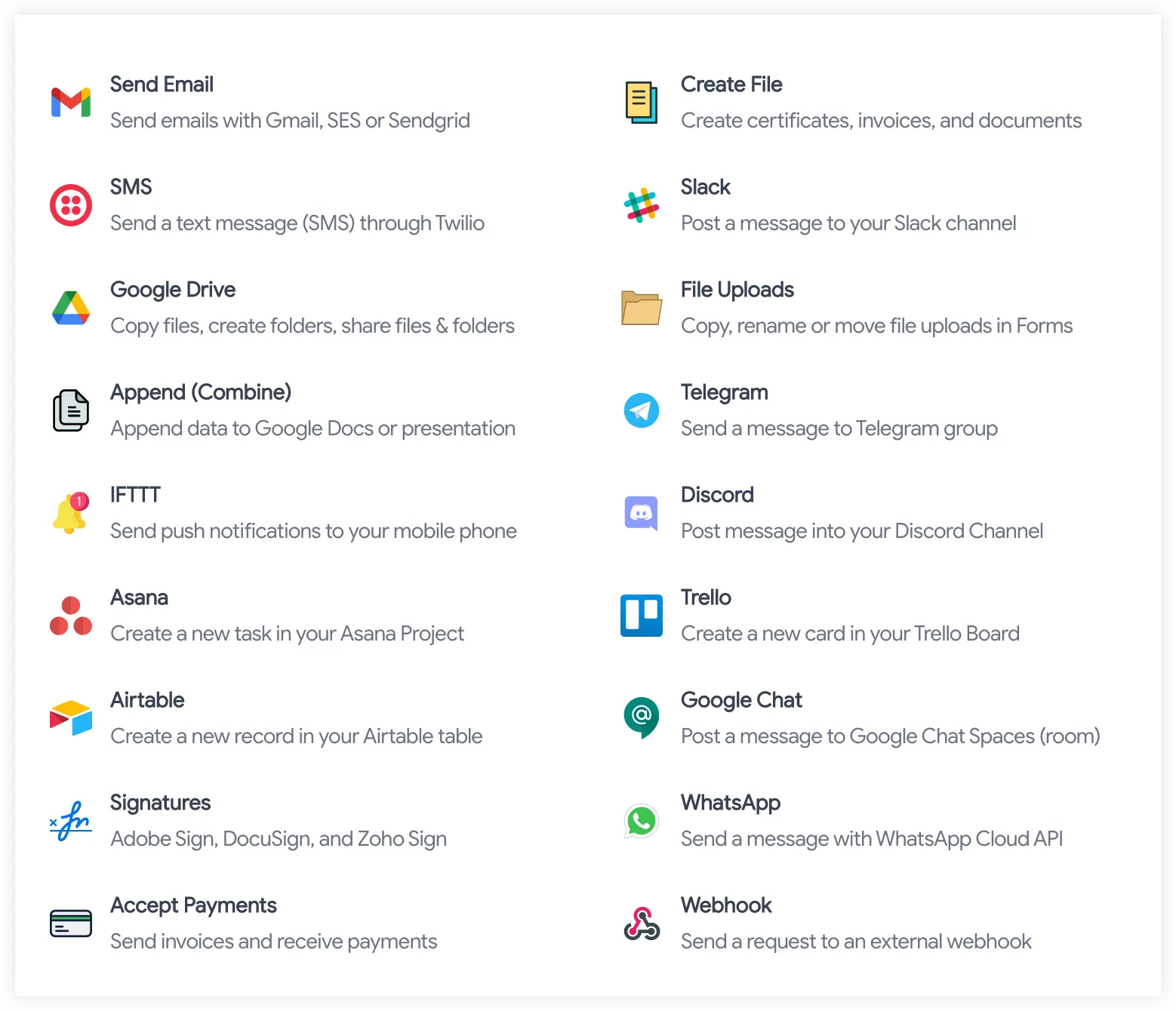
Document Studio automates document generation and eliminates the need for you to create the same document over and over again. The add-on connects with popular apps, including Google Drive, WhatsApp, Asana, Trello, Google Chat, Discord, Telegram, Todoist, Airtable,Slack, Twilio SMS, Email, Stripe, PayPal, Webhooks, Digital Signatures, and more.
Documents {#file}
Section titled “Documents {#file}”Google Docs
Section titled “Google Docs”- Create personalized documents with rows in Google Sheets
- Append rows from Google Sheets to an existing document
- Create new Google Documents from Google Form responses
- Combine Google Form Responses in a Word document
- Use Google Docs as an Email Template for Mail Merge
- Create multiple documents from a Google Form response
Google Sheets
Section titled “Google Sheets”- Generate customer invoices from data in Google Sheets
- Create personalized sales quotes from Google Form responses
Google Slides
Section titled “Google Slides”- Generate business cards with rows in Google Sheets
- Merge and Combine sheet data in a Google Presentation
- Create Google Slide presentations from Google Form responses
- Combine Google Form responses in a single presentation
- Create Certificates from Google Form responses
Images & Posters {#images}
Section titled “Images & Posters {#images}”- Create dynamic images from new Google Form responses
- Generate banners and posters from rows in Google Sheets
- Auto-generate social media images of different sizes
Append {#append}
Section titled “Append {#append}”- Append rows from Google Sheets to an existing document
- Combine Google Form responses in a single presentation
- Combine Google Form Responses in a Word document
- Merge and Combine sheet data in a Google Presentation
Copy Rows {#copy}
Section titled “Copy Rows {#copy}”- Copy Form Responses to Excel workbook
- Copy Form Responses to Zoho Sheet
- Copy Google Form responses to another Google Sheet
- Copy rows from Google Sheets to another Google Sheet
- Copy rows from Google Sheets to Excel
- Copy rows from Google Sheets to Zoho Sheet
Notifications
Section titled “Notifications”SMS {#sms}
Section titled “SMS {#sms}”- Send an SMS with rows in Google Sheets
- Send SMS messages for new Google Form responses
- Send text reminders for upcoming appointments
Email {#email}
Section titled “Email {#email}”- Send Email via Gmail for new Google Form responses
- Email Google Drive files for Google Form submissions
- Send conditional emails for Google Form responses
- Send Emails via Gmail for new Google Sheets
- Send Email Reminders with Google Sheets
- Send Emails via SendGrid for new Google Sheet rows
- Send Emails via Amazon SES on a new row in Google Sheets
- Send Emails via Resend Email API in Google Sheets
- Send Emails via SparkPost for new Google Sheet rows
- Send Personalized emails with Gmail and Google Docs template
- Send appointment reminders for form submissions
Push {#ifttt}
Section titled “Push {#ifttt}”Webhook {#webhook}
Section titled “Webhook {#webhook}”- POST webhooks when new rows are created in Google Sheets
- POST new Google Form responses to a Webhook URL
Collaboration
Section titled “Collaboration”Asana {#asana}
Section titled “Asana {#asana}”Todoist {#todoist}
Section titled “Todoist {#todoist}”Airtable {#airtable}
Section titled “Airtable {#airtable}”- Create new records in Airtable with Google Sheets
- Create new records in Airtable from Google Form responses
Trello {#trello}
Section titled “Trello {#trello}”Google Drive {#organize}
Section titled “Google Drive {#organize}”- Create Google Drive Folders from rows in Google Sheet
- Manage Google Form File Uploads in Google Drive
- Add Google Form Uploads to Shared Drive
- Email Google Drive Files for Google Form submissions
- Create a Google Drive folder from new Google Form responses
- Copy files in Google Drive for new Google Form submissions
- Copy a file in Google Drive for every row in Google Sheet
Share {#share}
Section titled “Share {#share}”- Share a folder in Google Drive for rows in Google Sheet
- Share generated documents with Google Drive
- Share a file Google Drive for new Google Form responses
Messaging
Section titled “Messaging”WhatsApp {#whatsapp}
Section titled “WhatsApp {#whatsapp}”Slack {#slack}
Section titled “Slack {#slack}”Discord {#discord}
Section titled “Discord {#discord}”Telegram {#telegram}
Section titled “Telegram {#telegram}”- Send Telegram messages with rows in Google Sheets
- Send Telegram notifications from Google Form responses
Google Chat {#googlechat}
Section titled “Google Chat {#googlechat}”- Create messages in Google Spaces with rows in Google Sheets
- Receive notifications in Google Chats for Google Form responses
Payments {#payment}
Section titled “Payments {#payment}”Stripe
Section titled “Stripe”- Create Stripe invoices for rows in Google Sheets
- Request Stripe Payments on new Google Form submission
PayPal
Section titled “PayPal”- Create and Send PayPal invoices for rows in Google Sheets
- Create and Send PayPal invoices for Google Form submissions
RazorPay
Section titled “RazorPay”- Create and Send RazorPay invoices for rows in Google Sheets
- Send RazorPay invoices for new Google Form submissions
Electronic Signatures {#signature}
Section titled “Electronic Signatures {#signature}”Adobe Sign
Section titled “Adobe Sign”- Create Adobe Sign Requests for rows in Google Sheets
- Request Signatures with Adobe Sign for new Google Form Responses