
Convert Google Slides to an MP4 Video
An MP4 video plays your slides once, from the first to the last. Upload it to YouTube, share it on social media or play it in any video player. MP4 videos are available with the Starter and Pro plans, and in your 5 trial exports.
Make the Video
Section titled “Make the Video”-
Open your presentation and go to Extensions > Creator Studio > Open Creator Studio.
-
Under Format, click MP4.
-
Choose a width from the Size list. Starter makes videos up to 800 pixels wide. Pro makes them up to 1,600 pixels wide.
-
Type the number of seconds each slide stays on screen in Slide duration (seconds). Type a different number under any slide that needs more or less time.
-
Under Transition, choose Cut or Fade.
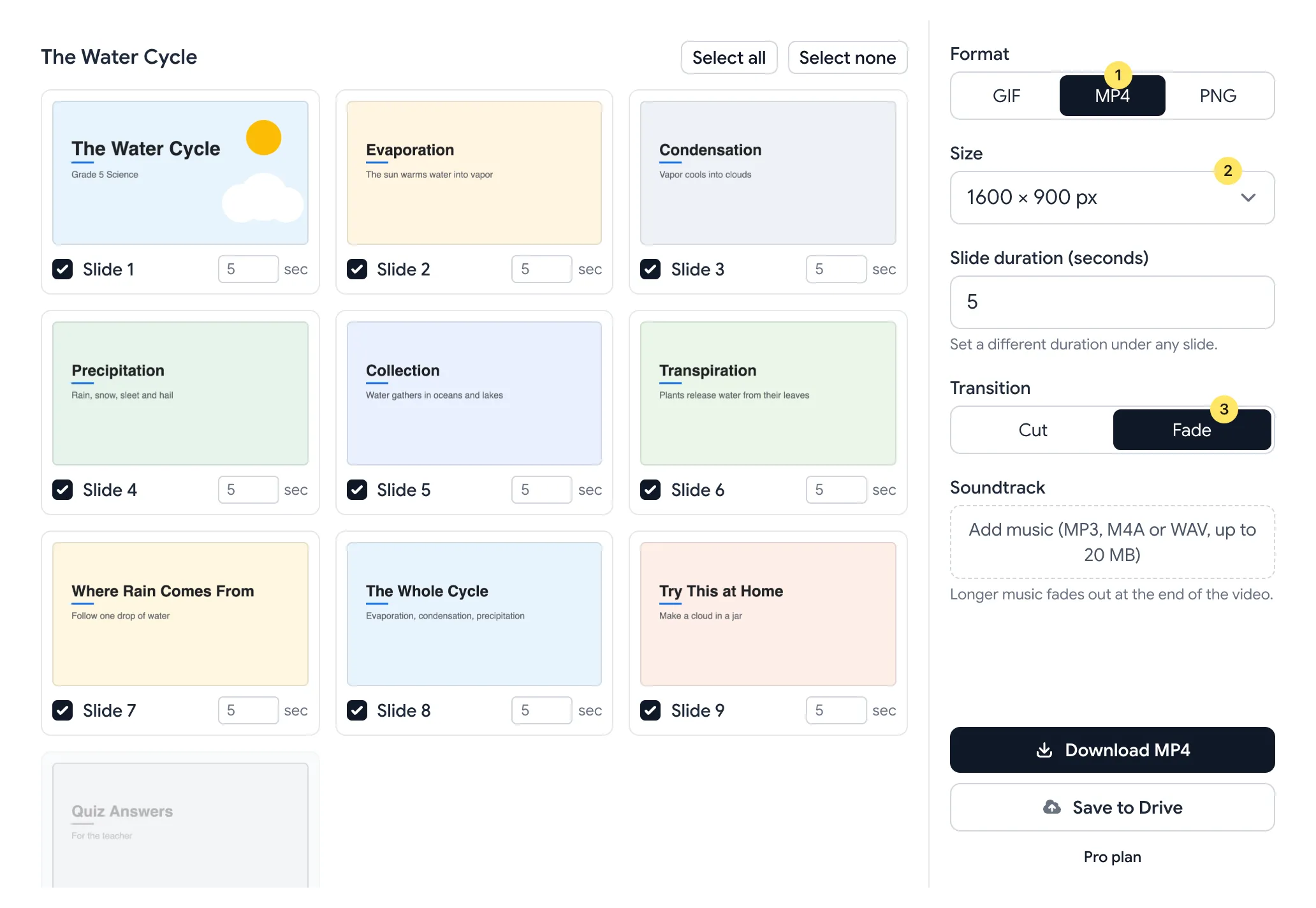
MP4 settings, with the Soundtrack section that appears for videos. -
Click Download MP4. The file is named after the presentation, such as
The Water Cycle.mp4.
How Long the Video Is
Section titled “How Long the Video Is”The video lasts as long as all the slide durations added together. Emily’s 9 slides at 5 seconds each make a 45-second video. A fade doesn’t add time. It uses the last half second of the slide that ends.
Add Music
Section titled “Add Music”With Pro, you can add an MP3, M4A or WAV file that plays under the video. See Add Background Music to a Slides Video.
Things to Know
Section titled “Things to Know”- Creator Studio makes the video in your browser. Keep the window open until the download starts.
- MP4 export works best in recent versions of Google Chrome and Microsoft Edge. If an export fails in another browser, try Chrome.
- Animations, transitions and videos inside your slides don’t appear in the video. Each slide shows as a still image.