
Add Background Music to a Google Slides Video
A soundtrack is a music file that plays under your whole video. Creator Studio cuts the music to the length of the video and fades it out at the end. Soundtracks are available with the Pro plan, and in your 5 trial exports.
Emily adds a calm piano track, piano.mp3, to her The Water Cycle video before she uploads it to YouTube.
Add a Soundtrack
Section titled “Add a Soundtrack”-
Open Creator Studio and click MP4 under Format. The Soundtrack section appears below the settings.
-
Click Add music (MP3, M4A or WAV, up to 20 MB) and choose the music file on your computer.
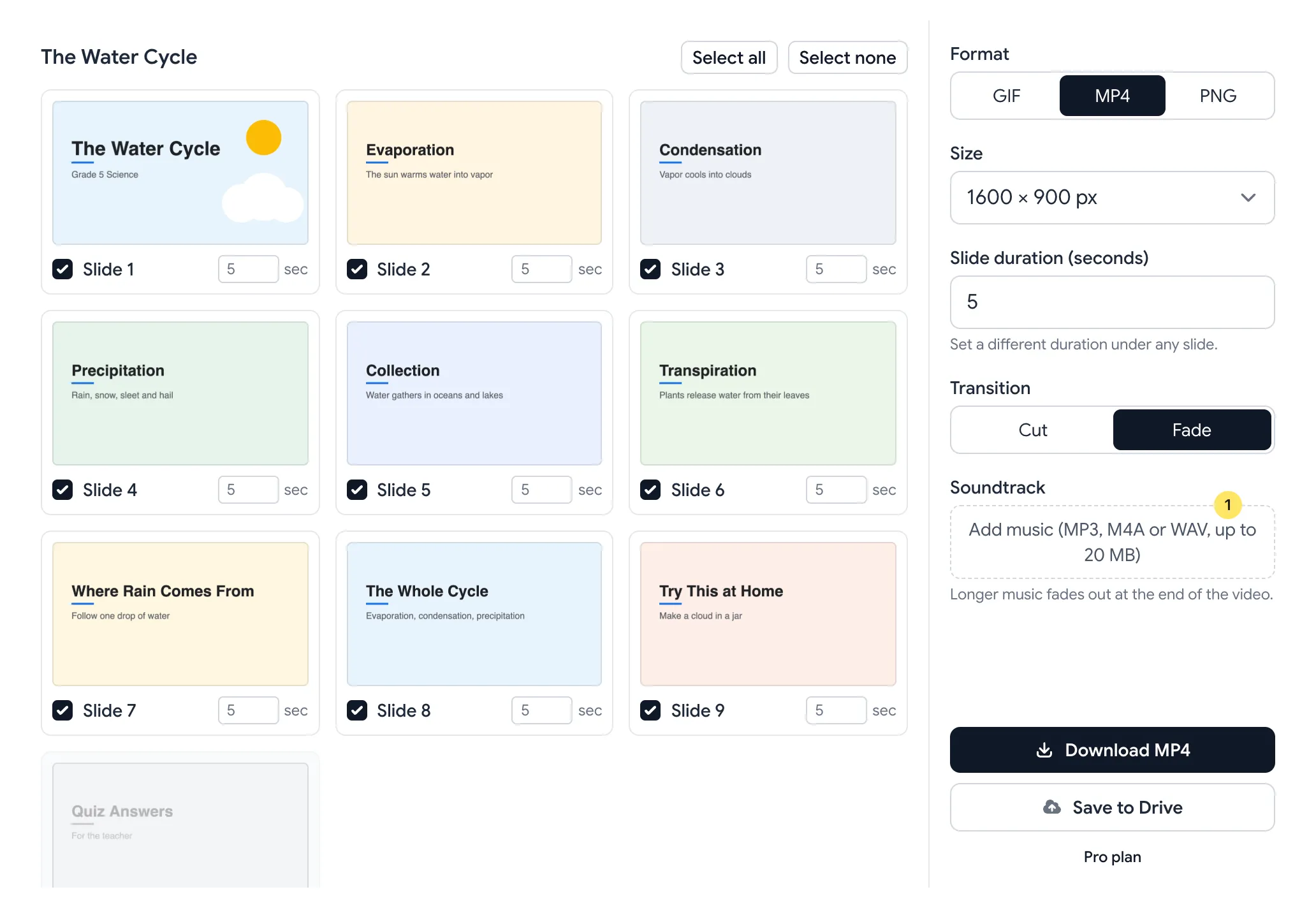
The Soundtrack section appears when MP4 is selected. -
Click the play button next to the file name to listen to it. Click it again to pause.
-
Click Download MP4.
To use a different file, click Remove, then add the new one.
How the Music Fits the Video
Section titled “How the Music Fits the Video”- The music is longer than the video: Creator Studio cuts it at the end of the video. The music fades out over the last 2 seconds.
- The music is shorter than the video: the music plays once. The rest of the video is silent.
To change the length of the video, change the slide durations. See How Long the Video Is.
Things to Know
Section titled “Things to Know”- Creator Studio doesn’t save the music with the presentation. Add the file again each time you open Creator Studio.
- The music file stays on your computer. Creator Studio reads it in your browser.
- Use music you have the right to use, especially on YouTube.
Troubleshooting
Section titled “Troubleshooting”- The message says the file is larger than 20 MB: choose a shorter track, or save the music as an MP3 at a lower quality.
- The message says the file could not be read as audio: the file may be damaged or in a format your browser can’t play. Convert it to MP3 and add it again.