
Choose Slides and Set How Long Each Shows
Creator Studio exports the slides that are checked in its window. You can leave slides out without changing your presentation. For a GIF or video, you also choose how long each slide stays on screen and how one slide changes to the next.
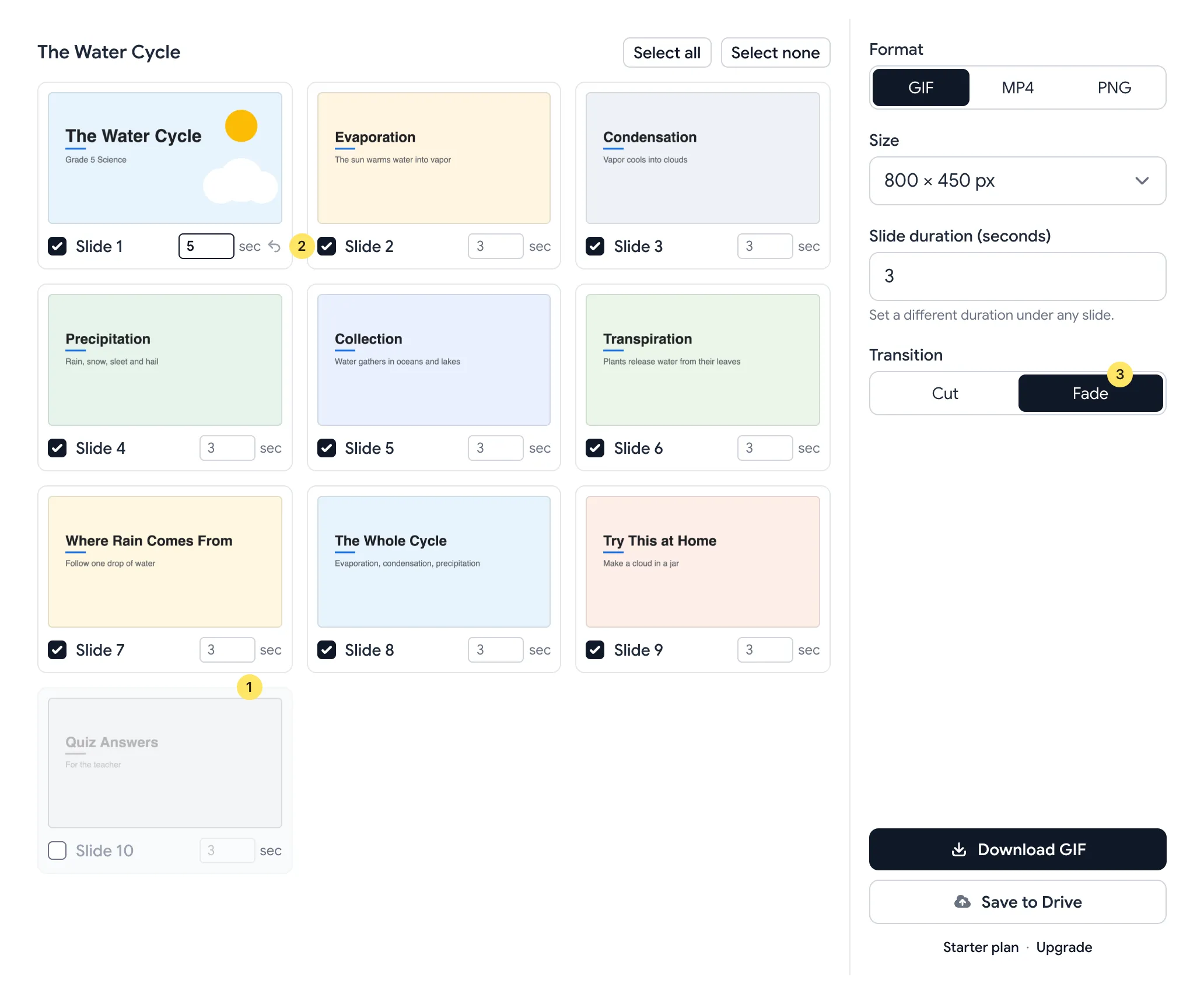
Emily’s The Water Cycle deck ends with a Quiz Answers slide that she marked Skip in Google Slides. Her title slide needs more time than the rest.
Choose the Slides
Section titled “Choose the Slides”- Click a slide, or its checkbox, to leave it out of the export. Click again to put it back.
- Slides marked Skip in Google Slides start unchecked.
- Click Select all or Select none above the slides to change every slide at once.
The Free plan exports up to 20 slides at a time. If more are checked, Creator Studio asks you to uncheck some. Starter and Pro have no limit.
Set How Long Each Slide Shows
Section titled “Set How Long Each Slide Shows”-
Type the number of seconds in Slide duration (seconds). Every slide uses this duration unless you set its own.
-
To give one slide a different duration, type the number of seconds in the box under that slide. The box shows the number in bold.
-
To return a slide to the duration of the other slides, click the curved arrow next to its box.
Durations can be from 0.5 to 60 seconds, in steps of half a second. On the Free plan, every slide shows for 2 seconds. Starter and Pro let you set any duration and a different one for each slide.
Fade Between Slides
Section titled “Fade Between Slides”Under Transition, choose how one slide changes to the next:
- Cut switches to the next slide at once.
- Fade blends each slide into the next over half a second. A slide shorter than 1 second fades for half its duration.
The last slide doesn’t fade. Fade is available with Starter and Pro.
Your Settings Are Saved
Section titled “Your Settings Are Saved”Creator Studio saves the format, size, durations, transition and checked slides with the presentation. Anyone who opens Creator Studio in the same presentation sees them. If that person’s plan doesn’t include a setting, Creator Studio uses the closest setting their plan allows and keeps yours as they are.
The background music isn’t saved. See Add Background Music to a Slides Video.