
Install Creator Studio for Google Slides
Creator Studio works with personal Google accounts and Google Workspace accounts. You install it once, and it shows up in the Extensions menu of every presentation you open in that account.
Install the Add-on
Section titled “Install the Add-on”-
Open the Creator Studio listing in the Google Workspace Marketplace. Check that the publisher is Digital Inspiration, then click Install.
-
Click Continue when Google asks you to start the installation.
-
Choose the Google account you use for Google Slides. If you’re signed in to several accounts, check the address before you continue.
-
Review what the add-on can access, then click Allow.
You can also install the add-on from inside Google Slides. Open the Extensions menu and choose Add-ons > Get add-ons. Search for Creator Studio and click Install.
Open Creator Studio
Section titled “Open Creator Studio”-
Open the presentation you want to export in Google Slides.
-
Go to Extensions > Creator Studio > Open Creator Studio.
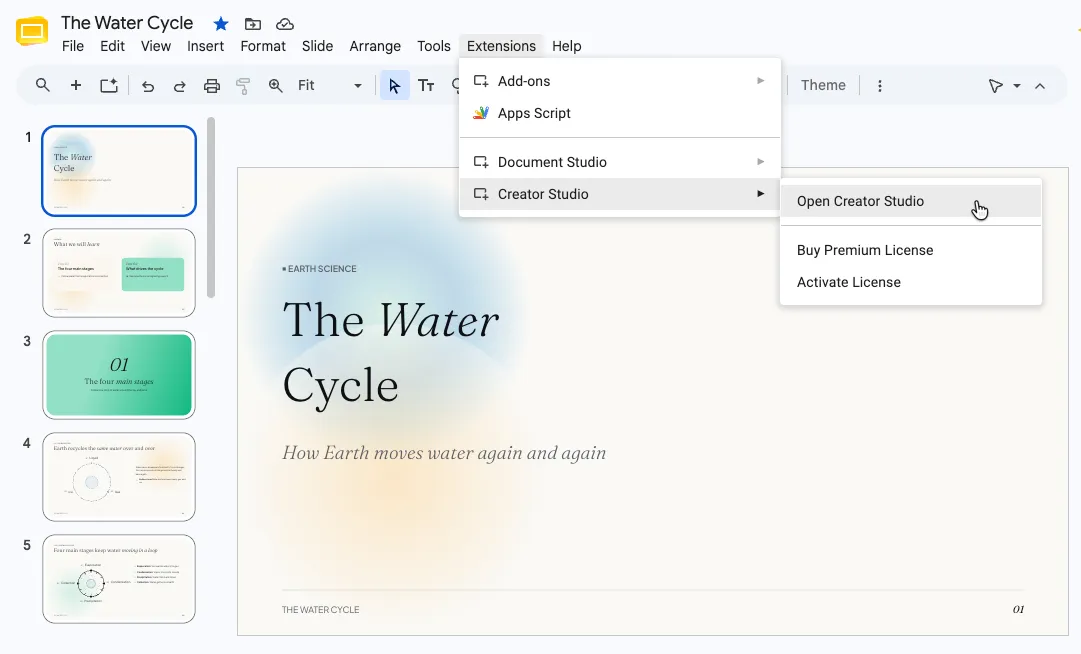
Open Creator Studio from the Extensions menu. -
The Creator Studio window opens over your slides. Your slides appear on the left. The export settings and the Download button are on the right.
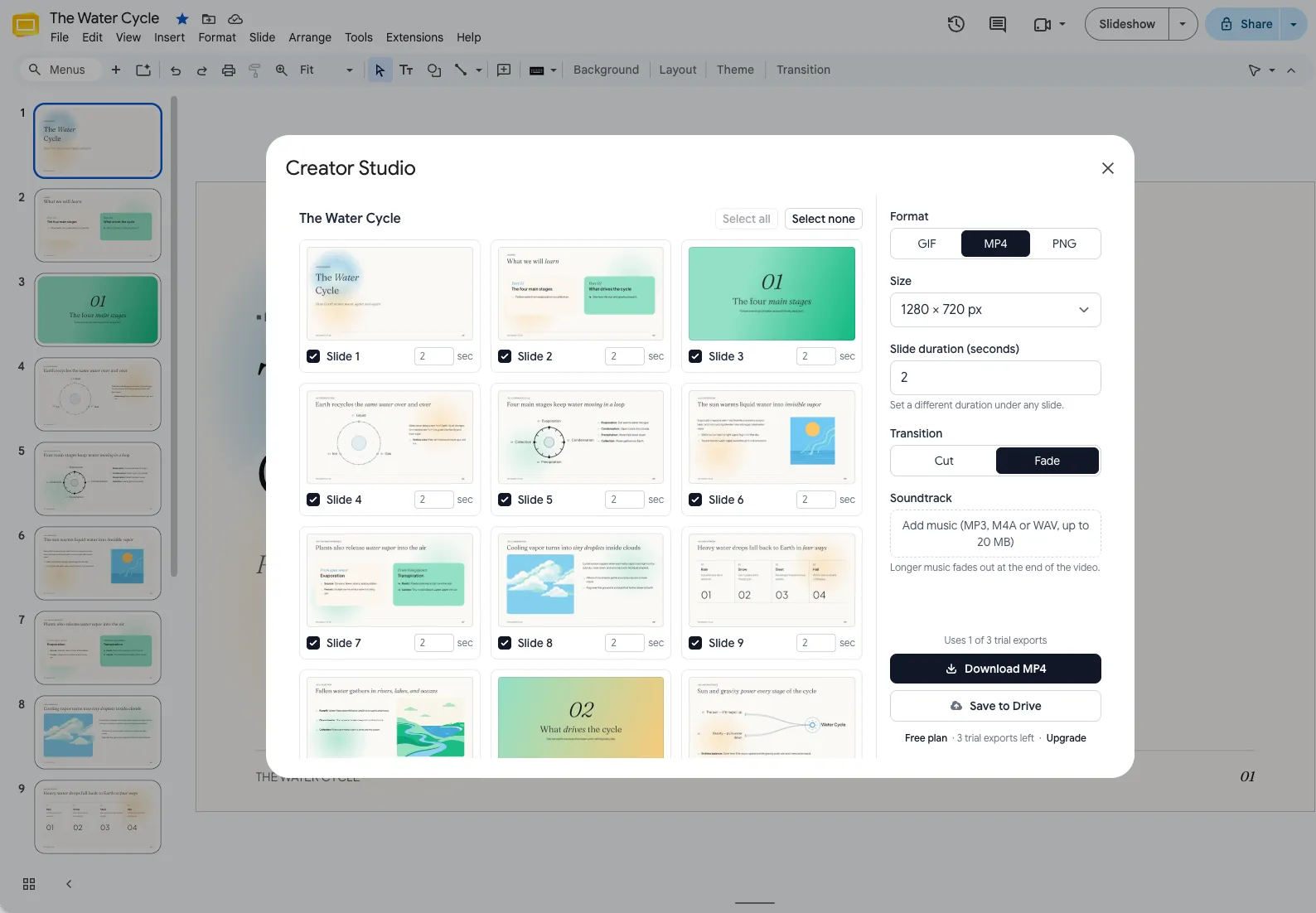
The Creator Studio window opens over your presentation.
Why Creator Studio Needs These Permissions
Section titled “Why Creator Studio Needs These Permissions”Google lists these permissions when you click Allow. Creator Studio uses each one for a single job.
| Permission | What Creator Studio does with it |
|---|---|
| See, edit, create, and delete all your Google Slides presentations | Reads the open presentation and gets an image of each slide to export |
| See, edit, create, and delete only the specific Google Drive files you use with this app | Saves your exports in a Creator Studio folder in your Drive |
| Display and run third-party web content in prompts and sidebars inside Google applications | Shows the Creator Studio window in Google Slides |
| Connect to an external service | Gets the slide images, saves to Drive and checks your license |
| See your primary Google Account email address | Matches you to your license |
Creator Studio makes every export in your browser. Your slides and exports aren’t sent to Digital Inspiration’s servers.
If You Can’t Open It
Section titled “If You Can’t Open It”- Creator Studio isn’t in the Extensions menu: reload the presentation. Check that the account in the top-right corner of Google Slides is the one you installed the add-on in.
- A window says Authorization Required: click Click here to grant access and allow every permission. Creator Studio needs all of them to work.
- A message says your presentation has no slides yet: add a slide, then open Creator Studio again.