
Activate Your Creator Studio License
When you buy a license, you receive a license key by email. Activate the key in Google Slides to switch Creator Studio to your plan. The license works in every presentation of the Google account you activate it in.
Activate the Key
Section titled “Activate the Key”-
Open any presentation in Google Slides with the Google account you use for Creator Studio.
-
Go to Extensions > Creator Studio > Activate License.
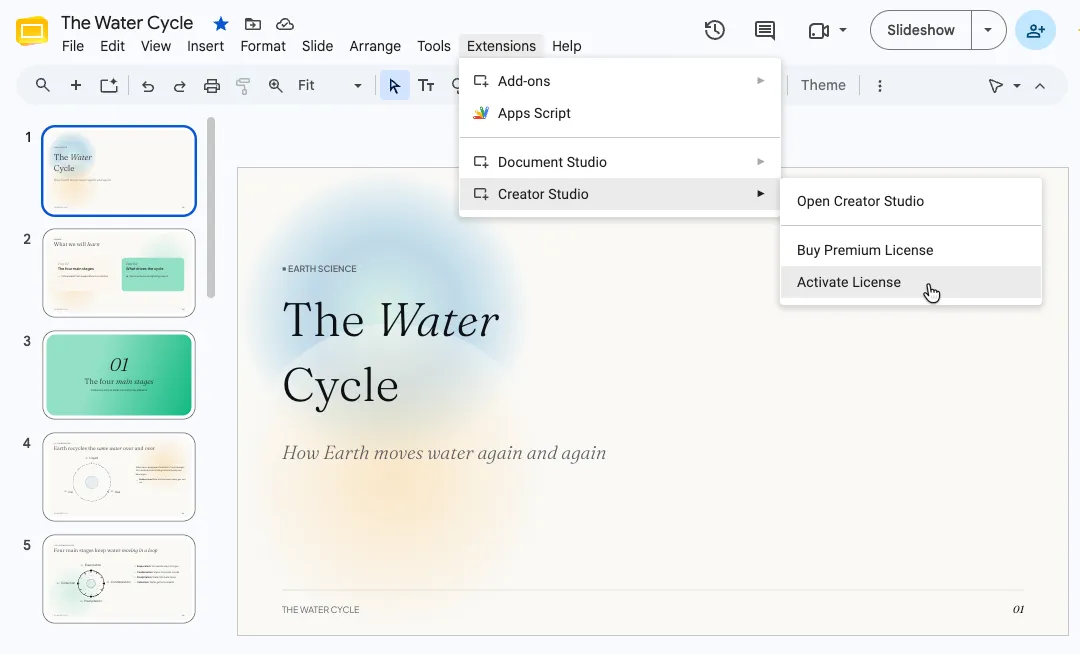
Activate License is in the Creator Studio menu. -
Copy the license key from the email, paste it into Paste your license key, and click Activate.
-
When the window says License activated, click Launch App to open Creator Studio.
The line below the Download button now shows your plan, such as Pro plan.
Things to Know
Section titled “Things to Know”- If the key isn’t in your inbox, check the spam folder of the email address you used to buy.
- If the menu shows Restore License instead of Activate License, choose Restore License. Google shows it before Creator Studio has been allowed to run in the presentation.
- When your license is active, the menu shows ☆ Gift a License instead. Use it to buy a license for someone else.