
Export Google Slides as an Animated GIF
An animated GIF plays your slides one after another and starts again at the end. GIFs play in Google Classroom, email, chat and web pages without a video player. GIFs are available on every plan.
Set Up the GIF
Section titled “Set Up the GIF”-
Open your presentation and go to Extensions > Creator Studio > Open Creator Studio.
-
Under Format, click GIF.
-
Choose a width from the Size list. The height follows the shape of your slides, so
480 × 270 pxis the smallest size for widescreen slides. -
Type the number of seconds each slide stays on screen in Slide duration (seconds). To give one slide more time, type a number in the box under that slide.
-
Under Transition, choose Cut to switch slides at once or Fade to blend each slide into the next.
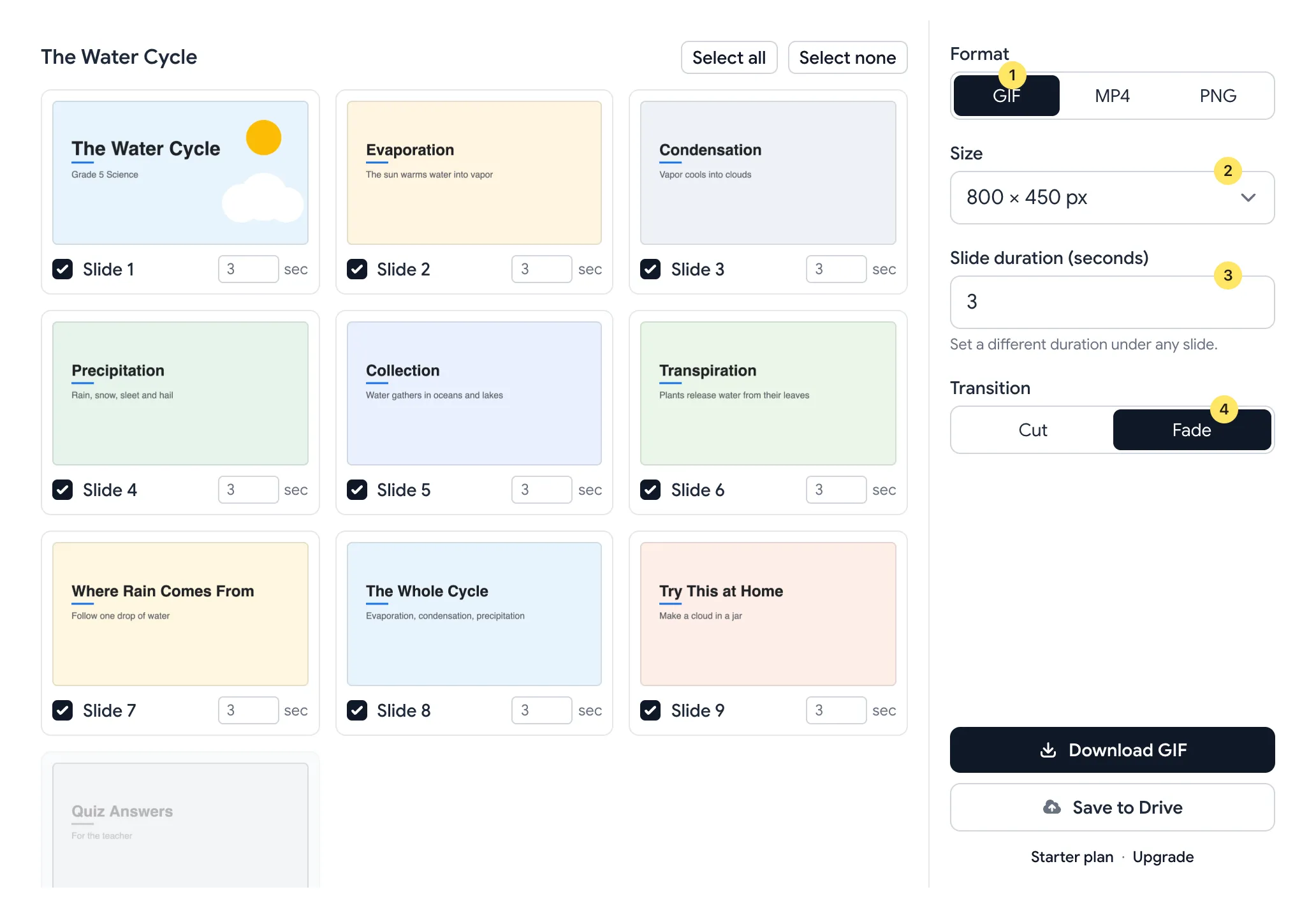
Format, Size, Slide duration and Transition set for a GIF. -
Click Download GIF.
On the Free plan, GIFs are 480 pixels wide and every slide shows for 2 seconds. Starter adds 800 pixels, your own durations and Fade. Pro adds 1,280 and 1,600 pixels. See Free, Starter and Pro Plans.
Make the GIF Smaller
Section titled “Make the GIF Smaller”Large GIFs load slowly, and many email and chat apps refuse them. When a GIF is larger than 10 MB, Creator Studio shows a message with its size.
- Choose a smaller width from the Size list.
- Uncheck slides the GIF doesn’t need. See Choose Slides and Set How Long Each Shows.
- Choose Cut instead of Fade. Each fade adds extra frames to the GIF.
- Use slides with flat colors. Photos and gradients make a GIF much larger than text and shapes do.
Things to Know
Section titled “Things to Know”- The GIF loops forever. You can’t set it to play once.
- The file is named after the presentation, such as
The Water Cycle.gif. - Animations, transitions and videos inside your slides don’t appear in the GIF. Creator Studio uses a still image of each slide.