
How to Embed a Form on another Website
The File Upload Forms are hosted on Google servers but you can easily embed them anywhere. You can embed the form on your own website, WordPress blog or a web builder tool like Google Sites, Wix or Squarespace.
The embed code is available as an IFRAME tag and thus works on any website that allows embedding. You can use a website like codepen.io or jsbin.com to test the embedded IFRAME code.
Embed Forms
Section titled “Embed Forms”To embed your form, open the sidebar inside Google Sheet and expand the Share & Embed section. Copy the HTML embed code and paste it your website template.
<style> .forms-studio { position: relative; padding-bottom: 56.25%; overflow: hidden; width: 100%; height: 600px; } .forms-studio iframe { position: absolute; top: 0; left: 0; width: 100%; height: 100%; border: 0; }</style><div class="forms-studio"> <iframe src="https://script.google.com/macros/s/xyz/exec"></iframe></div>The embed code includes responsive styling and thus the form will automatically resize based on the screen size of the visitor who is filling the form.
Embed in Squarespace
Section titled “Embed in Squarespace”Go to the Squarespace builder and choose the page where you wish to embed the form. Edit the page (or post), click an insert point and select Code from the menu.
Paste the embed HTML code in the text field. Click Apply to save your changes.
Embed in Google Sites
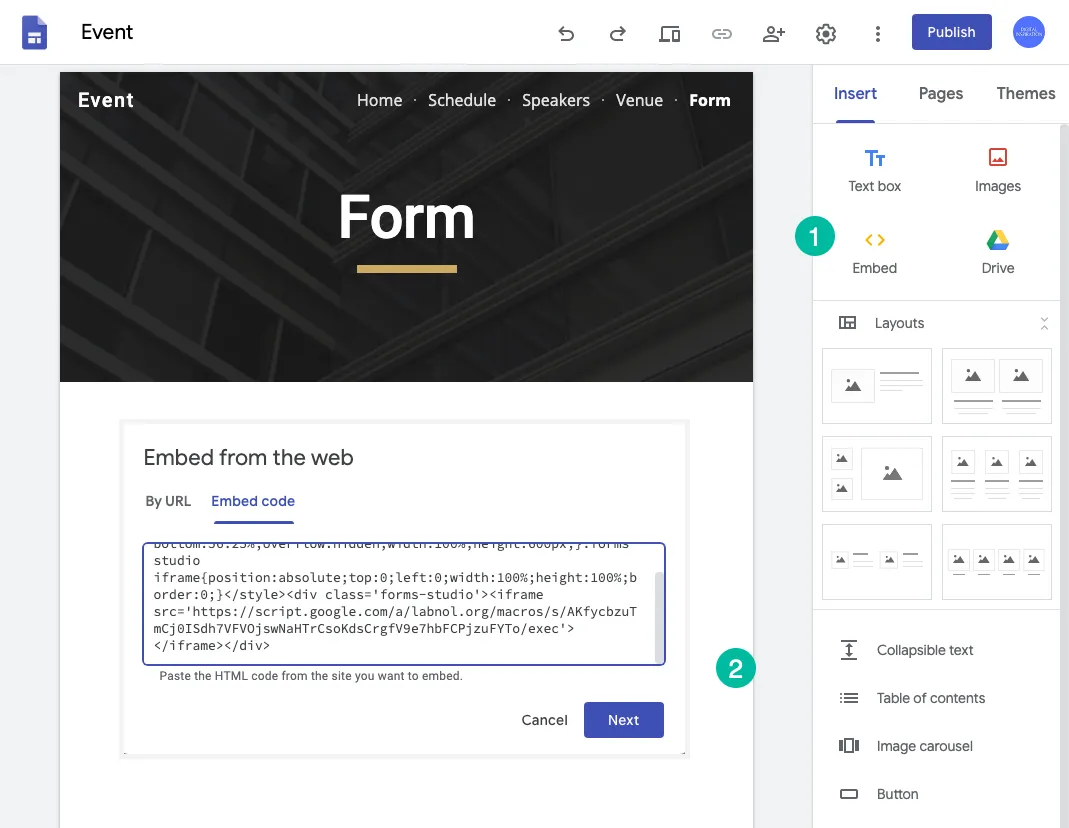
Section titled “Embed in Google Sites”Open your Google Sites and switch to the page where you would like to embed the form. Click the Embed button in the Insert section and switch to the Embed Code window.
Copy-paste the HTML IFRAME code in the window, click Next and then choose Insert to add the form to the site’s page. Drag the boundaries around the embedded form to resize it.
Here’s demo form embedded on another website. Your audience will be able to fill out the form directly on your website without having to click another link.