How to Send Email Notifications on Form Submit
With File Upload Forms, you can easily setup email notifications and get instant emails whenever someone submits your web form. The emails are sent in HTML format via the Gmail service connected to your Google account.
Setup Email Notifications
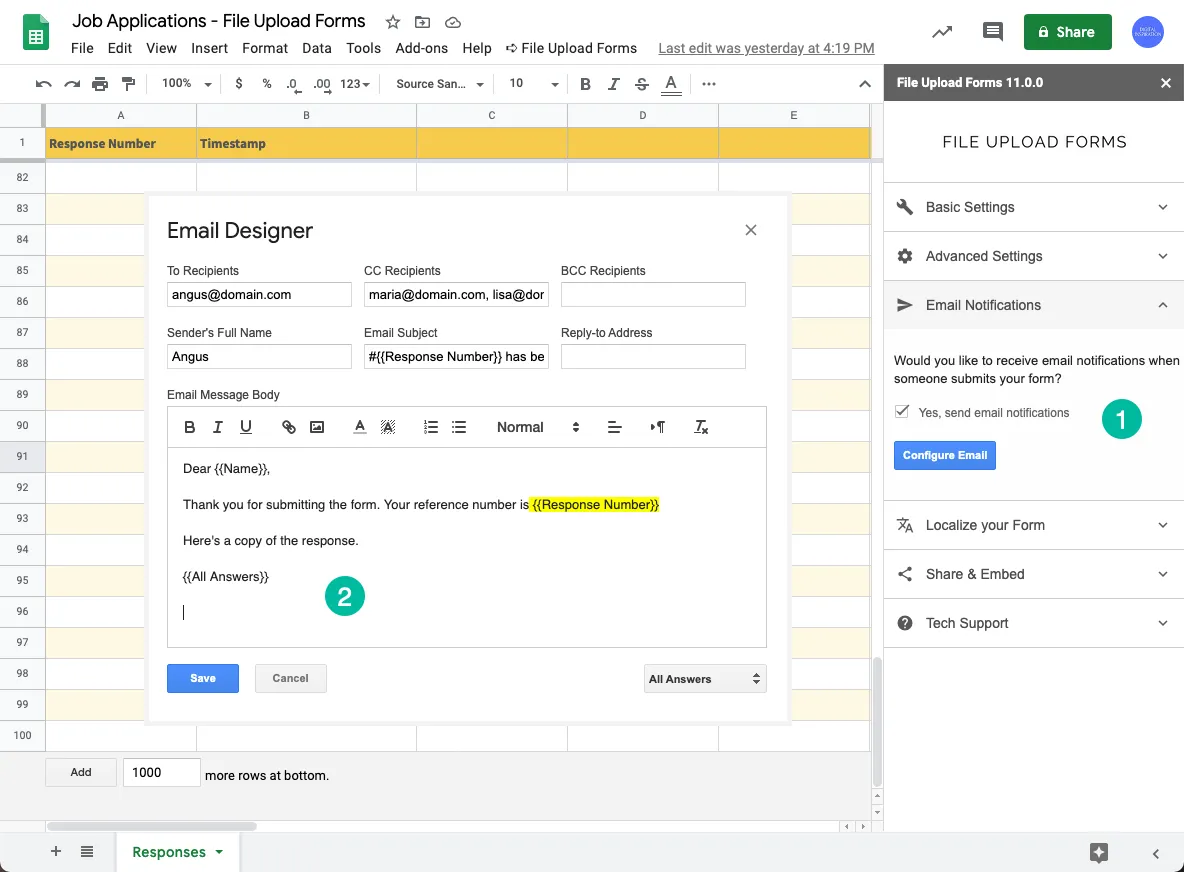
Section titled “Setup Email Notifications”Open the sidebar inside Google Sheet and expand the Email Notifications section. Check the setting that says - “Yes, send email notification”. This would open the email template designer in a new window.
Multiple Recipients
Section titled “Multiple Recipients”You can specify email addresses of the recipients in the To, CC and BCC fields of the email template. If you wish to use multiple email addresses, use commas to separate the addresses.
Edit Email Template
Section titled “Edit Email Template”The subject and message body of the email notification can be customized to include dynamic form fields.
Subject
Section titled “Subject”Wrap the question fields inside double curly braces to include any form answer in the subject link. In addition, you can use a special variable {{Response Number}} to add the row number of the response in the Google Sheet.
Message Body
Section titled “Message Body”The email body can be customized with dynamic form fields, the text can be formatted using HTML styles and images can be included in the body.
The message body also supports a special variable {{All Answers}} that will include a copy of all the form answers in a nice tabular format.
Logo and Images
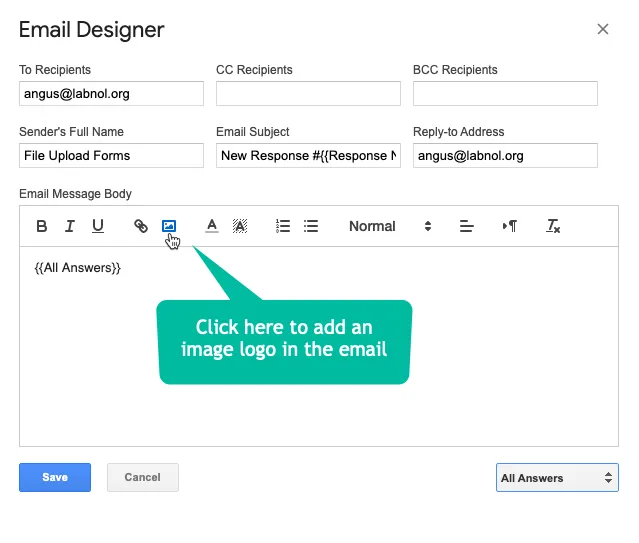
Section titled “Logo and Images”To include any image in your email template, click the Image icon in the toolbar, select an image from your desktop and it will be included in your form emails.