Authorize Google Script (Legacy Apps Script Editor)
If you are using the old version of Apps Script editor, please follow these step to authorize the form script.
- Inside the Google Sheet, go to the Tools menu and choose Script Editor.
-
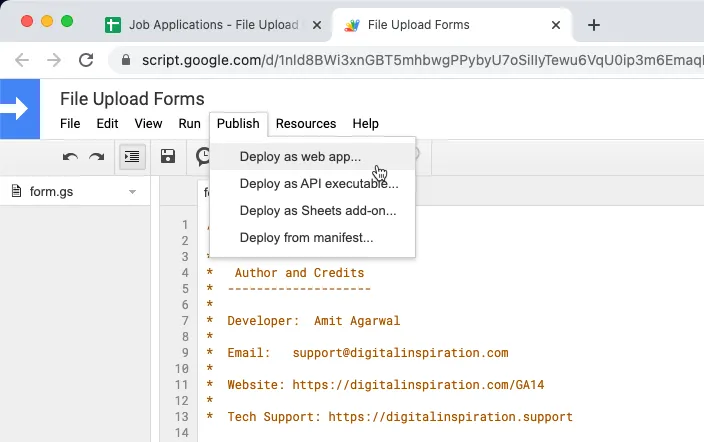
Inside the Google script editor, go to the Publish Menu and choose Deploy as Web App
-
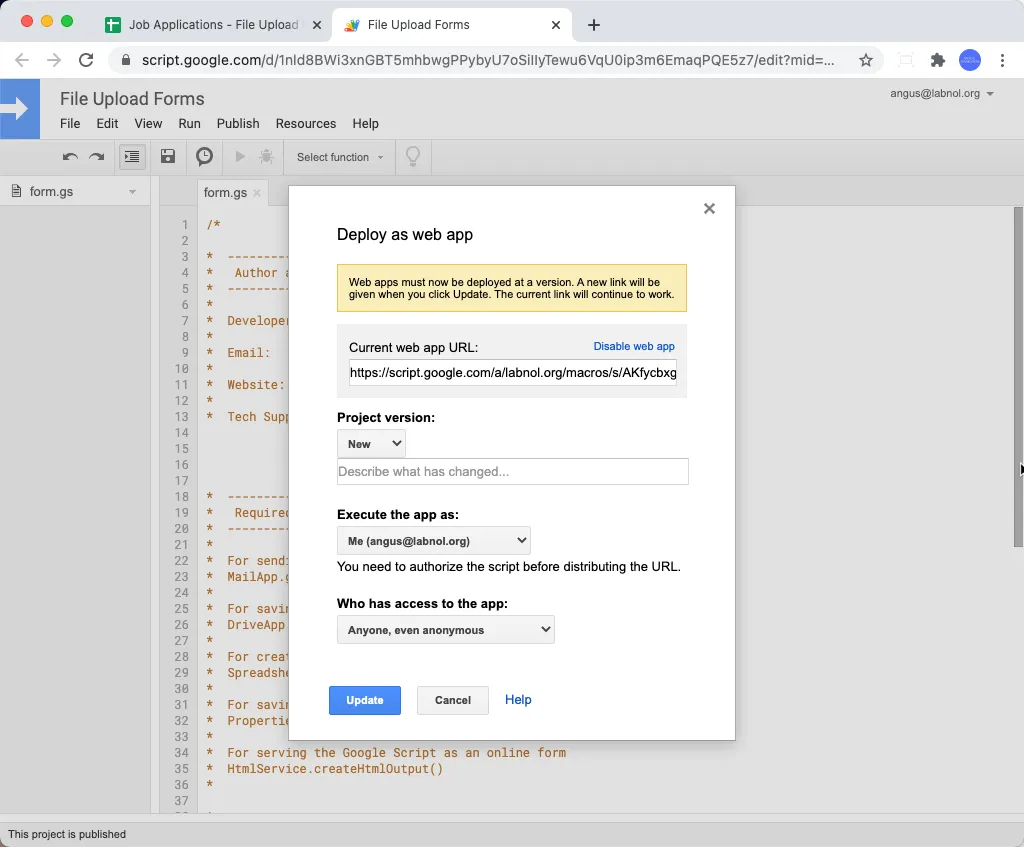
You’ll get a pop-up window. Use the default settings.
- Choose New for Project version and give it any description
- Choose
meunder the Execute the App as section - Choose
anyone, even anonymousunder the Who has access to the app section. - Click “Update” to apply your changes.
-
You’ll see another prompt saying “Authorization Required” - click on the “Review permissions” button to continue.
-
Choose your Google account from the list of available Google accounts and then click
Allowon the authorization screen that saysFile Upload Forms wants to access your Google Account.
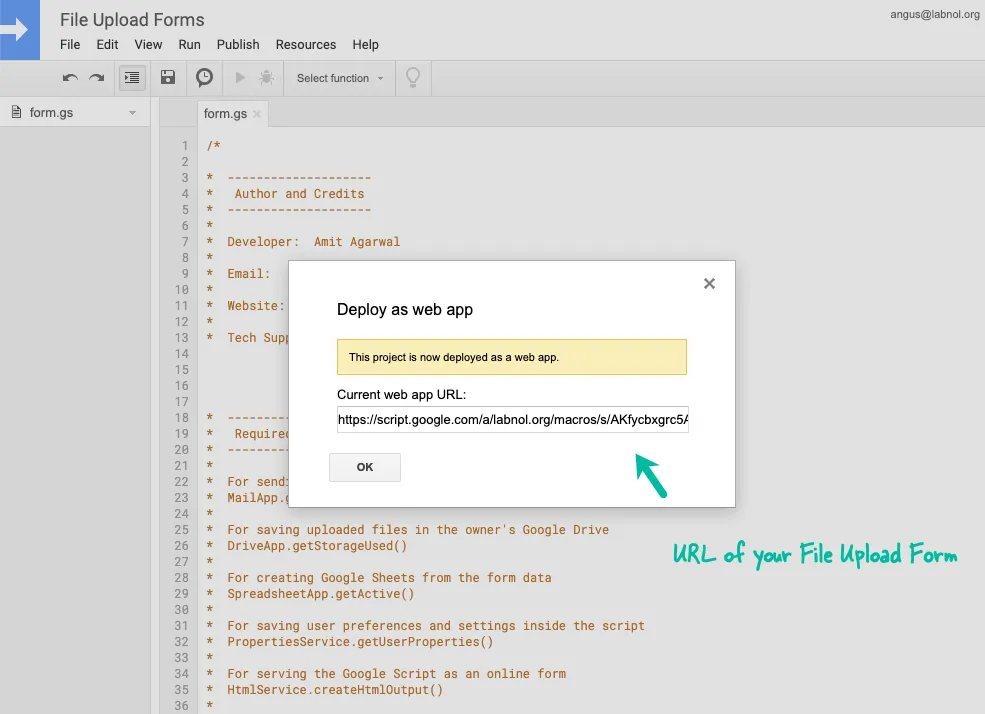
Copy the Form URL
Section titled “Copy the Form URL”Google Script editor will now provide you the web link (URL) of your File Upload Form. Copy it to the clipboard as we’ll need it in a later step.